<?xml version="1.0" encoding="utf-8"?><feed xmlns="http://www.w3.org/2005/Atom" ><generator uri="https://jekyllrb.com/" version="3.10.0">Jekyll</generator><link href="https://victor-nyagudi.github.io/height-above-sea-level/atom.xml" rel="self" type="application/atom+xml" /><link href="https://victor-nyagudi.github.io/height-above-sea-level/" rel="alternate" type="text/html" /><updated>2026-08-17T05:10:02+00:00</updated><id>https://victor-nyagudi.github.io/height-above-sea-level/atom.xml</id><title type="html">Height Above Sea Level</title><subtitle>Game development using Unity and C#.</subtitle><author><name>Victor Nyagudi</name></author><entry><title type="html">Baking Lights in Unity: Everything You Need to Know to Get Started</title><link href="https://victor-nyagudi.github.io/height-above-sea-level/unity/baking-lights-in-unity-getting-started/" rel="alternate" type="text/html" title="Baking Lights in Unity: Everything You Need to Know to Get Started" /><published>2025-11-01T00:00:00+00:00</published><updated>2025-11-01T00:00:00+00:00</updated><id>https://victor-nyagudi.github.io/height-above-sea-level/unity/baking-lights-in-unity-getting-started</id><content type="html" xml:base="https://victor-nyagudi.github.io/height-above-sea-level/unity/baking-lights-in-unity-getting-started/"><![CDATA[<p>Different lights in a scene can create a varying atmosphere. Brighter light during the day is often associated with a calmer or upbeat atmosphere, such as you’d expect when going for a picnic.</p>

<p>Dim lights at night create a gloomier, scarier atmosphere. These scenarios can be accomplished using the correct lights in the <a href="https://youtu.be/kOo1CaDdCF0?si=m_SoO0x0rxHZoHEL">Unity Game Engine</a>, and an important concept when using Unity lights is baking.</p>

<div id="entry-table-of-contents" class="toc-wrapper">
  <h2 id="toc-toggle" class="no_toc">
  Table of Contents <i class="toc-toggle-icon fas fa-chevron-down"></i>
</h2>
<ol id="markdown-toc">
  <li><a href="#what-does-baking-lights-in-unity-mean" id="markdown-toc-what-does-baking-lights-in-unity-mean">What does baking lights in Unity mean?</a></li>
  <li><a href="#what-are-lightmaps-in-unity-used-for" id="markdown-toc-what-are-lightmaps-in-unity-used-for">What are lightmaps in Unity used for?</a></li>
  <li><a href="#why-you-should-bake-lights" id="markdown-toc-why-you-should-bake-lights">Why You Should Bake Lights</a>    <ol>
      <li><a href="#accurate-lighting" id="markdown-toc-accurate-lighting">Accurate Lighting</a></li>
      <li><a href="#performance-gains" id="markdown-toc-performance-gains">Performance Gains</a></li>
      <li><a href="#flexibility" id="markdown-toc-flexibility">Flexibility</a></li>
    </ol>
  </li>
  <li><a href="#does-baking-lights-affect-reflections-in-unity" id="markdown-toc-does-baking-lights-affect-reflections-in-unity">Does baking lights affect reflections in Unity?</a></li>
  <li><a href="#indirect-lighting-and-dynamic-objects-in-unity" id="markdown-toc-indirect-lighting-and-dynamic-objects-in-unity">Indirect Lighting and Dynamic Objects in Unity</a></li>
  <li><a href="#cons-of-baking-light-in-unity" id="markdown-toc-cons-of-baking-light-in-unity">Cons of Baking Light in Unity</a>    <ol>
      <li><a href="#long-bake-times" id="markdown-toc-long-bake-times">Long Bake Times</a></li>
      <li><a href="#noisy-lightmaps" id="markdown-toc-noisy-lightmaps">Noisy Lightmaps</a></li>
      <li><a href="#inaccurate-shadows" id="markdown-toc-inaccurate-shadows">Inaccurate Shadows</a></li>
    </ol>
  </li>
  <li><a href="#in-closing" id="markdown-toc-in-closing">In Closing</a></li>
</ol>

</div>

<h2 id="what-does-baking-lights-in-unity-mean">What does baking lights in Unity mean?</h2>

<p>Lights in video games involve computer calculations to simulate their behavior in the real world.</p>

<p>These calculations take more time as the number of lights in your Unity game increases, and too many lights can significantly increase the calculations, negatively impacting the game’s performance.</p>

<p>Since most objects in a game don’t move throughout the level, these lighting calculations can be completed ahead of time and stored, freeing up computer resources to handle other tasks, such as animations and visual effects.</p>

<p><strong>The process of calculating lighting data before the game runs</strong> is called baking lights, and the precomputed lighting data is stored in a special texture called a <strong>lightmap</strong>.</p>

<h2 id="what-are-lightmaps-in-unity-used-for">What are lightmaps in Unity used for?</h2>

<p>Consider this scenario. Look at the environment around you. Chances are, you’re in a room with a chair on which you sit, and a table where you’ve placed your computer.</p>

<p>Maybe there’s a cup of coffee nearby and some books. The room has some light coming from somewhere, illuminating a significant part of it.</p>

<p>If the time of day never changed, and the room’s light remained constant, the lighting in the room would be the same forever.</p>

<p>The bright parts would be bright, the semi-bright parts would remain semi-bright, and the dark parts would remain dark.</p>

<p>Now, pretend for a moment there’s a dark room next to the one you’re in that has the same things but is completely black.</p>

<p>If you could strip away the surface of every object in the lit room, along with its current brightness, and then place it on the matching object in the dark room, the two rooms would end up looking the same.</p>

<p>That’s what happens when you bake lights in the Unity Game Engine.</p>

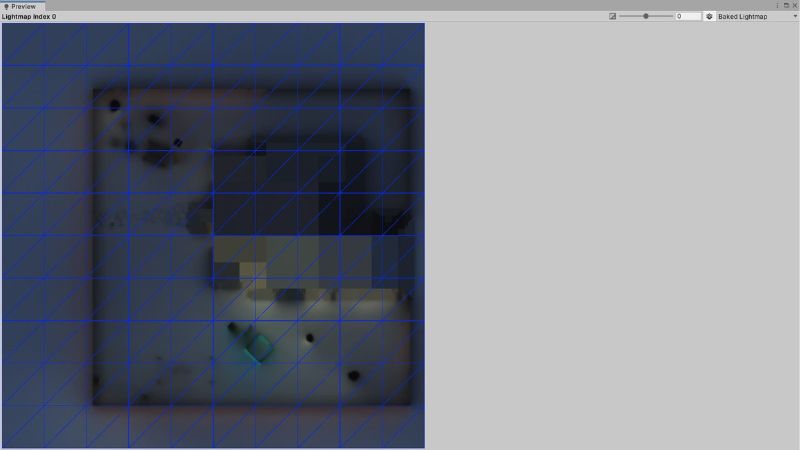
<p>Unity “turns on the lights” in your level to see what it would look like when lit up, places a large, digital, plastic sheet over all the static objects in a scene (like the plastic that fits snuggly around wrapped food), stores the lighting data in that sheet, peels off the sheet, “turns off the lights”, and places the sheet back exactly the same way in the dark level, making it look like it’s lit up but without worrying about the lights being on.</p>

<figure class="align-center">
  <img src="https://victor-nyagudi.github.io/height-above-sea-level/assets/images/baking_lights_get_started_article/backyard_lightmap_img.jpg" alt="The lightmap of the backyard in the thumbnail image, as seen from above." />
  <figcaption>The lightmap of the backyard in the thumbnail image, as seen from above.</figcaption>
</figure>

<p>The lightmap (digital plastic sheet) stores the lighting data when baking lights and is placed over the objects in your game’s scene, making them look like they’re illuminated.</p>

<p class="notice--info"><strong><em>Tip:</em></strong> Even if you remove the light source after baking lights, the scene will still appear lit because of the precomputed light data. You can clear the baked data to restore the scene’s initial appearance.</p>

<p>Unity lights have three light modes:</p>

<ul>
  <li>
    <p>Realtime</p>
  </li>
  <li>
    <p>Mixed</p>
  </li>
  <li>
    <p>Baked</p>
  </li>
</ul>

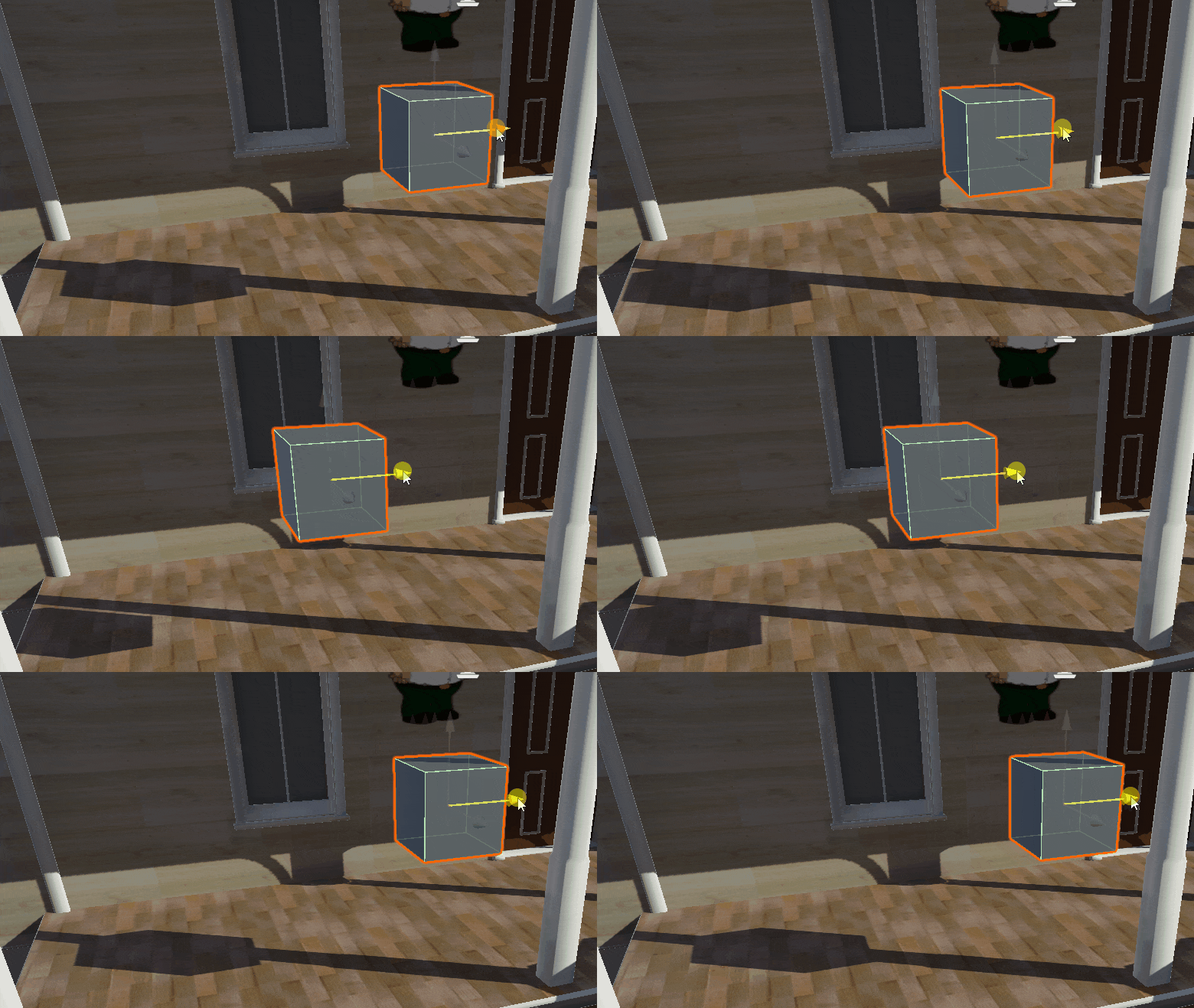
<p><strong>Realtime lights</strong> are lights whose calculations are done when the game is running. These lights cast dynamic shadows for moving objects in your game.</p>

<figure class="align-center">
  <img src="https://victor-nyagudi.github.io/height-above-sea-level/assets/images/baking_lights_get_started_article/realtime_light_dynamic_shadow.gif" alt="A grey cube with a dynamic shadow moving back and forth in Unity." />
  <figcaption>The cube's shadow moves when it moves.</figcaption>
</figure>

<p>Realtime lights only work with direct lighting, i.e., light coming from the source and landing on an object directly.</p>

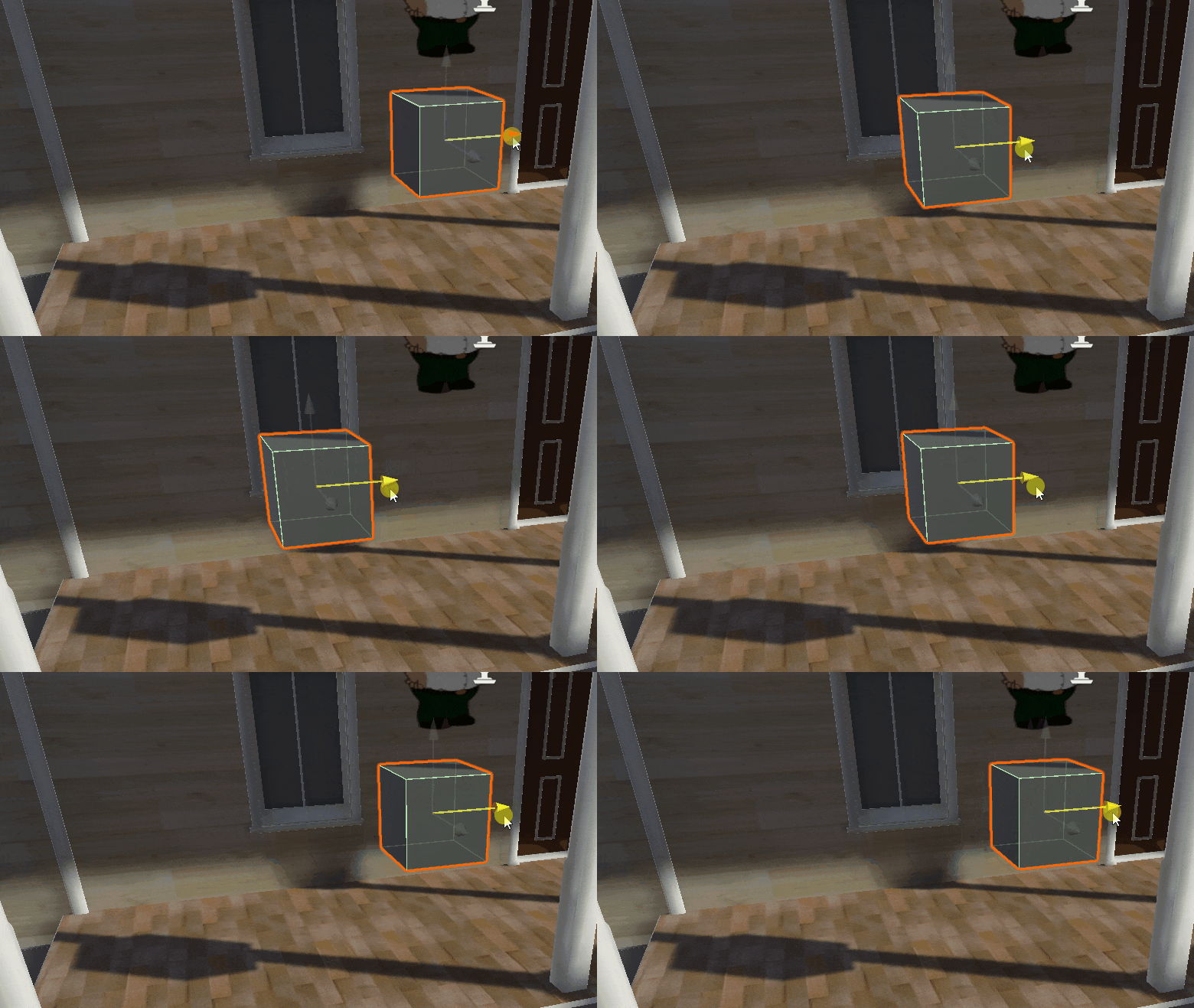
<p><strong>Baked lights</strong> are lights whose calculations are done before the game runs, and the light data is stored in a lightmap. These lights don’t cast dynamic shadows without some additional tools.</p>

<figure class="align-center">
  <img src="https://victor-nyagudi.github.io/height-above-sea-level/assets/images/baking_lights_get_started_article/baked_light_static_shadow.gif" alt="A grey cube with a static shadow moving back and forth in Unity." />
  <figcaption>The cube's shadow doesn't move when using baked lights.</figcaption>
</figure>

<p>Baked lights work with direct and indirect lighting. Indirect lighting is light that bounces off a surface and then lands on an object.</p>

<p><strong>Mixed lights</strong> blend the properties of baked and realtime lights. They work with direct lighting when the game is running and baked indirect lighting, which is precomputed.</p>

<p>Mixed lights also cast dynamic shadows on moving objects.</p>

<p class="notice--info"><strong><em>Tip:</em></strong> Unity uses a group of techniques called <strong>global illumination</strong> to achieve realistic lighting results.</p>

<table>
  <thead>
    <tr>
      <th>Realtime Lights</th>
      <th>Baked Lights</th>
      <th>Mixed Lights</th>
    </tr>
  </thead>
  <tbody>
    <tr>
      <td>Calculations done <strong>as game runs</strong>.</td>
      <td>Calculations done <strong>before</strong> game runs.</td>
      <td>Calculations can be done <strong>as game runs or before</strong>.</td>
    </tr>
    <tr>
      <td>Dynamic shadows.</td>
      <td>Static shadows.</td>
      <td>Dynamic shadows.</td>
    </tr>
    <tr>
      <td>Direct lights only.</td>
      <td>Direct &amp; indirect lights.</td>
      <td>Direct &amp; indirect lights.</td>
    </tr>
    <tr>
      <td>Highest performance impact.</td>
      <td>More performant.</td>
      <td>Variable performance impact.</td>
    </tr>
  </tbody>
</table>

<p>Which light you choose will depend on your goals. Do you have many moving objects that need light? Realtime or mixed lights are a good choice. The same applies to a moving light source, such as a flashlight.</p>

<p>Is most of the scene static? Baked lights will save you some performance.</p>

<h2 id="why-you-should-bake-lights">Why You Should Bake Lights</h2>

<p>Regardless of which light mode you choose, it’s still worth baking lights for a couple of reasons.</p>

<h3 id="accurate-lighting">Accurate Lighting</h3>

<p>Even though realtime lights simulate how light works in the real world better than baked lights, by <a href="https://docs.unity3d.com/6000.5/Documentation/Manual/realtime-gi-using-enlighten.html#:~:text=By,Scene%2E">default</a>, they only work with direct light.</p>

<p>Light bounces in many different ways and indirectly lights up objects, and this behavior can be achieved by baking lights in the Unity Game Engine.</p>

<h3 id="performance-gains">Performance Gains</h3>

<p>Baking lights saves you precious resources that can be used to enhance your game even further compared to doing the light calculations when the game is running.</p>

<h3 id="flexibility">Flexibility</h3>

<p>You can adjust the lighting settings in the <em>Lighting</em> window to bake lights at different resolutions and complexity.</p>

<p>This flexibility lets you make the necessary adjustments to ensure your game runs at a steady frame rate and maintains optimal performance, even under stress.</p>

<p class="notice--primary"><strong>Interested in making games in Unity?</strong> <a href="https://www.patreon.com/cw/heightabovesealevel">Become a patron</a> on Patreon and gain access to cheat sheets, behind-the-scenes content, advanced scripting videos, and more.</p>

<h2 id="does-baking-lights-affect-reflections-in-unity">Does baking lights affect reflections in Unity?</h2>

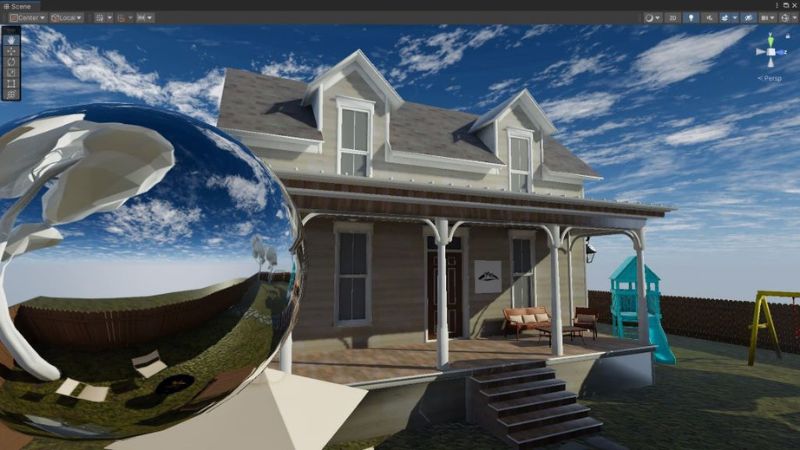
<p>Reflections occur when light bounces off a smooth surface. Reflections in Unity are obtained by placing reflection probes in different areas of your scene.</p>

<figure class="align-center">
  <img src="https://victor-nyagudi.github.io/height-above-sea-level/assets/images/baking_lights_get_started_article/reflection_probe_img.jpg" alt="A large reflection probe in front of a house in Unity." />
  <figcaption>The large sphere to the left is a reflection probe.</figcaption>
</figure>

<p>Reflection probes take snapshots of the environment in an area you define and store them in a cubemap.</p>

<p>A <strong>cubemap</strong> is like a hollow box surrounding the reflection probe, and the inside walls of the cubemap are where the snapshots are stored.</p>

<p>The area a reflection probe covers can be adjusted for the best results in your game. When a reflective object moves in that area, the probe looks through the snapshots it took and applies the correct one to the object’s surface as a reflection.</p>

<p>There are three types of reflection probes in Unity:</p>

<ul>
  <li>
    <p>Realtime</p>
  </li>
  <li>
    <p>Baked</p>
  </li>
  <li>
    <p>Custom</p>
  </li>
</ul>

<p><strong>Realtime reflection probes</strong> update reflections for dynamic objects in your game’s scene, such as the player. The result is more realistic reflections, but it also has a bigger performance impact.</p>

<p><strong>Baked reflection probes</strong> are baked together with lights and work with static objects. Moving objects in the scene won’t update reflections on shiny surfaces if you use baked reflection probes.</p>

<p><strong>Custom reflection probes</strong> let you use a custom cubemap for reflections.</p>

<table>
  <thead>
    <tr>
      <th>Realtime Reflection Probe</th>
      <th>Baked Reflection Probe</th>
    </tr>
  </thead>
  <tbody>
    <tr>
      <td>Dynamic reflections.</td>
      <td>Static reflections.</td>
    </tr>
    <tr>
      <td>Higher performance impact.</td>
      <td>More performant.</td>
    </tr>
    <tr>
      <td>Best for moving objects.</td>
      <td>Best for static objects.</td>
    </tr>
  </tbody>
</table>

<p>You can use baked reflection probes and baked lights to precompute all the lighting data in your game’s scene for realistic lighting and reflections while saving on performance.</p>

<p>This can be useful for low-end devices, such as mobile phones, VR headsets, or low-end computers.</p>

<p class="notice--info"><strong><em>Tip:</em></strong> Even though a mirror has reflections, adding one to a game often requires more work than placing reflection probes in a scene.</p>

<p>A hybrid approach of baked lights and some realtime reflection probes can also work. It all depends on your game’s needs.</p>

<p>The single source of truth will always be the game’s performance when you test it using Unity’s profiler.</p>

<h2 id="indirect-lighting-and-dynamic-objects-in-unity">Indirect Lighting and Dynamic Objects in Unity</h2>

<p>You can use <strong>light probes</strong> in your game to leverage the performance gains of baked lights in addition to more realistic bounced light on dynamic objects.</p>

<p>Light probes store light information <strong>as it passes through empty spaces</strong>, while lightmaps store light information <strong>when it hits an object’s surface</strong>.</p>

<p>If you have a dynamic object in the scene, such as a vehicle, you can place light probes in empty areas to store the bounced light information from static objects.</p>

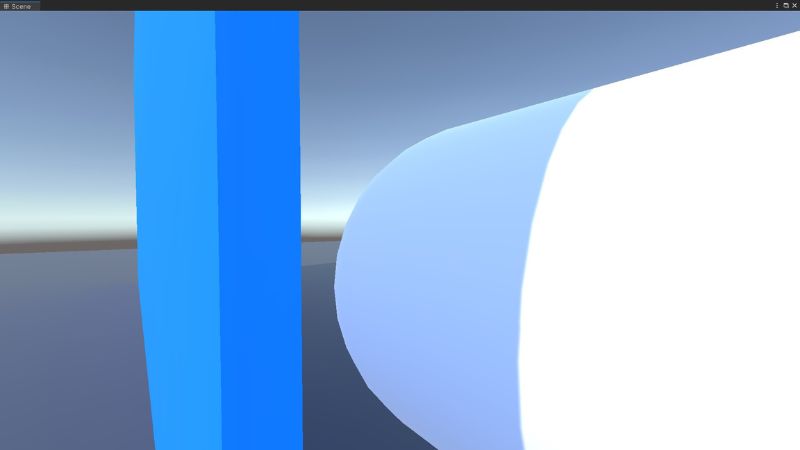
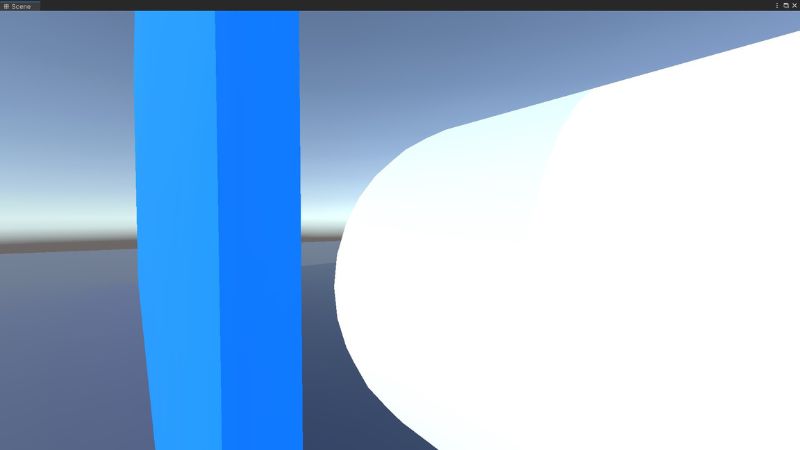
<p>For example, if the car is driving past a blue building, the shadow cast on it from a realtime or mixed light should be slightly blue because of the bounced light.</p>

<figure class="align-center">
  <img src="https://victor-nyagudi.github.io/height-above-sea-level/assets/images/baking_lights_get_started_article/shadow_w_light_probe_img.jpg" alt="A white capsule beside a blue wall in Unity." />
  <figcaption>Shadow with light probes.</figcaption>
</figure>

<p>Without light probes, the shadow will still be dark, but with light probes, the indirect light is calculated correctly, and the shadow cast is slightly blue.</p>

<figure class="align-center">
  <img src="https://victor-nyagudi.github.io/height-above-sea-level/assets/images/baking_lights_get_started_article/shadow_no_light_probe_img.jpg" alt="A white capsule beside a blue wall in Unity." />
  <figcaption>Shadow without light probes.</figcaption>
</figure>

<h2 id="cons-of-baking-light-in-unity">Cons of Baking Light in Unity</h2>

<p>Even though baking lights saves you performance when the game is running, there are still costs associated with it.</p>

<h3 id="long-bake-times">Long Bake Times</h3>

<p>Lights in the Unity Game Engine can be baked at varying degrees of accuracy. The more accurate the light, the longer it’ll take to bake.</p>

<p><a href="/height-above-sea-level/unity/tips-to-speed-up-light-baking-in-unity/">Long bake times</a> are a common challenge for many game developers, but there are settings you can adjust to improve them.</p>

<p>Some of the settings you can change in the <em>Lighting</em> window include the number of times light bounces when it hits a surface, the number of light samples to use when generating lightmaps, or the size of the lightmap.</p>

<p>Larger, higher-resolution lightmaps for lights that bounce many times will take longer to bake than smaller, lower-resolution ones for lights that bounce a few times.</p>

<h3 id="noisy-lightmaps">Noisy Lightmaps</h3>

<p>Some lightmaps can produce noisy results due to the lighting settings or geometry in your game.</p>

<p>A lightmap is noisy when it produces smudges and other strange shapes or discolorations on the surface of objects.</p>

<p>This <em>Unity Lights Troubleshooting Guide</em> can help you find the problem and provides potential solutions.</p>

<h3 id="inaccurate-shadows">Inaccurate Shadows</h3>

<p>Realtime lights and mixed lights cast sharper, crisper shadows compared to baked lights.</p>

<p>Baked lights may save some performance beforehand, but they sometimes produce softer shadows that aren’t always convincing.</p>

<figure class="align-center">
  <img src="https://victor-nyagudi.github.io/height-above-sea-level/assets/images/baking_lights_get_started_article/baked_light_static_shadow.gif" alt="A grey cube with a static shadow moving back and forth in Unity." />
  <figcaption>The pole's shadow below the window is smudged.</figcaption>
</figure>

<table>
  <thead>
    <tr>
      <th>Baked Light Pros</th>
      <th>Baked Light Cons</th>
    </tr>
  </thead>
  <tbody>
    <tr>
      <td>Accurate lighting.</td>
      <td>Inaccurate shadows.</td>
    </tr>
    <tr>
      <td>Performance gains.</td>
      <td>Long bake times.</td>
    </tr>
    <tr>
      <td>Flexibility in adjusting settings.</td>
      <td>Noisy lightmaps.</td>
    </tr>
  </tbody>
</table>

<h2 id="in-closing">In Closing</h2>

<p>Now that you have a better understanding of baking lights and what it can do for your game, you’re ready to learn <a href="/height-above-sea-level/unity/how-to-bake-lights-in-unity-guide/">how to bake lights in the Unity Game Engine</a>.</p>]]></content><author><name>Victor Nyagudi</name></author><category term="Unity" /><category term="lighting" /><summary type="html"><![CDATA[Different lights in a scene can create a varying atmosphere. These scenarios can be accomplished using the correct lights in the Unity Game Engine, and an important concept when using Unity lights is baking.]]></summary><media:thumbnail xmlns:media="http://search.yahoo.com/mrss/" url="https://victor-nyagudi.github.io/height-above-sea-level/assets/images/baking_lights_get_started_article/baking_lights_getting_started_thumbnail.jpg" /><media:content medium="image" url="https://victor-nyagudi.github.io/height-above-sea-level/assets/images/baking_lights_get_started_article/baking_lights_getting_started_thumbnail.jpg" xmlns:media="http://search.yahoo.com/mrss/" /></entry><entry><title type="html">How to Bake Lights in Unity: A Step-by-Step Guide</title><link href="https://victor-nyagudi.github.io/height-above-sea-level/unity/how-to-bake-lights-in-unity-guide/" rel="alternate" type="text/html" title="How to Bake Lights in Unity: A Step-by-Step Guide" /><published>2025-11-01T00:00:00+00:00</published><updated>2025-11-01T00:00:00+00:00</updated><id>https://victor-nyagudi.github.io/height-above-sea-level/unity/how-to-bake-lights-in-unity-guide</id><content type="html" xml:base="https://victor-nyagudi.github.io/height-above-sea-level/unity/how-to-bake-lights-in-unity-guide/"><![CDATA[<p>Baked lights in Unity offer better performance than realtime lights because all the lighting computations happen before the game runs.</p>

<p>They add realism to your game by simulating bounced light and how it lights up different areas in the scene.</p>

<p>Coupled with reflection probes and light probes, you can achieve realistic lighting at a fraction of the cost.</p>

<p>This guide walks you through all the things you need to do before <a href="/height-above-sea-level/unity/baking-lights-in-unity-getting-started/">baking lights in the Unity Game Engine</a> and provides additional useful information to achieve your desired lighting setup.</p>

<p>If you’re reading this article on a smaller device, right-click on the images (long-press on touch devices) and select <em>Open image in new tab</em> to view them at full size.</p>

<div id="entry-table-of-contents" class="toc-wrapper">
  <h2 id="toc-toggle" class="no_toc">
  Table of Contents <i class="toc-toggle-icon fas fa-chevron-down"></i>
</h2>
<ol id="markdown-toc">
  <li><a href="#set-up-process" id="markdown-toc-set-up-process">Set Up Process</a></li>
  <li><a href="#types-of-light-in-unity" id="markdown-toc-types-of-light-in-unity">Types of Light in Unity</a>    <ol>
      <li><a href="#directional-light" id="markdown-toc-directional-light">Directional Light</a></li>
      <li><a href="#point-light" id="markdown-toc-point-light">Point Light</a></li>
      <li><a href="#spot-light" id="markdown-toc-spot-light">Spot Light</a></li>
      <li><a href="#area-light" id="markdown-toc-area-light">Area Light</a></li>
    </ol>
  </li>
  <li><a href="#adding-lights-in-unity" id="markdown-toc-adding-lights-in-unity">Adding Lights in Unity</a></li>
  <li><a href="#baking-lights-in-unity" id="markdown-toc-baking-lights-in-unity">Baking Lights in Unity</a></li>
  <li><a href="#in-closing" id="markdown-toc-in-closing">In Closing</a></li>
</ol>

</div>

<h2 id="set-up-process">Set Up Process</h2>

<p>If you’re new to Unity and don’t know the basics, such as the <em>Hierarchy</em> window, <em>Inspector</em> window, or how to work with assets, watch this <a href="https://youtu.be/kOo1CaDdCF0?si=m_SoO0x0rxHZoHEL">introductory video</a> to get up to speed.</p>

<p>The first step in preparing your models for light baking is to <strong>ensure they can generate lightmap UVs</strong>.</p>

<p>Remember that <strong>baked lights work best with static objects</strong> in your scene, such as the walls in a house, immovable furniture, or props the player can see but can’t interact with.</p>

<p>If you imported the 3D model from the Unity Asset Store, it will likely be inside a folder named <em>Models</em>, <em>Meshes</em>, <em>FBX</em>, or something similar. If you dragged it into Unity from your computer, it’ll show up as is.</p>

<p>Remember that 3D models end in <code class="language-plaintext highlighter-rouge">.fbx</code>, so don’t confuse them with other similar-looking files, such as prefabs that end in <code class="language-plaintext highlighter-rouge">.prefab</code> or materials, which end with <code class="language-plaintext highlighter-rouge">.mat</code>.</p>

<p>Once the 3D model has been imported using Unity’s <em>Package Manager</em> window or dragged and dropped into the <em>Project</em> window from your computer, click it and observe the <em>Inspector</em> window.</p>

<p class="notice--info"><strong><em>Tip:</em></strong> If you can’t find a window, click on the <em>Window</em> option in the navbar at the top of the screen and check the dropdowns.</p>

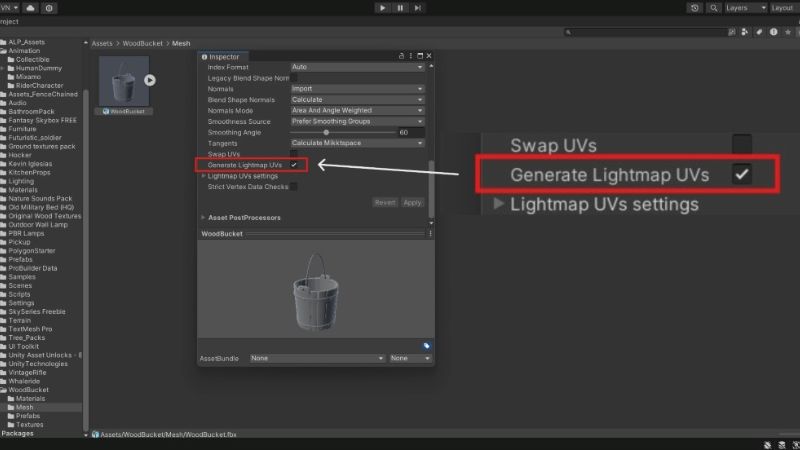
<p>Click the <em>Model</em> tab in the <em>Inspector</em> window and check the box next to <em>Generate Lightmap UVs</em>. Click <em>Apply</em> to apply the settings.</p>

<figure class="align-center">
  <img src="https://victor-nyagudi.github.io/height-above-sea-level/assets/images/how_to_bake_lights_article/generate_lightmap_uv_img.jpg" alt="The 'Generate Lightmap UVs' checkbox in Unity." />
  <figcaption>The <em>Generate Lightmap UVs</em> checkbox.</figcaption>
</figure>

<p>Checking this box <strong>ensures the 3D model will generate lightmap data</strong> when baking lights. Repeat this for the other static objects in the level you’re building.</p>

<p>Next, drag the 3D model into the <em>Scene</em> window, turning it into a <em>GameObject</em>.</p>

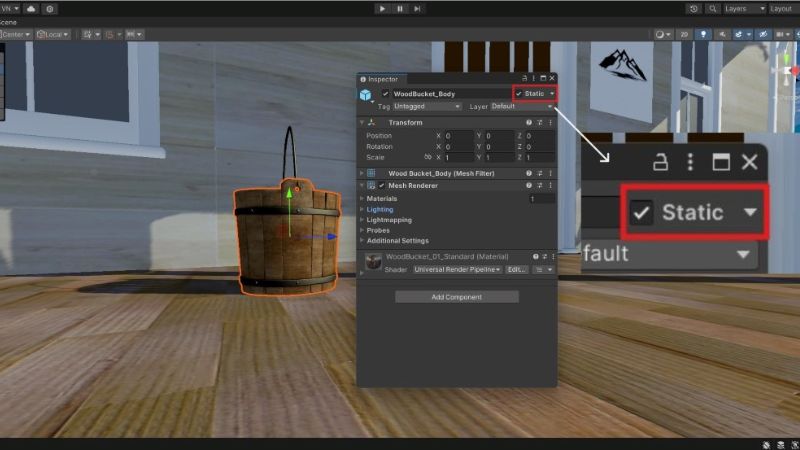
<p>Once the model is in the scene, the <em>Inspector</em> window will display new information related to GameObjects. Check the box at the top right beside <em>Static</em> to let Unity know the model won’t move at any point in the level.</p>

<figure class="align-center">
  <img src="https://victor-nyagudi.github.io/height-above-sea-level/assets/images/how_to_bake_lights_article/static_checkbox_img.jpg" alt="The 'Static' checkbox in Unity." />
  <figcaption>The <em>Static</em> checkbox.</figcaption>
</figure>

<p>If you modeled the GameObject using <em>ProBuilder</em>, it will likely have a <em>ProBuilder MeshFilter</em> component with a <em>Lightmap Static</em> checkbox that’ll be automatically checked when you check the <em>Static</em> checkbox.</p>

<p>The GameObject should have a <em>Mesh Renderer</em> component in the <em>Inspector</em>. Click it to unfold the dropdown, revealing other dropdowns.</p>

<p class="notice--info"><strong><em>Tip:</em></strong> If you don’t see this component, it might be on one of the GameObject’s children. You can check for children in the <em>Hierarchy</em> window.</p>

<p>The one you’re most interested in is the <em>Lighting</em> dropdown. Click it to reveal the lighting options.</p>

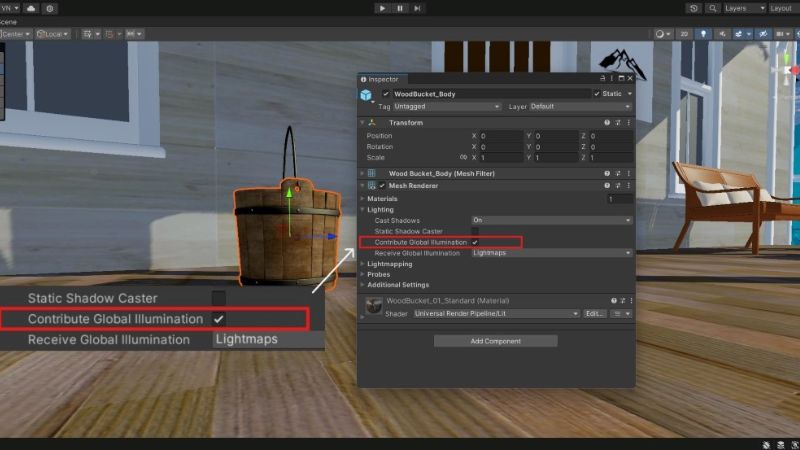
<p>Check the box next to <em>Contribute Global Illumination</em> so the GameObject influences lightmaps and light probes when baking lights.</p>

<figure class="align-center">
  <img src="https://victor-nyagudi.github.io/height-above-sea-level/assets/images/how_to_bake_lights_article/contribute_gi_checkbox_img.jpg" alt="The 'Contribute Global Illumination' checkbox in Unity." />
  <figcaption>The <em>Contribute Global Illumination</em> checkbox.</figcaption>
</figure>

<p class="notice--info"><strong><em>Tip:</em></strong> Checking <em>Contribute Global Illumination</em> without marking the GameObject as <em>Static</em> will automatically check the <em>Static</em> box.</p>

<p>Enabling global illumination will reveal another dropdown named <em>Lightmapping</em>. These settings inside it can be left as is, unless you want even finer control over the lightmapping process.</p>

<p>Leave the <em>Receive Global Illumination</em> dropdown at <em>Lightmaps</em> since the GameObject will be illuminated by the lighting data from the lightmap.</p>

<p>If you don’t want the GameObject to cast shadows or only want shadows from a particular direction, you can change the <em>Cast Shadows</em> option.</p>

<p>Repeat these steps with any new GameObjects you add to the scene as you’re designing your level.</p>

<h2 id="types-of-light-in-unity">Types of Light in Unity</h2>

<p>There are different light types in the Unity Game Engine, so the one you choose will depend on how you want the light to affect the scene.</p>

<h3 id="directional-light">Directional Light</h3>

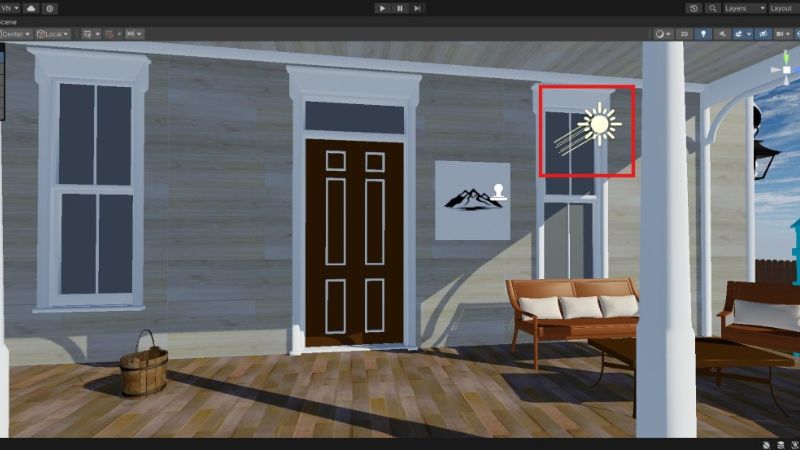
<p>Directional lights are good for <strong>light coming from a source very far away</strong>, such as the sun or the moon. They don’t have a physical location in the scene, so you can place them anywhere, and the lighting will be the same. One is often enough per level.</p>

<figure class="align-center">
  <img src="https://victor-nyagudi.github.io/height-above-sea-level/assets/images/how_to_bake_lights_article/directional_light_img.jpg" alt="A directional light gizmo surrounded by a red square in front of a house in Unity." />
  <figcaption>Directional light in a scene.</figcaption>
</figure>

<h3 id="point-light">Point Light</h3>

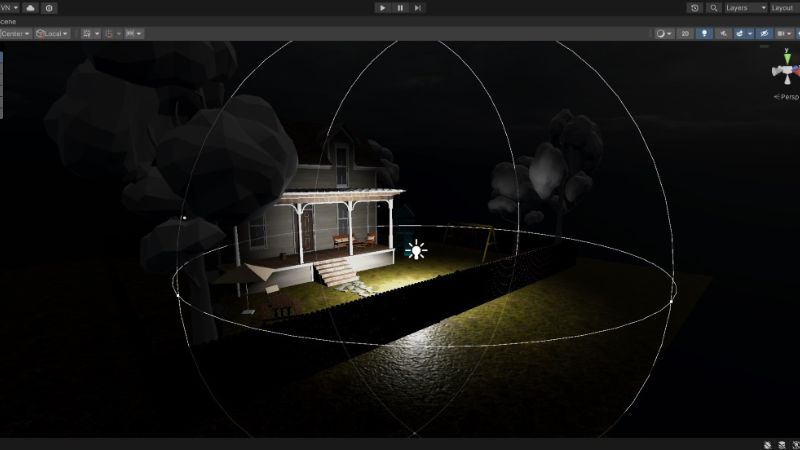
<p>Point lights are good for <strong>lights that light up an area in a radius</strong>, such as light from candles, a lantern, or a fire.</p>

<figure class="align-center">
  <img src="https://victor-nyagudi.github.io/height-above-sea-level/assets/images/how_to_bake_lights_article/point_light_house_img.jpg" alt="A point light in front of a house in Unity." />
  <figcaption>A point light by the fence.</figcaption>
</figure>

<p class="notice--primary"><strong>Interested in making games in Unity?</strong> <a href="https://www.patreon.com/cw/heightabovesealevel">Become a patron</a> on Patreon and gain access to cheat sheets, behind-the-scenes content, advanced scripting videos, and more.</p>

<h3 id="spot-light">Spot Light</h3>

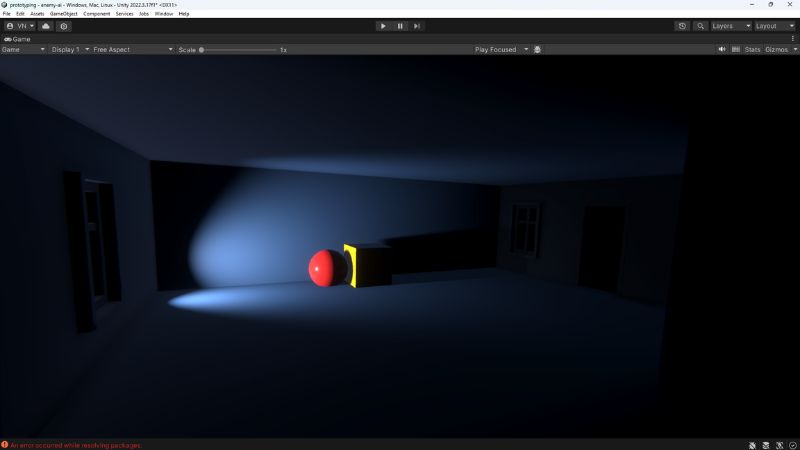
<p>Spot lights work well with <strong>lights projected in one direction in a cone shape</strong>, such as you’d see from flashlights or search lights.</p>

<figure class="align-center">
  <img src="https://victor-nyagudi.github.io/height-above-sea-level/assets/images/how_to_bake_lights_article/flashlight_in_house_img.jpg" alt="A spot light illuminating a red ball and yellow square in Unity." />
  <figcaption>A spot light in a house.</figcaption>
</figure>

<h3 id="area-light">Area Light</h3>

<p>Area lights <strong>emit light uniformly from a circular or rectangular area</strong>. These are great for indoor lights and other smaller sources of light.</p>

<figure class="align-center">
  <img src="https://victor-nyagudi.github.io/height-above-sea-level/assets/images/how_to_bake_lights_article/area_lights_img.jpg" alt="Area lights on the front porch of a house in Unity." />
  <figcaption>Area lights by the front door.</figcaption>
</figure>

<table>
  <thead>
    <tr>
      <th>Directional Light</th>
      <th>Point Light</th>
      <th>Spot Light</th>
      <th>Area Light</th>
    </tr>
  </thead>
  <tbody>
    <tr>
      <td>Lights up entire scene.</td>
      <td>Circular radius light.</td>
      <td>Cone shaped light.</td>
      <td>Circular or rectangular light emission.</td>
    </tr>
    <tr>
      <td>1 per scene often enough.</td>
      <td>Can have multiple.</td>
      <td>Can have multiple.</td>
      <td>Can have multiple.</td>
    </tr>
    <tr>
      <td>Sun or moon.</td>
      <td>Candles, lanterns, etc.</td>
      <td>Flashlights, streetlights, etc.</td>
      <td>Gentle lights e.g. bulbs.</td>
    </tr>
    <tr>
      <td>Modest performance.</td>
      <td>Many hurt performance.</td>
      <td>Better performance than point.</td>
      <td>Most costly.</td>
    </tr>
    <tr>
      <td>Realtime or baked.</td>
      <td>Realtime or baked.</td>
      <td>Realtime or baked.</td>
      <td>Baked only.</td>
    </tr>
  </tbody>
</table>

<h2 id="adding-lights-in-unity">Adding Lights in Unity</h2>

<p>Once the level looks the way you envisioned, it’s time to add some lights.</p>

<p>Click the “+” in the <em>Hierarchy</em> window &gt; <em>Light</em> &gt; Select the light you want to add.</p>

<p>You can change the lighting mode from <em>Realtime</em>, <em>Mixed</em>, or <em>Baked</em> based on which looks good to you.</p>

<p>Realtime and mixed lights have crisper, dynamic shadows but have a bigger impact on performance.</p>

<p>Baked lights are the best for performance but <strong>don’t update the lighting when they’re moved</strong> and <strong>don’t cast dynamic shadows for moving objects</strong>.</p>

<p class="notice--info"><strong><em>Tip:</em></strong> You can bake lights in Unity for all three light types to improve your game’s appearance. You don’t have to use realtime lights only.</p>

<p>You can control each light’s intensity, color, range, and shadows cast by changing the options in the <em>Light</em> component in the Inspector window.</p>

<p>Once you’ve added all the lights and the scene looks good to you, it’s time to bake them.</p>

<h2 id="baking-lights-in-unity">Baking Lights in Unity</h2>

<p>First, open the <em>Lighting</em> window if it’s not open: <em>Window</em> &gt; <em>Rendering</em> &gt; <em>Lighting</em>.</p>

<p>Under the <em>Lighting Settings</em> in the Scene tab, you’ll need to create a new <em>Lighting Settings Asset</em>. This is a file that stores the level’s lighting settings and ends with <code class="language-plaintext highlighter-rouge">.lighting</code>.</p>

<p>You don’t have to adjust any values initially after creating the asset, but it’s required to change the lighting settings.</p>

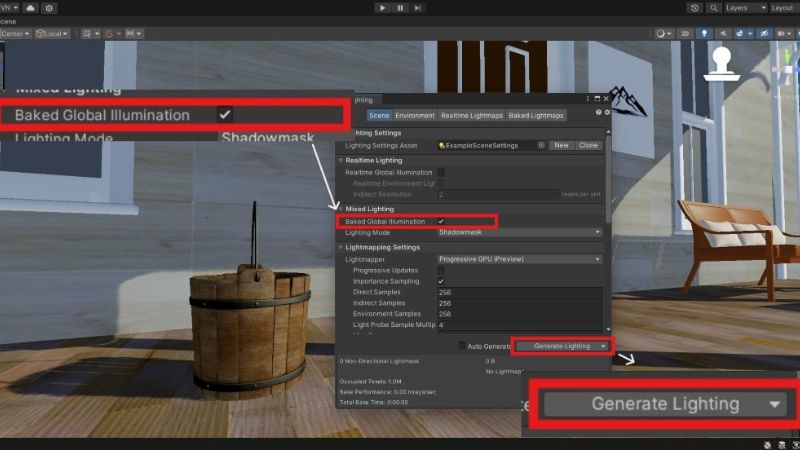
<p>Ensure the <em>Baked Global Illumination</em> box is checked, and select <em>Shadowmask</em> or <em>Baked Indirect</em> for the <a href="https://docs.unity3d.com/6000.2/Documentation/Manual/class-LightingSettings.html#:~:text=Lighting%20Mode%20dropdown"><em>Lighting Mode</em></a> option. You can tinker with these later to see which works better for your game.</p>

<figure class="align-center">
  <img src="https://victor-nyagudi.github.io/height-above-sea-level/assets/images/how_to_bake_lights_article/generate_light_btn_img.jpg" alt="Buttons used to bake lights in Unity surrounded by red squares." />
  <figcaption>Time to bake some lights.</figcaption>
</figure>

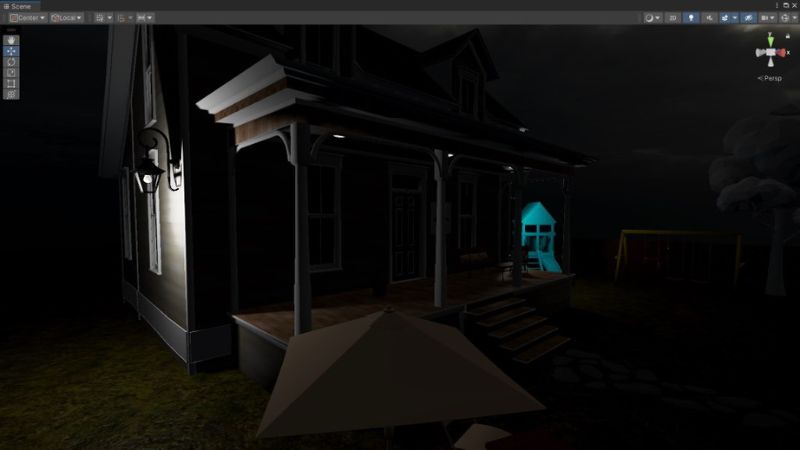
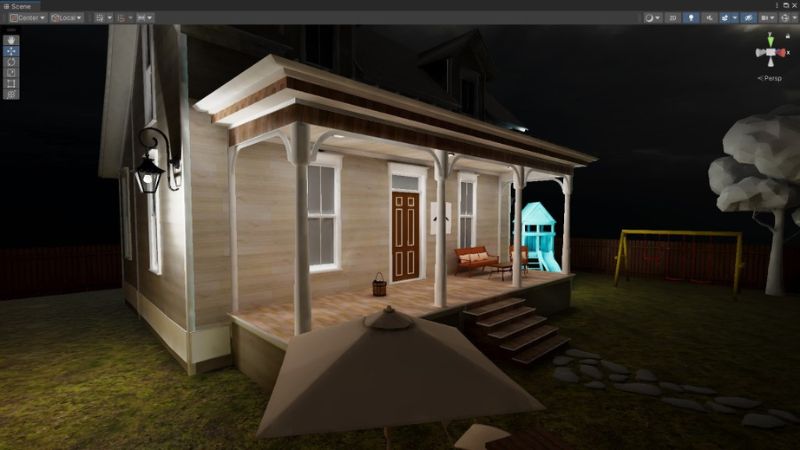
<p>Click the button at the bottom of the window labeled <em>Generate Lighting</em> to bake lights and wait until the countdown timer at the bottom right of the screen reaches 0.</p>

<figure class="align-center">
  <img src="https://victor-nyagudi.github.io/height-above-sea-level/assets/images/how_to_bake_lights_article/before_bake_img.jpg" alt="A dark front section of a house in Unity." />
  <figcaption>Before baking lights.</figcaption>
</figure>

<figure class="align-center">
  <img src="https://victor-nyagudi.github.io/height-above-sea-level/assets/images/how_to_bake_lights_article/after_bake_img.jpg" alt="An illuminated front section of a house in Unity." />
  <figcaption>After baking lights.</figcaption>
</figure>

<p>If you followed the steps correctly, the objects in your level should have more realistic lighting. If not, read the <em>Unity Lights Troubleshooting Guide</em> to help triage the problem.</p>

<p><a href="/height-above-sea-level/unity/tips-to-speed-up-light-baking-in-unity/">Baking lights in Unity can take a long time</a>, so you can turn down some of the lighting settings to speed it up.</p>

<p>Here’s a breakdown of some of the settings and how they affect light baking:</p>

<ul>
  <li>
    <p><strong>Lightmapper</strong>: Determines which piece of hardware you’ll use to bake lightmaps, either the CPU or GPU. Try switching between them if one takes too long to bake lights.</p>
  </li>
  <li>
    <p><strong>Direct Samples</strong>: Samples used for direct light calculations. Higher values improve the lightmap quality but increase bake times. Changes in predefined steps, between 1 and 256.</p>
  </li>
  <li>
    <p><strong>Indirect Samples</strong>: Samples used for indirect light (bounced light). Higher values improve the lightmap quality but increase bake times. Changes in predefined steps, between 1 and 256.</p>
  </li>
  <li>
    <p><strong>Max Bounces</strong>: Maximum number of light bounces used in calculating indirect lighting. Higher values improve indirect lighting but may increase bake times.</p>
  </li>
  <li>
    <p><strong>Lightmap Resolution</strong>: Controls the lightmap’s resolution. Higher values improve the lightmap’s resolution but increase bake times.</p>
  </li>
</ul>

<p class="notice--info"><strong><em>Tip:</em></strong> You can hover over each setting, and a tooltip will appear explaining what it does.</p>

<h2 id="in-closing">In Closing</h2>

<p>You now know how to bake lights in the Unity Game Engine, and what’s left is to tweak the settings until you achieve the desired lighting in your level.</p>

<p>You can go a step further and adjust the final appearance of your game using post-processing to achieve things like glowing objects or effects like film grain for games set in older times.</p>]]></content><author><name>Victor Nyagudi</name></author><category term="Unity" /><category term="lighting" /><summary type="html"><![CDATA[Baked lights in Unity offer better performance than realtime lights because all the lighting computations happen before the game runs. They add realism to your game by simulating bounced light and how it lights up different areas in the scene.]]></summary><media:thumbnail xmlns:media="http://search.yahoo.com/mrss/" url="https://victor-nyagudi.github.io/height-above-sea-level/assets/images/how_to_bake_lights_article/how_to_bake_lights_thumbnail.jpg" /><media:content medium="image" url="https://victor-nyagudi.github.io/height-above-sea-level/assets/images/how_to_bake_lights_article/how_to_bake_lights_thumbnail.jpg" xmlns:media="http://search.yahoo.com/mrss/" /></entry><entry><title type="html">Baking Lights in Unity Taking Too Long? 5 Tips to Speed It Up</title><link href="https://victor-nyagudi.github.io/height-above-sea-level/unity/tips-to-speed-up-light-baking-in-unity/" rel="alternate" type="text/html" title="Baking Lights in Unity Taking Too Long? 5 Tips to Speed It Up" /><published>2025-11-01T00:00:00+00:00</published><updated>2025-11-01T00:00:00+00:00</updated><id>https://victor-nyagudi.github.io/height-above-sea-level/unity/tips-to-speed-up-light-baking-in-unity</id><content type="html" xml:base="https://victor-nyagudi.github.io/height-above-sea-level/unity/tips-to-speed-up-light-baking-in-unity/"><![CDATA[<p><a href="/height-above-sea-level/unity/baking-lights-in-unity-getting-started/">Baking lights in Unity</a> can improve your game’s performance by doing all the lighting calculations before the game runs, but the process can sometimes take a long time to complete.</p>

<p>There are several reasons for the lengthy bake times, which can take hours in some cases, but there are adjustments you can make to prevent this.</p>

<p>This article assumes you know <a href="/height-above-sea-level/unity/how-to-bake-lights-in-unity-guide/">how to bake lights in Unity</a> and explores the settings you can change to improve bake times.</p>

<p>If you’re reading this article on a smaller device, right-click on images (long press on touch devices) and select <em>Open image in new tab</em> to view them at full size.</p>

<div id="entry-table-of-contents" class="toc-wrapper">
  <h2 id="toc-toggle" class="no_toc">
  Table of Contents <i class="toc-toggle-icon fas fa-chevron-down"></i>
</h2>
<ol id="markdown-toc">
  <li><a href="#progressive-updates" id="markdown-toc-progressive-updates">Progressive Updates</a></li>
  <li><a href="#lightmapper" id="markdown-toc-lightmapper">Lightmapper</a></li>
  <li><a href="#samples" id="markdown-toc-samples">Samples</a></li>
  <li><a href="#lightmap-resolution" id="markdown-toc-lightmap-resolution">Lightmap Resolution</a></li>
  <li><a href="#lighting-mode" id="markdown-toc-lighting-mode">Lighting Mode</a></li>
  <li><a href="#bonus" id="markdown-toc-bonus">Bonus</a></li>
  <li><a href="#what-are-the-best-light-settings-in-unity" id="markdown-toc-what-are-the-best-light-settings-in-unity">What are the best light settings in Unity?</a></li>
  <li><a href="#in-closing" id="markdown-toc-in-closing">In Closing</a></li>
</ol>

</div>

<h2 id="progressive-updates">Progressive Updates</h2>

<figure class="align-center">
  <img src="https://victor-nyagudi.github.io/height-above-sea-level/assets/images/baking_lights_taking_long_article/progressive_updates_unchecked_img.jpg" alt="The Progressive Updates checkbox in Unity's Lighting window." />
  <figcaption><em>Progressive Updates</em> checkbox in the <em>Lighting</em> window.</figcaption>
</figure>

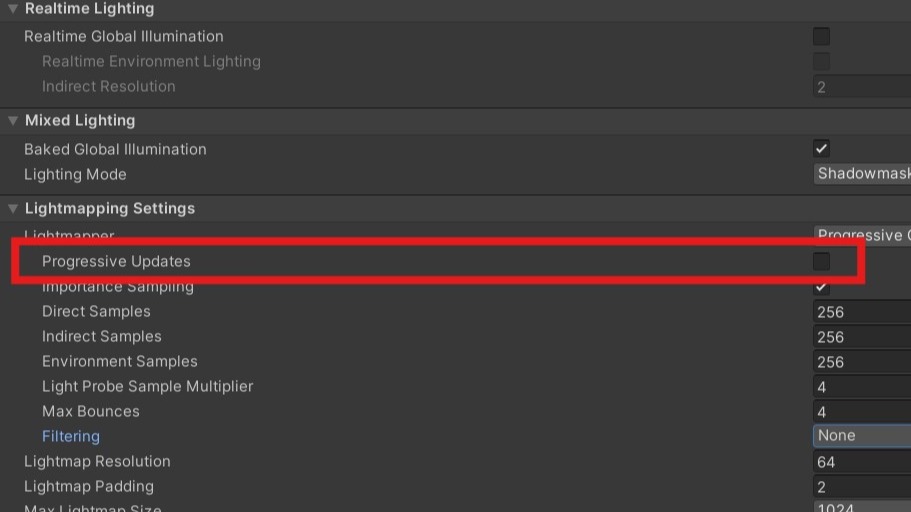
<p>The <em>Progressive Updates</em> option in the <em>Lighting</em> window <strong>determines if the lightmapper should prioritize baking what’s visible in the scene view</strong>.</p>

<p>Checking the box next to it will update the objects in the scene gradually as the light is baking. Objects will initially appear dark and slowly brighten.</p>

<p>Turning off <em>Progressive Updates</em> alone can significantly reduce light baking times.</p>

<p>My internal tests on a fairly simple scene have shown that <strong>bake times reduced from over 15 minutes to under 2 minutes</strong> when I turned off <em>Progressive Updates</em>.</p>

<h2 id="lightmapper">Lightmapper</h2>

<figure class="align-center">
  <img src="https://victor-nyagudi.github.io/height-above-sea-level/assets/images/baking_lights_taking_long_article/lightmapper_option_img.jpg" alt="The Lightmapper dropdown in Unity's Lighting window." />
  <figcaption><em>Lightmapper</em> checkbox in the <em>Lighting</em> window.</figcaption>
</figure>

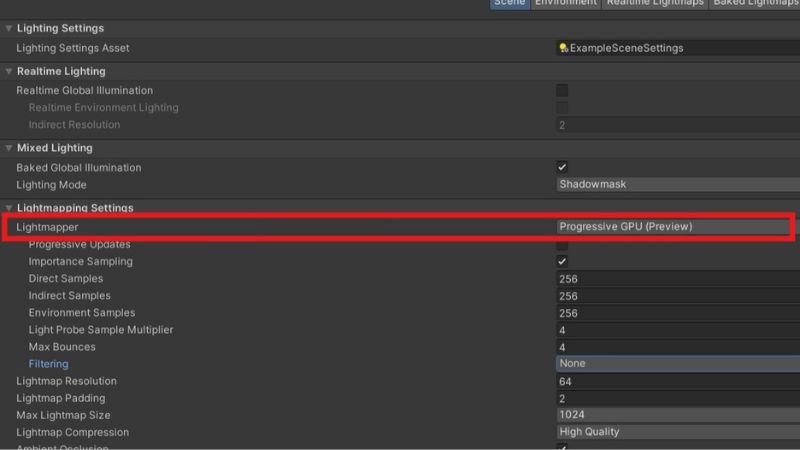
<p>The <em>Lightmapper</em> option in the <em>Lighting</em> window <strong>determines which system is used to bake lights</strong>.</p>

<p>There are currently two options: <em>Progressive CPU</em> and <em>Progressive GPU</em>.</p>

<p>If you’re experiencing long bake times using the <em>Progressive CPU</em>, switch to the <em>Progressive GPU</em>.</p>

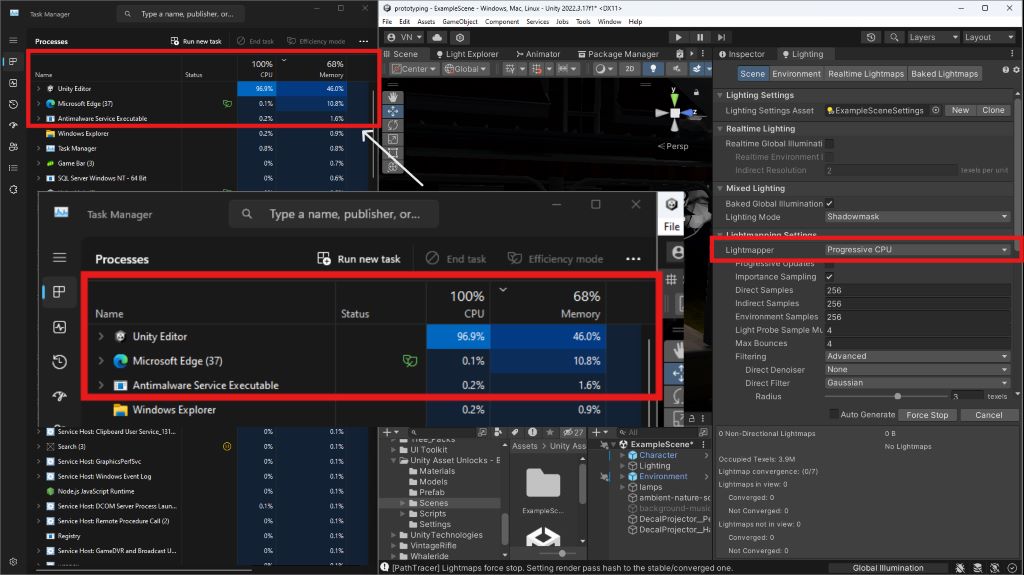
<p>The CPU is already handling other tasks, such as running the Unity Editor and any other open programs, so offloading some of the work to the GPU can help speed up bake times since it doesn’t normally handle as many tasks as the CPU.</p>

<p>A simple internal test using Windows’ built-in <em>Task Manager</em> revealed that baking lights using the <em>Progressive CPU</em> consumed up to 100% of the CPU for an extended period.</p>

<figure class="align-center">
  <img src="https://victor-nyagudi.github.io/height-above-sea-level/assets/images/baking_lights_taking_long_article/progressive_cpu_perf.jpg" alt="Perfomance metrics from Windows Task manager when baking lights using Progressive CPU in Unity." />
  <figcaption>CPU usage when baking lights with <em>Progressive CPU</em>.</figcaption>
</figure>

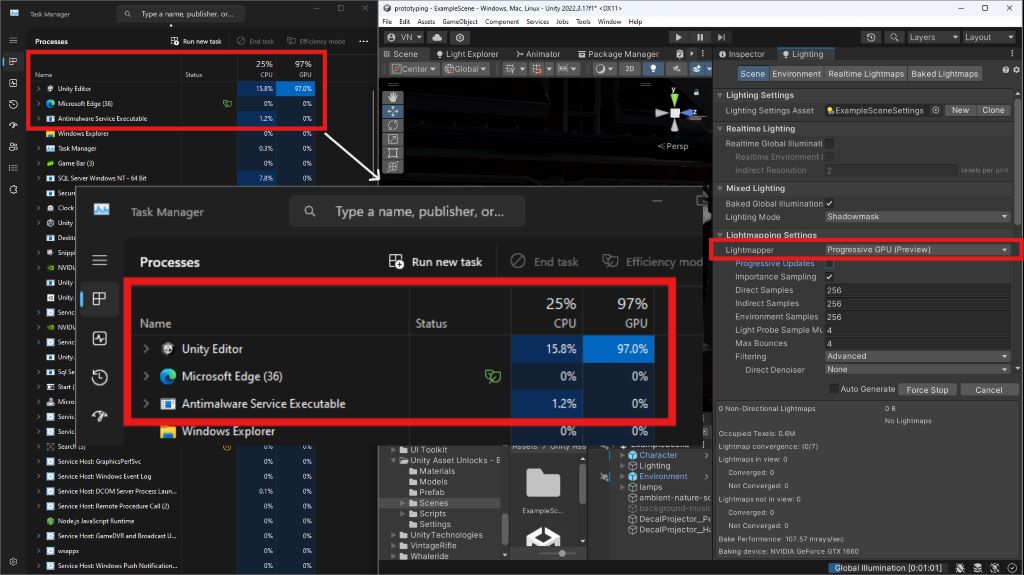
<p>The <em>Progressive GPU</em> fluctuated between 40% and 100% of the GPU’s processes.</p>

<figure class="align-center">
  <img src="https://victor-nyagudi.github.io/height-above-sea-level/assets/images/baking_lights_taking_long_article/progressive_gpu_perf.jpg" alt="Perfomance metrics from Windows Task manager when baking lights using Progressive GPU in Unity." />
  <figcaption>GPU usage when baking lights using <em>Progressive GPU</em>.</figcaption>
</figure>

<p>The difference between the two is that if Unity is using 100% of the CPU, little is left over to perform other tasks on the computer. Even trying to take a screenshot resulted in noticeable delays.</p>

<p>The GPU being under such high loads hardly affects regular computer operations. Furthermore, the load doesn’t consistently stay at 100%.</p>

<h2 id="samples">Samples</h2>

<figure class="align-center">
  <img src="https://victor-nyagudi.github.io/height-above-sea-level/assets/images/baking_lights_taking_long_article/lighting_window_samples_img.jpg" alt="The Samples values in Unity's Lighting window." />
  <figcaption>Samples values in the <em>Lighting</em> window.</figcaption>
</figure>

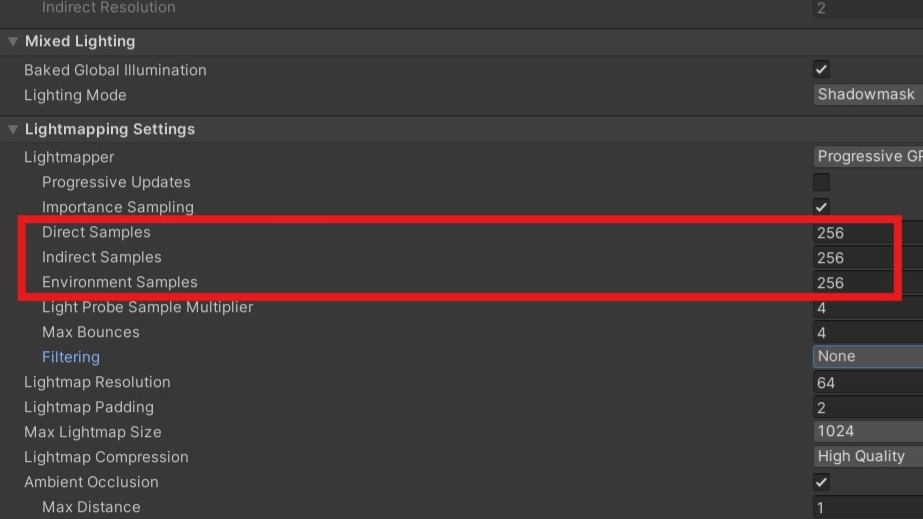
<p>The lightmapper uses samples to determine lighting calculations. There are three samples in the <em>Lighting</em> window:</p>

<ul>
  <li>
    <p><strong>Direct Samples</strong>: Used for direct lighting calculations.</p>
  </li>
  <li>
    <p><strong>Indirect Samples</strong>: Used for indirect lighting (bounced light) calculations.</p>
  </li>
  <li>
    <p><strong>Environment Samples</strong>: Used for environment lighting calculations.</p>
  </li>
</ul>

<p>These settings are adjusted in predefined steps, ranging from 1 to 256. Higher values for these settings result in higher-quality lightmaps but increase the time it takes to bake lights in the Unity Game Engine.</p>

<p>Internal tests revealed that a value of 256 for each setting with <em>Progressive Updates</em> turned off is a good starting point for baking lights.</p>

<p>These values, with <em>Progressive Updates</em> turned off and all other settings at their default, resulted in <strong>bake times of roughly one minute</strong> for a modestly detailed scene.</p>

<p class="notice--primary"><strong>Interested in making games in Unity?</strong> <a href="https://www.patreon.com/cw/heightabovesealevel">Become a patron</a> on Patreon and gain access to cheat sheets, behind-the-scenes content, advanced scripting videos, and more.</p>

<h2 id="lightmap-resolution">Lightmap Resolution</h2>

<figure class="align-center">
  <img src="https://victor-nyagudi.github.io/height-above-sea-level/assets/images/baking_lights_taking_long_article/lightmap_resolution_option_img.jpg" alt="The Lightmap Resolution value in Unity's Lighting window." />
  <figcaption><em>Lightmap Resolution</em> value in the <em>Lighting</em> window.</figcaption>
</figure>

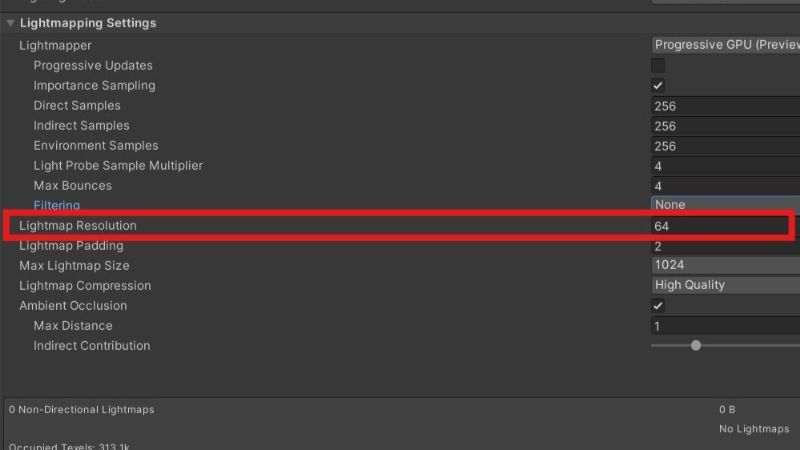
<p>The <em>Lightmap Resolution</em> setting in the <em>Lighting</em> window <strong>determines the lightmap’s resolution in texels per unit</strong>.</p>

<p>A higher resolution results in higher-quality lightmaps and improved lighting in your game at the cost of increased bake times.</p>

<p>That being said, you’re probably curious what the best lightmap resolution is for your game.</p>

<p>For smaller levels, such as interiors with few objects and simple lighting, a lightmap resolution between 50 and 75 should suffice.</p>

<p>For more realistic lighting, a lightmap resolution above 75 is a good starting point.</p>

<p>You can always lower the lightmap resolution if the time it takes to bake lights becomes too long.</p>

<p class="notice--info"><strong>Tip:</strong> Increasing the lightmap resolution may solve smudges on walls and other artifacts caused by noisy lightmaps.</p>

<h2 id="lighting-mode">Lighting Mode</h2>

<figure class="align-center">
  <img src="https://victor-nyagudi.github.io/height-above-sea-level/assets/images/baking_lights_taking_long_article/lightmap_resolution_option_img.jpg" alt="The Lighting Mode dropdown in Unity's Lighting window." />
  <figcaption><em>Lighting Mode</em> option in the <em>Lighting</em> window.</figcaption>
</figure>

<p>Unity has three <a href="https://docs.unity3d.com/6000.0/Documentation/Manual/lighting-mode.html">lighting modes</a> for mixed lights listed below in order of their effect on performance.</p>

<ol>
  <li>
    <p>Distance Shadowmask &amp; Shadowmask <em>(most expensive)</em></p>
  </li>
  <li>
    <p>Baked Indirect</p>
  </li>
  <li>
    <p>Subtractive <em>(least expensive)</em></p>
  </li>
</ol>

<p>The visual fidelity of your game will determine the lighting mode you’ll use when baking lights.</p>

<p><strong><em>Distance Shadowmask</em></strong> and <strong><em>Shadowmask</em></strong> offer more realistic lighting but with a higher performance cost. <em>Distance Shadowmask</em> is more costly compared to <em>Shadowmask</em>.</p>

<p><strong><em>Baked Indirect</em></strong> also offers realistic lighting and realtime shadows. The main difference between it and the <em>Shadowmask</em> lighting modes is that <em>Baked Indirect</em> only casts shadows up to a specified <a href="https://docs.unity3d.com/6000.0/Documentation/Manual/shadow-distance.html"><em>Shadow Distance</em></a>.</p>

<p><strong><em>Subtractive</em></strong> offers simple lighting and low-fidelity shadows. This is a great option for low-poly games or games with stylized art.</p>

<p>Using the <em>Subtractive</em> lighting mode may improve the light baking times, but the other modes may not have a big impact if the level’s lighting is set up correctly.</p>

<h2 id="bonus">Bonus</h2>

<ul>
  <li>
    <p>Adding many lights to a level can increase the time it takes to bake lights in Unity. Instead of using multiple light sources, you can <strong>use fewer lights with a longer range and higher intensity</strong> to light up more areas.</p>
  </li>
  <li>
    <p>Many reflection probes may also negatively impact bake times. Use fewer reflection probes in larger, open areas where fewer objects appear in a reflection. <strong>Reducing the reflection probe’s resolution also helps</strong>.</p>
  </li>
  <li>
    <p><strong>Too many light probes may affect light baking times</strong>. Use fewer, spaced-out light probes in open areas and more, condensed light probes in areas with many objects where light will often bounce, leading to more complex lighting calculations.</p>
  </li>
  <li>
    <p>In some cases, baking lights might be taking too long because of <strong>hardware limitations</strong>, so you’ll need parts that are more capable of handling all the lighting computations you require.</p>
  </li>
</ul>

<h2 id="what-are-the-best-light-settings-in-unity">What are the best light settings in Unity?</h2>

<p>There’s no one-size-fits-all solution to lighting settings in the Unity Game Engine. The best light settings are obtained through adjustments until the game developer is satisfied with the results.</p>

<p>Regardless, if you’re unsure of where to start and are looking for some general settings that will <strong>bake lights in under 2 minutes with decent results</strong> for a modestly detailed scene, try the following. All the other settings remain at their default option.</p>

<ul>
  <li>
    <p><strong>Lighting Mode</strong>: Baked Indirect</p>
  </li>
  <li>
    <p><strong>Lightmapper</strong>: Progressive GPU</p>
  </li>
  <li>
    <p><strong>Progressive Updates</strong>: Off</p>
  </li>
  <li>
    <p><strong>Direct Samples</strong>: 256</p>
  </li>
  <li>
    <p><strong>Indirect Samples</strong>: 256</p>
  </li>
  <li>
    <p><strong>Environment Samples</strong>: 256</p>
  </li>
  <li>
    <p><strong>Max Bounces</strong>: 2 or 4</p>
  </li>
  <li>
    <p><strong>Lightmap Resolution</strong>: 50</p>
  </li>
  <li>
    <p><strong>Max Lightmap Size</strong>: 1024</p>
  </li>
</ul>

<h2 id="in-closing">In Closing</h2>

<p>The tests and settings used in this article were on a computer with the following relevant specs:</p>

<ul>
  <li>
    <p><strong>GPU</strong>: NVIDIA GeForce GTX 1660 6GB VRAM</p>
  </li>
  <li>
    <p><strong>CPU</strong>: Ryzen 5 2600</p>
  </li>
  <li>
    <p><strong>RAM</strong>: Dual-channel 16GB</p>
  </li>
  <li>
    <p><strong>OS</strong>: Windows 11</p>
  </li>
</ul>

<p>Computers with better hardware will perform better, while those with poorer hardware might experience degraded performance.</p>

<p>If you’re still experiencing trouble with lights, read the <em>Unity Lights Troubleshooting Guide</em> to help you diagnose the problem.</p>]]></content><author><name>Victor Nyagudi</name></author><category term="Unity" /><category term="lighting" /><summary type="html"><![CDATA[Baking lights in Unity can improve your game's performance by doing all the lighting calculations before the game runs, but the process can sometimes take a long time to complete.]]></summary><media:thumbnail xmlns:media="http://search.yahoo.com/mrss/" url="https://victor-nyagudi.github.io/height-above-sea-level/assets/images/baking_lights_taking_long_article/baking_taking_long_thumbnail.jpg" /><media:content medium="image" url="https://victor-nyagudi.github.io/height-above-sea-level/assets/images/baking_lights_taking_long_article/baking_taking_long_thumbnail.jpg" xmlns:media="http://search.yahoo.com/mrss/" /></entry><entry><title type="html">Free Music &amp;amp; Sound Effects for Your Unity Games</title><link href="https://victor-nyagudi.github.io/height-above-sea-level/unity/free-music-sfx-for-unity-games/" rel="alternate" type="text/html" title="Free Music &amp;amp; Sound Effects for Your Unity Games" /><published>2025-10-02T00:00:00+00:00</published><updated>2025-10-02T00:00:00+00:00</updated><id>https://victor-nyagudi.github.io/height-above-sea-level/unity/free-music-sfx-for-unity-games</id><content type="html" xml:base="https://victor-nyagudi.github.io/height-above-sea-level/unity/free-music-sfx-for-unity-games/"><![CDATA[<p>Music and sound effects (SFX) in video games increase the immersion and create a more believable experience for the player.</p>

<p>From footstep sounds when the character is walking to the birds chirping in a forest scene, good audio can take any game to a whole new level.</p>

<p>Good audio doesn’t always come cheap, but there are places where you can find good music and sound effects at no extra cost.</p>

<p>Here are five websites where you can download free music and sound effects for your game made in the <a href="https://youtu.be/kOo1CaDdCF0?si=m_SoO0x0rxHZoHEL">Unity Game Engine</a>.</p>

<div id="entry-table-of-contents" class="toc-wrapper">
  <h2 id="toc-toggle" class="no_toc">
  Table of Contents <i class="toc-toggle-icon fas fa-chevron-down"></i>
</h2>
<ol id="markdown-toc">
  <li><a href="#pixabay" id="markdown-toc-pixabay">Pixabay</a></li>
  <li><a href="#mixkit" id="markdown-toc-mixkit">Mixkit</a></li>
  <li><a href="#streambeats" id="markdown-toc-streambeats">Streambeats</a></li>
  <li><a href="#unity-asset-store" id="markdown-toc-unity-asset-store">Unity Asset Store</a></li>
  <li><a href="#youtube" id="markdown-toc-youtube">YouTube</a></li>
  <li><a href="#bonus" id="markdown-toc-bonus">Bonus</a></li>
</ol>

</div>

<h2 id="pixabay">Pixabay</h2>

<figure class="align-center">
  <img src="https://victor-nyagudi.github.io/height-above-sea-level/assets/images/free_music_sfx_article/pixabay_img.jpg" alt="Free audio on Pixabay" />
  <figcaption>Free audio on Pixabay</figcaption>
</figure>

<p>Pixabay has thousands of royalty-free music and sound effects you can use in your games or trailers.</p>

<p>The sound effects include gunfire, footsteps, monster sounds, user interface (UI) sounds, and more.</p>

<p>You can start downloading audio without creating an account, but the option is available for anyone who expects to use the platform often.</p>

<p>If you love a particular track or sound effect, you can donate to the artists, or, if they’re available for hire, hire them to create more audio for your game.</p>

<p>The platform is community-driven, so if you or someone you know creates music and sound effects, you can create an account and start uploading your content.</p>

<p>It offers additional resources, including illustrations, vectors, and photos, that may be useful for game development.</p>

<h2 id="mixkit">Mixkit</h2>

<figure class="align-center">
  <img src="https://victor-nyagudi.github.io/height-above-sea-level/assets/images/free_music_sfx_article/mixkit_img.jpg" alt="Free audio on Mixkit" />
  <figcaption>Free audio on Mixkit</figcaption>
</figure>

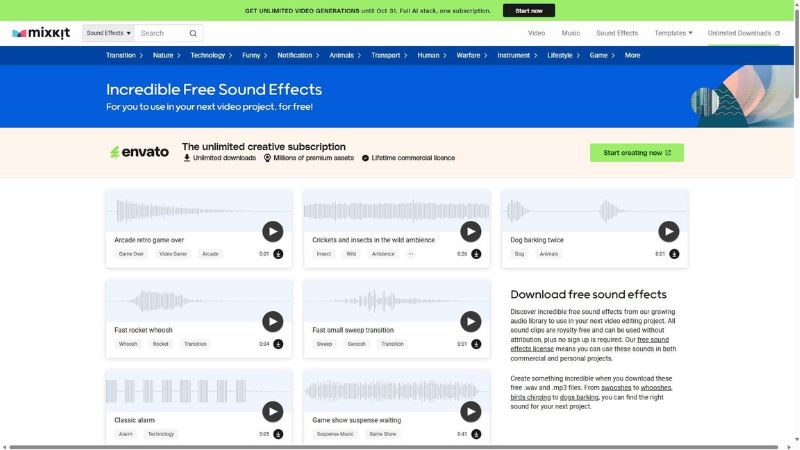
<p>Mixkit offers a rich library of music and sound effects you can download and use without any attribution.</p>

<p>There’s a search bar where you can type in the type of sound effect you want, and the results will be revealed shortly.</p>

<p>Although it’s not as vast as Pixabay, Mixkit remains a viable alternative if you don’t find what you’re looking for on Pixabay.</p>

<p>You don’t have to create an account to get started and can download audio right away.</p>

<p>Mixkit is tailored towards video editors, so you’ll find other resources there, such as stock video footage and templates for video editing platforms, such as DaVinci Resolve or Adobe Premiere Pro.</p>

<h2 id="streambeats">Streambeats</h2>

<figure class="align-center">
  <img src="https://victor-nyagudi.github.io/height-above-sea-level/assets/images/free_music_sfx_article/streambeats_img.jpg" alt="Streambeats" />
  <figcaption>Streambeats</figcaption>
</figure>

<p>Streambeats began as a provider of free royalty-free background music for live streaming on platforms like Twitch and YouTube, but has expanded its catalog in recent years.</p>

<p>Most of the tracks are in the lo-fi genre, perfect for laid-back games aiming for calm, relaxed vibes.</p>

<p>What Streambeats lacks in sound effects, it makes up for in hundreds of audio tracks you can use for free without attribution.</p>

<p>Some of the other genres include rock, electronic, and chiptunes that would be perfect for 2D pixel art games.</p>

<p>There are no accounts or sign-ups necessary to use music from Streambeats. You can download the music directly from the website.</p>

<p>The website doesn’t include previews of the music, but you can listen to them on Spotify by searching for an artist by the same name.</p>

<h2 id="unity-asset-store">Unity Asset Store</h2>

<figure class="align-center">
  <img src="https://victor-nyagudi.github.io/height-above-sea-level/assets/images/free_music_sfx_article/asset_store_audio_img.jpg" alt="Audio from the Unity Asset Store" />
  <figcaption>Audio from the Unity Asset Store</figcaption>
</figure>

<p>The official <a href="https://assetstore.unity.com/">Unity Asset Store</a> remains one of the best places for any assets you’ll need to make a game in the Unity Game Engine.</p>

<p>It’s curated for game developers seeking assets ranging from free to hundreds of dollars, all with varying quality.</p>

<p>The Asset Store offers audio and sound effects for multiple video game genres. Whether you’re looking for chip tunes for a pixel art game or sci-fi explosions for your sci-fi first-person shooter, you’ll most likely find it in the Asset Store.</p>

<p>You can also save any assets you like but don’t currently need for later. Once you find one, add it to your assets and download it inside the Unity Game Engine.</p>

<p class="notice--primary"><strong>Interested in making games in Unity?</strong> <a href="https://www.patreon.com/cw/heightabovesealevel">Become a patron</a> on Patreon and gain access to cheat sheets, behind-the-scenes content, advanced scripting videos, and more.</p>

<h2 id="youtube">YouTube</h2>

<figure class="align-center">
  <img src="https://victor-nyagudi.github.io/height-above-sea-level/assets/images/free_music_sfx_article/youtube_audio_img.jpg" alt="Free audio on YouTube" />
  <figcaption>Free audio on YouTube</figcaption>
</figure>

<p><a href="/height-above-sea-level/unity/best-game-dev-youtube-channels/">YouTube</a> might not be the top place to look for music and sound effects to use in a game, but there are some channels offering royalty-free, no-copyright music you might be interested in.</p>

<p>Some of these channels include <em>Audio Library</em> and <em>Audio Library - Free Music</em>.</p>

<p>A simple search for royalty-free or free sound effects should reveal more channels offering the kind of audio you’re looking for.</p>

<h2 id="bonus">Bonus</h2>

<p>If you’re a fan of the AI hype train, you can leverage one of the AI models to generate music and sound effects for your Unity game.</p>

<p>There’s been some friction between artists and AI companies over the use of their work to train AI models and the ethics behind it, but the argument remains unresolved.</p>]]></content><author><name>Victor Nyagudi</name></author><category term="Unity" /><category term="audio" /><summary type="html"><![CDATA[Music and sound effects (SFX) in video games increase the immersion and create a more believable experience for the player. Good audio doesn't always come cheap, but there are places where you can find good music and sound effects at no extra cost.]]></summary><media:thumbnail xmlns:media="http://search.yahoo.com/mrss/" url="https://victor-nyagudi.github.io/height-above-sea-level/assets/images/free_music_sfx_article/free_audio_article_thumbnail.jpg" /><media:content medium="image" url="https://victor-nyagudi.github.io/height-above-sea-level/assets/images/free_music_sfx_article/free_audio_article_thumbnail.jpg" xmlns:media="http://search.yahoo.com/mrss/" /></entry><entry><title type="html">Best YouTube Channels to Learn Unity Game Development</title><link href="https://victor-nyagudi.github.io/height-above-sea-level/unity/best-game-dev-youtube-channels/" rel="alternate" type="text/html" title="Best YouTube Channels to Learn Unity Game Development" /><published>2025-10-01T00:00:00+00:00</published><updated>2025-10-01T00:00:00+00:00</updated><id>https://victor-nyagudi.github.io/height-above-sea-level/unity/best-game-dev-youtube-channels</id><content type="html" xml:base="https://victor-nyagudi.github.io/height-above-sea-level/unity/best-game-dev-youtube-channels/"><![CDATA[<p>The rise of content creation has made game development more accessible than ever before. Social media these days is filled with content teaching aspiring game developers, but YouTube arguably stands out as the best platform for learning how to make games.</p>

<p>This article focuses on the <a href="https://youtu.be/kOo1CaDdCF0?si=m_SoO0x0rxHZoHEL">Unity Game Engine</a>, but the content in some of these YouTube channels applies to other engines, such as Godot or Unreal Engine.</p>

<p>Whether you’re a hobbyist game developer or a student intent on working in a AAA studio, these channels should be useful at some point or another.</p>

<p>Expand the table of contents below for an overview of the categories they are grouped under.</p>

<div id="entry-table-of-contents" class="toc-wrapper">
  <h2 id="toc-toggle" class="no_toc">
  Table of Contents <i class="toc-toggle-icon fas fa-chevron-down"></i>
</h2>
<ol id="markdown-toc">
  <li><a href="#art" id="markdown-toc-art">Art</a>    <ol>
      <li><a href="#saultoons" id="markdown-toc-saultoons">Saultoons</a></li>
      <li><a href="#blender-guru" id="markdown-toc-blender-guru">Blender Guru</a></li>
      <li><a href="#brandon-james-greer" id="markdown-toc-brandon-james-greer">Brandon James Greer</a></li>
      <li><a href="#honorable-mentions" id="markdown-toc-honorable-mentions">Honorable Mentions</a></li>
    </ol>
  </li>
  <li><a href="#shaders" id="markdown-toc-shaders">Shaders</a>    <ol>
      <li><a href="#ben-cloward" id="markdown-toc-ben-cloward">Ben Cloward</a></li>
      <li><a href="#dan-moran" id="markdown-toc-dan-moran">Dan Moran</a></li>
      <li><a href="#daniel-ilett" id="markdown-toc-daniel-ilett">Daniel Ilett</a></li>
      <li><a href="#honorable-mentions-1" id="markdown-toc-honorable-mentions-1">Honorable Mentions</a></li>
    </ol>
  </li>
  <li><a href="#c--scripting" id="markdown-toc-c--scripting">C# &amp; Scripting</a>    <ol>
      <li><a href="#height-above-sea-level" id="markdown-toc-height-above-sea-level">Height Above Sea Level</a></li>
      <li><a href="#jason-weimann-gamedev" id="markdown-toc-jason-weimann-gamedev">Jason Weimann (GameDev)</a></li>
      <li><a href="#turbo-makes-games" id="markdown-toc-turbo-makes-games">Turbo Makes Games</a></li>
      <li><a href="#honorable-mentions-2" id="markdown-toc-honorable-mentions-2">Honorable Mentions</a></li>
    </ol>
  </li>
  <li><a href="#animation" id="markdown-toc-animation">Animation</a>    <ol>
      <li><a href="#iheartgamedev" id="markdown-toc-iheartgamedev">iHeartGameDev</a></li>
      <li><a href="#fimpossible-creations" id="markdown-toc-fimpossible-creations">FImpossible Creations</a></li>
    </ol>
  </li>
  <li><a href="#video-game-artificial-intelligence-ai" id="markdown-toc-video-game-artificial-intelligence-ai">Video Game Artificial Intelligence (AI)</a>    <ol>
      <li><a href="#holistic3d" id="markdown-toc-holistic3d">Holistic3D</a></li>
      <li><a href="#ai-and-games" id="markdown-toc-ai-and-games">AI and Games</a></li>
    </ol>
  </li>
  <li><a href="#visual-effects-vfx" id="markdown-toc-visual-effects-vfx">Visual Effects (VFX)</a>    <ol>
      <li><a href="#gabriel-aguiar-prod" id="markdown-toc-gabriel-aguiar-prod">Gabriel Aguiar Prod.</a></li>
    </ol>
  </li>
  <li><a href="#all-in-one" id="markdown-toc-all-in-one">All-in-One</a>    <ol>
      <li><a href="#brackeys" id="markdown-toc-brackeys">Brackeys</a></li>
      <li><a href="#the-official-unity-youtube-channel" id="markdown-toc-the-official-unity-youtube-channel">The Official Unity YouTube Channel</a></li>
    </ol>
  </li>
  <li><a href="#game-design" id="markdown-toc-game-design">Game Design</a>    <ol>
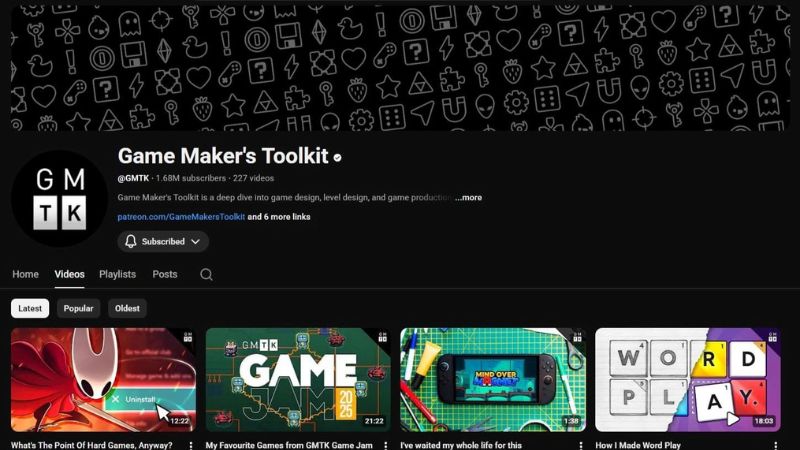
      <li><a href="#game-makers-toolkit-gmtk" id="markdown-toc-game-makers-toolkit-gmtk">Game Maker’s Toolkit (GMTK)</a></li>
    </ol>
  </li>
  <li><a href="#mobile-game-development" id="markdown-toc-mobile-game-development">Mobile Game Development</a>    <ol>
      <li><a href="#creauctopus" id="markdown-toc-creauctopus">Creauctopus</a></li>
    </ol>
  </li>
  <li><a href="#publishingindustry-knowledge" id="markdown-toc-publishingindustry-knowledge">Publishing/Industry Knowledge</a>    <ol>
      <li><a href="#thomas-brush" id="markdown-toc-thomas-brush">Thomas Brush</a></li>
    </ol>
  </li>
  <li><a href="#game-development-challenges" id="markdown-toc-game-development-challenges">Game Development Challenges</a>    <ol>
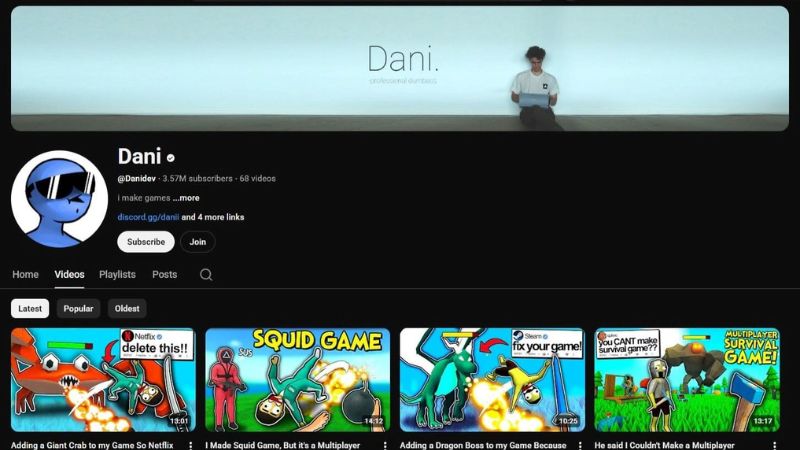
      <li><a href="#dani" id="markdown-toc-dani">Dani</a></li>
      <li><a href="#blackthornprod" id="markdown-toc-blackthornprod">Blackthornprod</a></li>
      <li><a href="#mix-and-jam" id="markdown-toc-mix-and-jam">Mix and Jam</a></li>
    </ol>
  </li>
</ol>

</div>

<h2 id="art">Art</h2>

<h3 id="saultoons">Saultoons</h3>

<figure class="align-center">
  <img src="https://victor-nyagudi.github.io/height-above-sea-level/assets/images/best_youtube_channels_article/saultoons_youtube_channel_img.jpg" alt="Saultoons YouTube channel" />
  <figcaption>Saultoons YouTube channel</figcaption>
</figure>

<p><a href="https://www.youtube.com/@saultoons"><em>Saultoons</em></a> teaches pixel art, from setting up Aseprite, a popular pixel art tool, to pixel art animation.</p>

<p>The channel’s owner, commonly referred to as Saul, also specializes in hand-drawn art and has attended art school.</p>

<p>Saultoons’ content is beginner-friendly with a touch of comedy while covering topics such as hue-shifting, the twelve principles of animation, and color palettes.</p>

<p>The community is active and participates in the annual Septembit Challenge, where aspiring game artists and developers create pixel art from 30 prompts in 30 days.</p>

<h3 id="blender-guru">Blender Guru</h3>

<figure class="align-center">
  <img src="https://victor-nyagudi.github.io/height-above-sea-level/assets/images/best_youtube_channels_article/blender_g_youtube_channel_img.jpg" alt="Blender Guru YouTube channel" />
  <figcaption>Blender Guru YouTube channel</figcaption>
</figure>

<p><a href="https://www.youtube.com/@blenderguru"><em>Blender Guru</em></a> specializes in making 3D content using Blender, a popular, free, and open-source tool widely used in the video game industry.</p>

<p>This channel is responsible for the well-known donut tutorial on YouTube, which you may have heard about.</p>

<p>If you’re interested in creating 3D environments or characters, knowing how to use a 3D tool like Blender is crucial. Blender Guru is a YouTube channel that can help.</p>

<h3 id="brandon-james-greer">Brandon James Greer</h3>

<figure class="align-center">
  <img src="https://victor-nyagudi.github.io/height-above-sea-level/assets/images/best_youtube_channels_article/brandon_jg_youtube_channel_img.jpg" alt="Brandon James Greer YouTube channel" />
  <figcaption>Brandon James Greer YouTube channel</figcaption>
</figure>

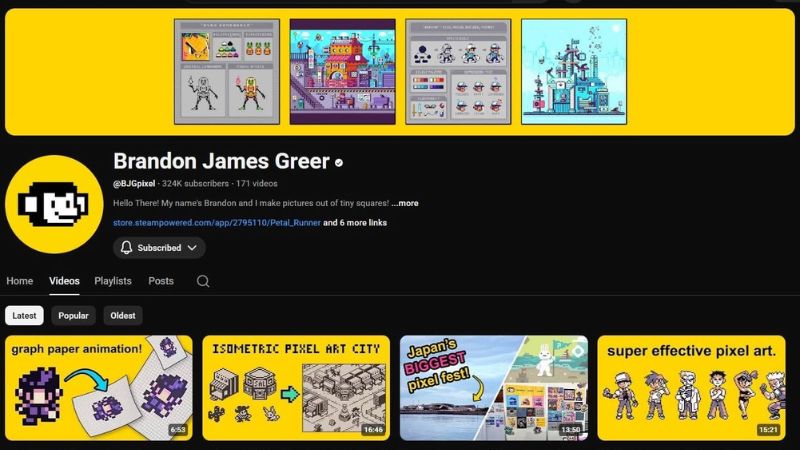
<p><a href="https://www.youtube.com/@BJGpixel">Brandon James Greer’s channel</a> focuses on creating and animating pixel art.</p>

<p>The content also focuses on pixel art challenges, such as using obscure color palettes on different sprites to see how far they can be pushed.</p>

<p>If you’re interested in learning pixel art while diving deeper into the design choices behind popular video game characters, <em>Brandon James Greer</em> is the channel for you.</p>

<h3 id="honorable-mentions">Honorable Mentions</h3>

<p><a href="https://www.youtube.com/@MortMort"><em>MortMort</em></a>, regarded highly in the pixel art world, is one of the first YouTube channels dedicated to pixel art. It covers everything from pixel art techniques to advanced brushes in Aseprite.</p>

<p><a href="https://www.youtube.com/@PeterMilko"><em>Pixel Pete</em></a> is another popular pixel art YouTube channel known for its <em>Pixelart 101</em> series exploring various aspects of pixel art, including grass, furniture, and trees.</p>

<h2 id="shaders">Shaders</h2>

<h3 id="ben-cloward">Ben Cloward</h3>

<figure class="align-center">
  <img src="https://victor-nyagudi.github.io/height-above-sea-level/assets/images/best_youtube_channels_article/ben_c_youtube_channel_img.jpg" alt="Ben Cloward YouTube channel" />
  <figcaption>Ben Cloward YouTube channel</figcaption>
</figure>

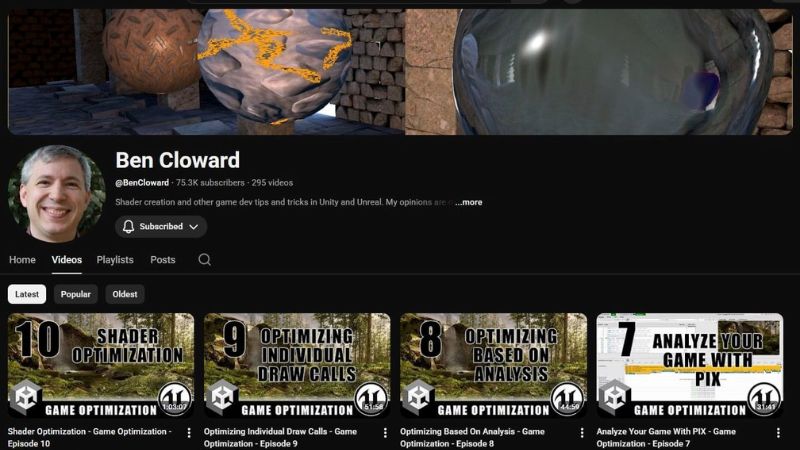
<p><a href="https://www.youtube.com/@BenCloward">Ben Cloward</a> is an industry veteran specializing in shader creation using Unity’s shader graph and code.</p>

<p>His deep knowledge of shader creation spans almost two decades and is a rich source of information for any aspiring game developer interested in shaders.</p>

<p>The channel covers shaders in both the Unity Game Engine and Unreal Engine.</p>

<p>Ben’s content ranges from beginner to advanced, so there’s something for game developers of all skill levels.</p>

<p class="notice--primary"><strong>Interested in making games in Unity?</strong> <a href="https://www.patreon.com/cw/heightabovesealevel">Become a patron</a> on Patreon and gain access to cheat sheets, behind-the-scenes content, advanced scripting videos, and more.</p>

<h3 id="dan-moran">Dan Moran</h3>

<figure class="align-center">
  <img src="https://victor-nyagudi.github.io/height-above-sea-level/assets/images/best_youtube_channels_article/d_moran_youtube_channel_img.jpg" alt="Dan Moran YouTube channel" />
  <figcaption>Dan Moran YouTube channel</figcaption>
</figure>

<p><a href="https://www.youtube.com/@DanMoranGameDev">Dan Moran’s channel</a> is a treasure trove of shader case studies for popular video games like <em>Overwatch</em>, <em>Dishonored</em>, and <em>No Man’s Sky</em>.</p>

<p>The shader content is primarily for the Unity Game Engine, but Dan also mentions what applies in Unreal Engine for anyone interested.</p>

<p>The videos on the channel are well-structured and well-paced, with a light comedic touch that doesn’t distract from the main topic.</p>

<h3 id="daniel-ilett">Daniel Ilett</h3>

<figure class="align-center">
  <img src="https://victor-nyagudi.github.io/height-above-sea-level/assets/images/best_youtube_channels_article/d_ilett_youtube_channel_img.jpg" alt="Daniel Ilett YouTube channel" />
  <figcaption>Daniel Ilett YouTube channel</figcaption>
</figure>

<p><a href="https://www.youtube.com/@danielilett">Daniel Ilett’s channel</a> explores shaders in Unity built using Unity’s Shader Graph in the Universal Render Pipeline (URP).</p>

<p>The channel’s tutorials cover popular shader effects, including holograms, outlines, dissolves, and cel shading.</p>

<p>It also recreates cool effects from popular video games such as <em>Metal Gear Solid</em>, <em>The Legend of Zelda</em>, and <em>Pokémon</em>.</p>

<h3 id="honorable-mentions-1">Honorable Mentions</h3>

<p><a href="https://www.youtube.com/@acegikmo"><em>Freya Holmér</em></a> discusses mathematics and its application to shaders and video games in general, using creative and easy-to-understand math graphics.</p>

<p>Although it’s not a YouTube channel, <a href="https://gamemath.com/">gamemath.com</a> is a helpful site for anyone struggling to understand vectors, world space vs. local space, among other video game math concepts.</p>

<h2 id="c--scripting">C# &amp; Scripting</h2>

<h3 id="height-above-sea-level">Height Above Sea Level</h3>

<figure class="align-center">
  <img src="https://victor-nyagudi.github.io/height-above-sea-level/assets/images/best_youtube_channels_article/hasl_youtube_channel_img.jpg" alt="Height Above Sea Level YouTube channel" />
  <figcaption>Height Above Sea Level YouTube channel</figcaption>
</figure>

<p><a href="https://www.youtube.com/@HeightAboveSeaLevel"><em>Height Above Sea Level</em></a> is a beginner-oriented channel dedicated to teaching aspiring game developers how to code in C#, the scripting language of the Unity Game Engine.</p>

<p>It has <a href="https://youtube.com/playlist?list=PLKCFltnebRSVQHQ9tf5PSmk4X0KNqO6FU&amp;si=EkaBHaPuJCXxoqmb">a playlist covering the fundamental C# concepts</a> you’ll apply when making your game in Unity.</p>

<p>There are bi-weekly questions posted on the <a href="https://www.youtube.com/@HeightAboveSeaLevel/posts"><em>Posts</em> tab</a> to help reinforce your C# knowledge, along with scores of short videos for quick reminders of things you forgot or may have missed.</p>

<h3 id="jason-weimann-gamedev">Jason Weimann (GameDev)</h3>

<figure class="align-center">
  <img src="https://victor-nyagudi.github.io/height-above-sea-level/assets/images/best_youtube_channels_article/j_weimann_youtube_channel_img.jpg" alt="Jason Weimann YouTube channel" />
  <figcaption>Jason Weimann YouTube channel</figcaption>
</figure>

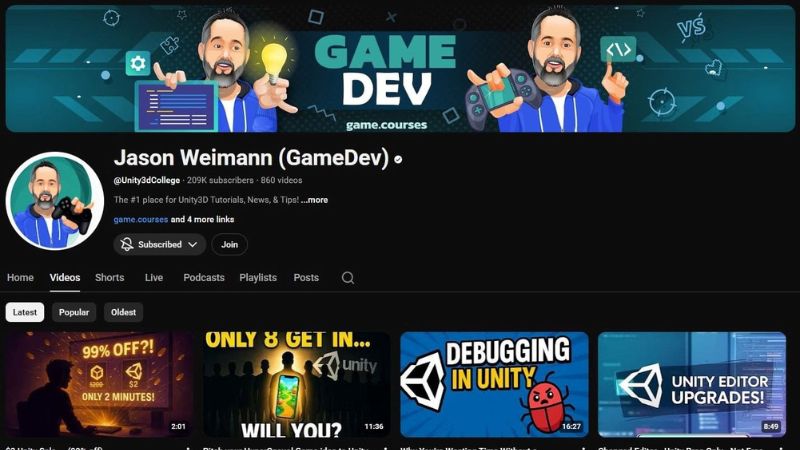
<p><a href="https://www.youtube.com/@Unity3dCollege">Jason Weimann’s channel</a> is code-oriented, specifically with the Unity Game Engine.</p>

<p>Its content ranges from writing tests for Unity games to common design patterns game developers should know.</p>

<p>Jason Weimann also has podcast-style videos where developers come together to discuss industry news, best practices, and other game development-related topics.</p>

<h3 id="turbo-makes-games">Turbo Makes Games</h3>

<figure class="align-center">
  <img src="https://victor-nyagudi.github.io/height-above-sea-level/assets/images/best_youtube_channels_article/turbo_youtube_channel_img.jpg" alt="Turbo Makes Games YouTube channel" />
  <figcaption>Turbo Makes Games YouTube channel</figcaption>
</figure>

<p><a href="https://www.youtube.com/@TurboMakesGames"><em>Turbo Makes Games</em></a> is a code-oriented YouTube channel dedicated to advanced Unity game developers.</p>

<p>The content covers Unity’s flagship Data-Oriented Technology Stack (DOTS) and the Entity Component System (ECS), designed to build large games while maintaining good performance.</p>

<p>Beginners will struggle to grasp most of the concepts discussed, but advanced Unity game developers intending to build larger games will likely reap the most.</p>

<h3 id="honorable-mentions-2">Honorable Mentions</h3>

<p>Despite being away for quite some time, <a href="https://www.youtube.com/@InfallibleCode"><em>Infallible Code</em></a> still offers useful insight into writing and debugging video game code using the Unity Game Engine.</p>

<h2 id="animation">Animation</h2>

<h3 id="iheartgamedev">iHeartGameDev</h3>

<figure class="align-center">
  <img src="https://victor-nyagudi.github.io/height-above-sea-level/assets/images/best_youtube_channels_article/i_heart_youtube_channel_img.jpg" alt="iHeartGameDev YouTube channel" />
  <figcaption>iHeartGameDev YouTube channel</figcaption>
</figure>

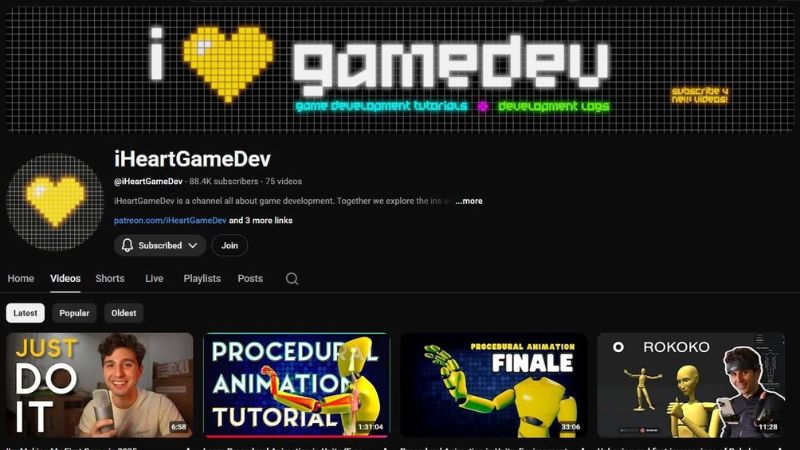
<p><a href="https://www.youtube.com/@iHeartGameDev">iHeartGameDev’s channel</a> covers the animation process in Unity, from setting up the 3D model to creating state machines.</p>

<p>The content is beginner-friendly and includes C# code along with the animation. Most of the videos are over three years old, but are still applicable today.</p>

<h3 id="fimpossible-creations">FImpossible Creations</h3>

<figure class="align-center">
  <img src="https://victor-nyagudi.github.io/height-above-sea-level/assets/images/best_youtube_channels_article/fimpossible_youtube_channel_img.jpg" alt="FImpossible Creations YouTube channel" />
  <figcaption>FImpossible Creations YouTube channel</figcaption>
</figure>

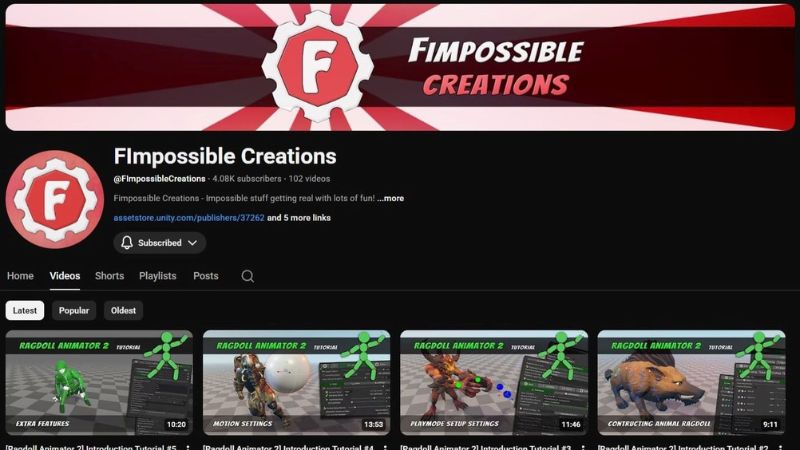
<p><a href="https://www.youtube.com/@FImpossibleCreations"><em>FImpossible Creations</em></a> is one of the few YouTube channels that teaches how to work with animations for animals and other multi-legged creatures.</p>

<p>The content covers inverse kinematics, an important concept in animation you’ll encounter if you want the characters in your game to pick up objects or interact with swords and other weapons.</p>

<p>If the game you’re making in the Unity game engine has animals or non-humanoid characters, <em>FImpossible Creations</em> is a gold mine that’ll help you animate them.</p>

<h2 id="video-game-artificial-intelligence-ai">Video Game Artificial Intelligence (AI)</h2>

<h3 id="holistic3d">Holistic3D</h3>

<figure class="align-center">
  <img src="https://victor-nyagudi.github.io/height-above-sea-level/assets/images/best_youtube_channels_article/holistic_3d_youtube_channel_img.jpg" alt="Holistic 3D YouTube channel" />
  <figcaption>Holistic 3D YouTube channel</figcaption>
</figure>

<p>Led by Dr. Penny de Byl, <a href="https://www.youtube.com/@Holistic3d"><em>Holistic3D</em></a> tackles simple artificial intelligence (AI) in video games to complex non-player character (NPC) systems.</p>

<p>Dr. Penny earned a PhD in Artificial Intelligence in Computer Games, and her courses have been featured on the official Unity Learn website.</p>

<p>The content is structured a lot like a university course, and you’ll be learning from someone who’s an experienced university professor in real life.</p>

<h3 id="ai-and-games">AI and Games</h3>

<figure class="align-center">
  <img src="https://victor-nyagudi.github.io/height-above-sea-level/assets/images/best_youtube_channels_article/ai_games_youtube_channel_img.jpg" alt="AI and Games YouTube channel" />
  <figcaption>AI and Games YouTube channel</figcaption>
</figure>

<p><a href="https://www.youtube.com/@AIandGames"><em>AI and Games</em></a> discusses artificial intelligence in popular video game titles, such as <em>Alien Isolation</em> and <em>Hitman</em>.</p>

<p>The content is more theory-oriented and doesn’t include making a game in any game engine, but it’s still a valuable resource for understanding what makes good AI and why.</p>

<p><em>AI and Games</em> is a great channel if you’re looking for inspiration for the AI in your game or want to learn more about how AI in games has evolved over the years.</p>

<h2 id="visual-effects-vfx">Visual Effects (VFX)</h2>

<h3 id="gabriel-aguiar-prod">Gabriel Aguiar Prod.</h3>

<figure class="align-center">
  <img src="https://victor-nyagudi.github.io/height-above-sea-level/assets/images/best_youtube_channels_article/g_aguiar_youtube_channel_img.jpg" alt="Gabriel Aguiar YouTube channel" />
  <figcaption>Gabriel Aguiar YouTube channel</figcaption>
</figure>

<p><a href="https://www.youtube.com/@GabrielAguiarProd"><em>Gabriel Aguiar Prod.</em></a> covers visual effects in the Unity Game Engine, Unreal Engine, and Godot.</p>

<p>The visual effects range from muzzle flashes to anime water commonly found in stylized games.</p>

<p>If you’re an aspiring game developer who enjoys the artistic side of game development, particularly VFX, this is a YouTube channel worth checking out.</p>

<h2 id="all-in-one">All-in-One</h2>

<h3 id="brackeys">Brackeys</h3>

<figure class="align-center">
  <img src="https://victor-nyagudi.github.io/height-above-sea-level/assets/images/best_youtube_channels_article/brackeys_youtube_channel_img.jpg" alt="Brackeys YouTube channel" />
  <figcaption>Brackeys YouTube channel</figcaption>
</figure>

<p>Certain YouTube channels cover a broad range of topics and are best viewed as an all-in-one solution.</p>

<p><a href="https://www.youtube.com/@Brackeys"><em>Brackeys</em></a> is arguably the largest game development channel on YouTube, with content dating back as far as twelve years ago.</p>

<p>Its content covers shaders, animation, lighting, audio, 3D modeling, C#, and more.</p>

<p><em>Brackeys</em> also hosts multiple game jams each year with thousands of participants, so if you’re looking to flex your game development skills in a jam, this is a great place to do it.</p>

<h3 id="the-official-unity-youtube-channel">The Official Unity YouTube Channel</h3>

<figure class="align-center">
  <img src="https://victor-nyagudi.github.io/height-above-sea-level/assets/images/best_youtube_channels_article/unity_youtube_channel_img.jpg" alt="Unity YouTube channel" />
  <figcaption>Unity YouTube channel</figcaption>
</figure>

<p>The <a href="https://www.youtube.com/@unity">official Unity YouTube channel </a>is the best place for the most accurate and up-to-date content on the Unity Game Engine.</p>

<p>Updates to the engine, upcoming conferences, show reels, tutorials, and more are posted on the channel. The content also covers popular topics like cameras, 2D games, shaders, and more.</p>

<h2 id="game-design">Game Design</h2>

<h3 id="game-makers-toolkit-gmtk">Game Maker’s Toolkit (GMTK)</h3>

<figure class="align-center">
  <img src="https://victor-nyagudi.github.io/height-above-sea-level/assets/images/best_youtube_channels_article/gmtk_youtube_channel_img.jpg" alt="Game Maker's Toolkit (GMTK) YouTube channel" />
  <figcaption>Game Maker's Toolkit (GMTK) YouTube channel</figcaption>
</figure>

<p><a href="https://www.youtube.com/@GMTK"><em>Game Maker’s Toolkit</em></a> is one of the most popular YouTube channels covering game design principles in video games.</p>

<p>Some of the videos also explore level design and environmental design, so there’s something for any aspiring game developer interested in the design aspect of game development.</p>

<p><em>Game Maker’s Toolkit</em>, commonly referred to as GMTK, is another channel with regular game jams if, for some reason, you miss out on Brackeys’ game jams.</p>

<h2 id="mobile-game-development">Mobile Game Development</h2>

<h3 id="creauctopus">Creauctopus</h3>

<figure class="align-center">
  <img src="https://victor-nyagudi.github.io/height-above-sea-level/assets/images/best_youtube_channels_article/creauctopus_youtube_channel_img.jpg" alt="Creauctopus YouTube channel" />
  <figcaption>Creauctopus YouTube channel</figcaption>
</figure>

<p><a href="https://www.youtube.com/@miniyeti88"><em>Creauctopus</em></a>, headed by mobile game developer Ivan, teaches you about mobile game development, monetizing your mobile game, and all the details involved with publishing to the Google and Apple app stores.</p>

<p>Ivan is an indie developer whose mobile games have been downloaded over a million times across Android and iOS devices.</p>

<p>The channel also shares revenue earned from various mobile games and how to maneuver through different ad platforms.</p>

<h2 id="publishingindustry-knowledge">Publishing/Industry Knowledge</h2>

<h3 id="thomas-brush">Thomas Brush</h3>

<figure class="align-center">
  <img src="https://victor-nyagudi.github.io/height-above-sea-level/assets/images/best_youtube_channels_article/t_brush_youtube_channel_img.jpg" alt="Thomas Brush YouTube channel" />
  <figcaption>Thomas Brush YouTube channel</figcaption>
</figure>

<p><a href="https://www.youtube.com/@thomasbrush">Thomas Brush’s channel</a> features podcast-style interviews with successful indie game developers and industry veterans.</p>

<p>The majority of the content focuses on the path to publishing your indie game, life as a solo game developer, and revenue earned from indie games.</p>

<p>If podcasts are your thing, you’ll probably enjoy the content on Thomas Brush’s channel.</p>

<h2 id="game-development-challenges">Game Development Challenges</h2>

<h3 id="dani">Dani</h3>

<figure class="align-center">
  <img src="https://victor-nyagudi.github.io/height-above-sea-level/assets/images/best_youtube_channels_article/dani_youtube_channel_img.jpg" alt="Dani YouTube channel" />
  <figcaption>Dani YouTube channel</figcaption>
</figure>

<p><a href="https://www.youtube.com/@Danidev">Dani’s YouTube channel</a> is filled with wacky, over-the-top, and funny content of video games and game development.</p>

<p>He’s well known for recreating <em>Among Us</em> in 3D, <em>Fall Guys</em>, and multiple other video game genres using the Unity Game Engine.</p>

<p>If you’re in for a bit of entertainment, Dani’s channel is sure to provide it. Just ask his 3.56 million subscribers.</p>

<h3 id="blackthornprod">Blackthornprod</h3>

<figure class="align-center">
  <img src="https://victor-nyagudi.github.io/height-above-sea-level/assets/images/best_youtube_channels_article/blackthorn_youtube_channel_img.jpg" alt="Blackthornprod YouTube channel" />
  <figcaption>Blackthornprod YouTube channel</figcaption>
</figure>

<p>Initially starting as a channel focused on teaching art and using Unity, <a href="https://www.youtube.com/@Blackthornprod"><em>Blackthornprod</em></a> has pivoted to game development challenges involving multiple developers.</p>

<p>Its most popular videos involve challenging game developers to make a game without communicating in a specified timeframe.</p>

<p>The challenges are both entertaining and provide good insight into the concessions that are made when there are deadlines but no interactions.</p>

<h3 id="mix-and-jam">Mix and Jam</h3>

<figure class="align-center">
  <img src="https://victor-nyagudi.github.io/height-above-sea-level/assets/images/best_youtube_channels_article/mix_jam_youtube_channel_img.jpg" alt="Mix and Jam YouTube channel" />
  <figcaption>Mix and Jam YouTube channel</figcaption>
</figure>

<p><a href="https://www.youtube.com/@mixandjam"><em>Mix and Jam</em></a> is a channel that recreates game mechanics from popular video game titles in the Unity Game Engine.</p>

<p>Some of the videos include mechanics from games such as <em>Overwatch</em>, <em>Balatro</em>, <em>The Legend of Zelda</em>, and <em>Red Dead Redemption</em>.</p>

<p>These are some of the current game development content creators, and the number will grow as more people start creating content.</p>]]></content><author><name>Victor Nyagudi</name></author><category term="Unity" /><category term="set-up-and-getting-started" /><summary type="html"><![CDATA[The rise of content creation has made game development more accessible than ever before. Social media these days is filled with content teaching aspiring game developers, but YouTube arguably stands out as the best platform for learning how to make games.]]></summary><media:thumbnail xmlns:media="http://search.yahoo.com/mrss/" url="https://victor-nyagudi.github.io/height-above-sea-level/assets/images/best_youtube_channels_article/best_youtube_channels_thumbnail.jpg" /><media:content medium="image" url="https://victor-nyagudi.github.io/height-above-sea-level/assets/images/best_youtube_channels_article/best_youtube_channels_thumbnail.jpg" xmlns:media="http://search.yahoo.com/mrss/" /></entry><entry><title type="html">A Game Developer’s Guide to Operators in C#</title><link href="https://victor-nyagudi.github.io/height-above-sea-level/c%23/game-dev-guide-to-operators-in-c-sharp/" rel="alternate" type="text/html" title="A Game Developer’s Guide to Operators in C#" /><published>2025-09-27T00:00:00+00:00</published><updated>2025-09-27T00:00:00+00:00</updated><id>https://victor-nyagudi.github.io/height-above-sea-level/c%23/game-dev-guide-to-operators-in-c-sharp</id><content type="html" xml:base="https://victor-nyagudi.github.io/height-above-sea-level/c%23/game-dev-guide-to-operators-in-c-sharp/"><![CDATA[<p>If the player in your game picks up some ammo, you’ll need to update the ammo count to reflect this increase.</p>

<p>It’s also common to reduce the player’s health whenever they take damage. These are operations that will require operators.</p>

<p><a href="https://learn.microsoft.com/en-us/dotnet/csharp/language-reference/operators/">Operators</a> can be used to perform mathematical operations such as addition and subtraction, or compare different values to check if they’re equal.</p>

<p>This article assumes you have some knowledge of <a href="/height-above-sea-level/c%23/game-dev-guide-to-variables-in-c-sharp/">variables</a>, <a href="/height-above-sea-level/c%23/game-dev-guide-to-constants-in-c-sharp/">constants</a>, and <a href="/height-above-sea-level/c%23/game-dev-guide-to-numbers-in-c-sharp/">numbers</a>, but if you don’t, read the linked articles to get up to speed.</p>

<p>If you’re a visual learner, you can watch the video version below.</p>

<div class="responsive-embed responsive-embed-16by9">
    <iframe width="560" height="315" src="https://www.youtube.com/embed/PGrNsVII6js?si=bZGYvMPiQMP3xm2Y" title="YouTube video player" frameborder="0" allow="accelerometer; autoplay; clipboard-write; encrypted-media; gyroscope; picture-in-picture; web-share" referrerpolicy="strict-origin-when-cross-origin" allowfullscreen=""></iframe>
</div>

<div id="entry-table-of-contents" class="toc-wrapper">
  <h2 id="toc-toggle" class="no_toc">
  Table of Contents <i class="toc-toggle-icon fas fa-chevron-down"></i>
</h2>
<ol id="markdown-toc">
  <li><a href="#what-is-an-operator" id="markdown-toc-what-is-an-operator">What is an operator?</a></li>
  <li><a href="#arithmetic-operators" id="markdown-toc-arithmetic-operators">Arithmetic Operators</a>    <ol>
      <li><a href="#addition" id="markdown-toc-addition">Addition</a></li>
      <li><a href="#subtraction" id="markdown-toc-subtraction">Subtraction</a></li>
      <li><a href="#multiplication" id="markdown-toc-multiplication">Multiplication</a></li>
      <li><a href="#division" id="markdown-toc-division">Division</a></li>
      <li><a href="#remainder" id="markdown-toc-remainder">Remainder</a></li>
    </ol>
  </li>
  <li><a href="#comparison-operators" id="markdown-toc-comparison-operators">Comparison Operators</a></li>
  <li><a href="#equality-operators" id="markdown-toc-equality-operators">Equality Operators</a></li>
  <li><a href="#assignment-operators" id="markdown-toc-assignment-operators">Assignment Operators</a></li>
  <li><a href="#logical-operators" id="markdown-toc-logical-operators">Logical Operators</a></li>
  <li><a href="#recap" id="markdown-toc-recap">Recap</a></li>
</ol>

</div>

<h2 id="what-is-an-operator">What is an operator?</h2>

<p>Operators are symbols used to perform various operations in C#. The five most common ones you’ll use are:</p>

<ol>
  <li>
    <p>Arithmetic operators</p>
  </li>
  <li>
    <p>Comparison operators</p>
  </li>
  <li>
    <p>Equality operators</p>
  </li>
  <li>
    <p>Assignment operators</p>
  </li>
  <li>
    <p>Logical operators</p>
  </li>
</ol>

<h2 id="arithmetic-operators">Arithmetic Operators</h2>

<p>Arithmetic operators are used to perform the common <strong>mathematical operations</strong> you’ve encountered in your daily life:</p>

<ul>
  <li>
    <p>Addition</p>
  </li>
  <li>
    <p>Subtraction</p>
  </li>
  <li>
    <p>Multiplication</p>
  </li>
  <li>
    <p>Division</p>
  </li>
</ul>

<h3 id="addition">Addition</h3>

<p>You can add two or more numbers using the (<code class="language-plaintext highlighter-rouge">+</code>) operator.</p>

<p>This is useful in actions in your Unity game that increase a number. For example, if the player harvests some wood, the wood counter in the user interface should increase.</p>

<p>Alternatively, collecting health pick-ups should replenish the player’s health after they’ve taken damage.</p>

<div class="language-csharp highlighter-rouge"><div class="highlight"><pre class="highlight"><code><span class="kt">var</span> <span class="n">woodInInventory</span> <span class="p">=</span> <span class="m">20</span><span class="p">;</span>
<span class="kt">var</span> <span class="n">woodCollected</span> <span class="p">=</span> <span class="m">10</span><span class="p">;</span>

<span class="kt">var</span> <span class="n">totalWood</span> <span class="p">=</span> <span class="n">woodInInventory</span> <span class="p">+</span> <span class="n">woodCollected</span><span class="p">;</span>

<span class="n">Debug</span><span class="p">.</span><span class="nf">Log</span><span class="p">(</span><span class="n">totalWood</span><span class="p">);</span> <span class="c1">// Logs '30'.</span>

<span class="kt">sbyte</span> <span class="n">health</span> <span class="p">=</span> <span class="m">90</span><span class="p">;</span>
<span class="kt">sbyte</span> <span class="n">healthOrb</span> <span class="p">=</span> <span class="m">10</span><span class="p">;</span>

<span class="n">Debug</span><span class="p">.</span><span class="nf">Log</span><span class="p">(</span><span class="n">health</span> <span class="p">+</span> <span class="n">healthOrb</span><span class="p">);</span> <span class="c1">// Logs '100'.</span>
</code></pre></div></div>

<p>If your game involves the player collecting coins, C# has an operator that can increase the total coins collected by exactly 1, since that most likely will be the value of each coin.</p>

<p>This operator is called the <strong>increment operator</strong>, and it’s written using two plus signs: (<code class="language-plaintext highlighter-rouge">++</code>).</p>

<p>When placed after a variable, which is how you’ll use it most often, the increment operator increases the variable’s value <strong>on the next line</strong>.</p>

<p>When placed before a variable, the increment operator increases the variable’s value <strong>on the same line</strong>.</p>

<div class="language-csharp highlighter-rouge"><div class="highlight"><pre class="highlight"><code><span class="kt">var</span> <span class="n">coinsCollected</span> <span class="p">=</span> <span class="m">7</span><span class="p">;</span>

<span class="c1">// Assume the player just picked a golden coin.</span>

<span class="n">Debug</span><span class="p">.</span><span class="nf">Log</span><span class="p">(</span><span class="n">coinsCollected</span><span class="p">++);</span> <span class="c1">// Logs '7'.</span>
<span class="n">Debug</span><span class="p">.</span><span class="nf">Log</span><span class="p">(</span><span class="n">coinsCollected</span><span class="p">);</span> <span class="c1">// Logs '8'.</span>

<span class="kt">var</span> <span class="n">ammo</span> <span class="p">=</span> <span class="m">19</span><span class="p">;</span>

<span class="c1">// Assume the player just picked a bullet.</span>

<span class="n">Debug</span><span class="p">.</span><span class="nf">Log</span><span class="p">(++</span><span class="n">ammo</span><span class="p">);</span> <span class="c1">// Logs '20'.</span>
<span class="n">Debug</span><span class="p">.</span><span class="nf">Log</span><span class="p">(</span><span class="n">ammo</span><span class="p">);</span> <span class="c1">// Logs '20'.</span>
</code></pre></div></div>

<p class="notice--warning"><strong><em>Warning:</em></strong> This is one of the quirks of using the operator that may leave you wondering why the coin counter isn’t increasing when it should, so use it with discretion.</p>

<h3 id="subtraction">Subtraction</h3>

<p>Taking damage should reduce the player’s health. Similarly, using a magic potion should reduce the total potions in the player’s inventory.</p>

<p>You can subtract one number from the other using the (<code class="language-plaintext highlighter-rouge">-</code>) operator.</p>

<p>Let’s say taking a hit reduces the player’s health by 25 hit points (HP). This is what the code would look like.</p>

<div class="language-csharp highlighter-rouge"><div class="highlight"><pre class="highlight"><code><span class="kt">var</span> <span class="n">magicPotions</span> <span class="p">=</span> <span class="m">10</span><span class="p">;</span>

<span class="c1">// Assume the player just used a magic potion.</span>

<span class="n">Debug</span><span class="p">.</span><span class="nf">Log</span><span class="p">(</span><span class="n">magicPotions</span> <span class="p">-</span> <span class="m">1</span><span class="p">);</span> <span class="c1">// Logs '9'.</span>

<span class="kt">byte</span> <span class="n">health</span> <span class="p">=</span> <span class="m">100</span><span class="p">;</span>

<span class="c1">// Assume the player just took some damage.</span>

<span class="n">Debug</span><span class="p">.</span><span class="nf">Log</span><span class="p">(</span><span class="n">health</span> <span class="p">-</span> <span class="m">25</span><span class="p">);</span> <span class="c1">// Logs '75'.</span>
</code></pre></div></div>

<p>A similar operator to the increment operator exists in subtraction: the <strong>decrement operator</strong> (<code class="language-plaintext highlighter-rouge">--</code>).</p>

<p>Unlike the increment operator, this operator decreases the variable by exactly 1.</p>

<p>It decreases the variable on the next line when placed <strong>after the variable</strong>, or on the same line when placed <strong>before the variable</strong>.</p>

<div class="language-csharp highlighter-rouge"><div class="highlight"><pre class="highlight"><code><span class="kt">var</span> <span class="n">magicPotions</span> <span class="p">=</span> <span class="m">10</span><span class="p">;</span>

<span class="c1">// Assume the player just used a magic potion.</span>

<span class="n">Debug</span><span class="p">.</span><span class="nf">Log</span><span class="p">(</span><span class="n">magicPotions</span><span class="p">--);</span> <span class="c1">// Logs '10'.</span>
<span class="n">Debug</span><span class="p">.</span><span class="nf">Log</span><span class="p">(</span><span class="n">magicPotions</span><span class="p">);</span> <span class="c1">// Logs '9'.</span>

<span class="kt">byte</span> <span class="n">health</span> <span class="p">=</span> <span class="m">100</span><span class="p">;</span>

<span class="c1">// Assume the player just took a small hit.</span>

<span class="n">Debug</span><span class="p">.</span><span class="nf">Log</span><span class="p">(--</span><span class="n">health</span><span class="p">);</span> <span class="c1">// Logs '99'.</span>
<span class="n">Debug</span><span class="p">.</span><span class="nf">Log</span><span class="p">(</span><span class="n">health</span><span class="p">);</span> <span class="c1">// Logs '99'.</span>
</code></pre></div></div>

<p class="notice--info"><strong><em>Tip:</em></strong> Only the addition and subtraction operators have a unique variation of them.</p>

<h3 id="multiplication">Multiplication</h3>

<p>If the game you’re making in the Unity game engine has damage multipliers, you can use the multiplication (<code class="language-plaintext highlighter-rouge">*</code>) operator to implement them.</p>

<p>This operator multiplies two or more numbers together, so you could store the damage booster in a constant and then multiply that by the current damage to triple it.</p>

<div class="language-csharp highlighter-rouge"><div class="highlight"><pre class="highlight"><code><span class="k">const</span> <span class="kt">int</span> <span class="n">DamageMultiplier</span> <span class="p">=</span> <span class="m">3</span><span class="p">;</span>

<span class="kt">var</span> <span class="n">currentDamage</span> <span class="p">=</span> <span class="m">50</span><span class="p">;</span>

<span class="kt">var</span> <span class="n">boostedDamage</span> <span class="p">=</span> <span class="n">currentDamage</span> <span class="p">*</span> <span class="n">DamageMultiplier</span><span class="p">;</span>

<span class="n">Debug</span><span class="p">.</span><span class="nf">Log</span><span class="p">(</span><span class="n">boostedDamage</span><span class="p">);</span> <span class="c1">// Logs '150'.</span>
</code></pre></div></div>

<h3 id="division">Division</h3>

<p>Some games have debuffs that negatively impact the player, such as slowing down their movement.</p>

<p>Let’s say there’s an evil wizard in your game that casts a spell on the player, reducing their movement speed by 50%.</p>

<p>You can divide the player’s speed by 2 to get the new speed when the debuff is applied using the division (<code class="language-plaintext highlighter-rouge">/</code>) operator.</p>

<div class="language-csharp highlighter-rouge"><div class="highlight"><pre class="highlight"><code><span class="kt">var</span> <span class="n">speed</span> <span class="p">=</span> <span class="m">100</span><span class="p">;</span>
<span class="kt">var</span> <span class="n">speedPenalty</span> <span class="p">=</span> <span class="m">2</span><span class="p">;</span>

<span class="kt">var</span> <span class="n">slowedSpeed</span> <span class="p">=</span> <span class="n">speed</span> <span class="p">/</span> <span class="n">speedPenalty</span><span class="p">;</span>

<span class="n">Debug</span><span class="p">.</span><span class="nf">Log</span><span class="p">(</span><span class="n">slowedSpeed</span><span class="p">);</span> <span class="c1">// Logs '50'.</span>
</code></pre></div></div>

<p class="notice--primary"><strong>Interested in making games in Unity?</strong> <a href="https://www.patreon.com/cw/heightabovesealevel">Become a patron</a> on Patreon and gain access to cheat sheets, behind-the-scenes content, advanced scripting videos, and more.</p>

<h3 id="remainder">Remainder</h3>

<p>The remainder operator (<code class="language-plaintext highlighter-rouge">%</code>) is used to get the remainder after dividing a number.</p>

<p>For example, 10 divided by 4 results in a remainder of 2 because 4 can only go into 10 a maximum of two times.</p>

<div class="language-csharp highlighter-rouge"><div class="highlight"><pre class="highlight"><code><span class="kt">int</span> <span class="n">ten</span> <span class="p">=</span> <span class="m">10</span><span class="p">;</span>
<span class="kt">int</span> <span class="n">four</span> <span class="p">=</span> <span class="m">4</span><span class="p">;</span>

<span class="kt">var</span> <span class="n">remainder</span> <span class="p">=</span> <span class="n">ten</span> <span class="p">%</span> <span class="n">four</span><span class="p">;</span>

<span class="n">Debug</span><span class="p">.</span><span class="nf">Log</span><span class="p">(</span><span class="n">remainder</span><span class="p">);</span> <span class="c1">// Logs '2'.</span>
</code></pre></div></div>

<p>Let’s say you want to create a pattern in your Unity game where the odd-numbered tiles are white and the even-numbered tiles are black.</p>

<p>You could use the remainder operator to divide all the numbers by 2. If there’s a remainder, then the number is odd. If there’s no remainder, the number is even.</p>

<div class="language-csharp highlighter-rouge"><div class="highlight"><pre class="highlight"><code><span class="kt">var</span> <span class="n">tileOne</span> <span class="p">=</span> <span class="m">1</span><span class="p">;</span>
<span class="kt">var</span> <span class="n">tileTwo</span> <span class="p">=</span> <span class="m">2</span><span class="p">;</span>
<span class="kt">var</span> <span class="n">tileThree</span> <span class="p">=</span> <span class="m">3</span><span class="p">;</span>
<span class="kt">var</span> <span class="n">tileFour</span> <span class="p">=</span> <span class="m">4</span><span class="p">;</span>

<span class="n">Debug</span><span class="p">.</span><span class="nf">Log</span><span class="p">(</span><span class="n">tileOne</span> <span class="p">%</span> <span class="m">2</span><span class="p">);</span> <span class="c1">// Has remainder. Is odd, so white tile.</span>
<span class="n">Debug</span><span class="p">.</span><span class="nf">Log</span><span class="p">(</span><span class="n">tileTwo</span> <span class="p">%</span> <span class="m">2</span><span class="p">);</span> <span class="c1">// No remainder. Is even, so black tile.</span>
<span class="n">Debug</span><span class="p">.</span><span class="nf">Log</span><span class="p">(</span><span class="n">tileThree</span> <span class="p">%</span> <span class="m">2</span><span class="p">);</span> <span class="c1">// Has remainder. Is odd, so white tile.</span>
<span class="n">Debug</span><span class="p">.</span><span class="nf">Log</span><span class="p">(</span><span class="n">tileFour</span> <span class="p">%</span> <span class="m">2</span><span class="p">);</span> <span class="c1">// No remainder. Is even, so black tile.</span>
</code></pre></div></div>

<h2 id="comparison-operators">Comparison Operators</h2>

<p>Comparison operators <strong>compare two numbers</strong> to check which is bigger, smaller, or if the two numbers are equal.</p>

<p>These operators use the common mathematical symbols:</p>

<ul>
  <li>
    <p><code class="language-plaintext highlighter-rouge">&gt;</code>: greater than</p>
  </li>
  <li>
    <p><code class="language-plaintext highlighter-rouge">&lt;</code>: less than</p>
  </li>
  <li>
    <p><code class="language-plaintext highlighter-rouge">&gt;=</code>: greater than or equal to</p>
  </li>
  <li>
    <p><code class="language-plaintext highlighter-rouge">&lt;=</code>: less than or equal to</p>
  </li>
</ul>

<p>If your game has a rage mode, you can check if the current rage meter has reached or exceeded a certain number, then activate it.</p>

<div class="language-csharp highlighter-rouge"><div class="highlight"><pre class="highlight"><code><span class="kt">var</span> <span class="n">currentRage</span> <span class="p">=</span> <span class="m">95</span><span class="p">;</span>

<span class="k">const</span> <span class="kt">sbyte</span> <span class="n">RageTrigger</span> <span class="p">=</span> <span class="m">100</span><span class="p">;</span>

<span class="k">if</span> <span class="p">(</span><span class="n">currentRage</span> <span class="p">&gt;=</span> <span class="n">RageTrigger</span><span class="p">)</span>
<span class="p">{</span>
    <span class="n">Debug</span><span class="p">.</span><span class="nf">Log</span><span class="p">(</span><span class="s">"Rage mode enabled. AARGH!!"</span><span class="p">);</span>
    <span class="c1">// Increase damage, speed, and health in this code block.</span>
<span class="p">}</span>
</code></pre></div></div>

<h2 id="equality-operators">Equality Operators</h2>

<p>Equality operators <strong>check if two numbers are equal</strong>.</p>

<p><code class="language-plaintext highlighter-rouge">==</code> checks if two values are equal, while <code class="language-plaintext highlighter-rouge">!=</code> checks if two values aren’t equal.</p>

<p>You can use them to check if a player has taken damage before trying to replenish their health when they collect a health orb to prevent exceeding the maximum health they can have.</p>

<div class="language-csharp highlighter-rouge"><div class="highlight"><pre class="highlight"><code><span class="kt">var</span> <span class="n">health</span> <span class="p">=</span> <span class="m">75</span><span class="p">;</span>
<span class="kt">var</span> <span class="n">healthOrb</span> <span class="p">=</span> <span class="m">10</span><span class="p">;</span>

<span class="c1">// Only add HP if health is not full.</span>
<span class="k">if</span> <span class="p">(</span><span class="n">health</span> <span class="p">!=</span> <span class="m">100</span><span class="p">)</span>
    <span class="n">Debug</span><span class="p">.</span><span class="nf">Log</span><span class="p">(</span><span class="n">health</span> <span class="p">+</span> <span class="n">healthOrb</span><span class="p">);</span> <span class="c1">// Logs '85'.</span>

<span class="k">if</span> <span class="p">(</span><span class="n">health</span> <span class="p">==</span> <span class="m">100</span><span class="p">)</span>
    <span class="n">Debug</span><span class="p">.</span><span class="nf">Log</span><span class="p">(</span><span class="s">"Max health reached."</span><span class="p">);</span> <span class="c1">// Doesn't log anything. Can you guess why?</span>
</code></pre></div></div>

<h2 id="assignment-operators">Assignment Operators</h2>

<p>Assignment operators <strong>assign values to a variable</strong>. The most common one is the single <code class="language-plaintext highlighter-rouge">=</code> sign.</p>

<p>A variable is often assigned a value during creation, but this can be delayed until later in your game’s code.</p>

<p>The <code class="language-plaintext highlighter-rouge">=</code> can be combined with arithmetic operators to assign variables new values.</p>

<ul>
  <li>
    <p><code class="language-plaintext highlighter-rouge">+=</code>: assigns a new value to the variable, where the <strong>number to its right</strong> is added to the variable’s old value.</p>
  </li>
  <li>
    <p><code class="language-plaintext highlighter-rouge">-=</code>: <strong>deducts the number to its right</strong> from the variable’s old value, then updates the variable.</p>
  </li>
  <li>
    <p><code class="language-plaintext highlighter-rouge">*=</code>: <strong>multiplies the number to its right</strong> by the variable’s old value, then updates the variable.</p>
  </li>
  <li>
    <p><code class="language-plaintext highlighter-rouge">/=</code>: <strong>divides the variable’s old value</strong> by the number to its right, then updates the variable.</p>
  </li>
</ul>

<div class="language-csharp highlighter-rouge"><div class="highlight"><pre class="highlight"><code><span class="kt">int</span> <span class="n">shields</span> <span class="p">=</span> <span class="m">100</span><span class="p">;</span>

<span class="n">shields</span> <span class="p">+=</span> <span class="m">25</span><span class="p">;</span> <span class="c1">// Player picks up '25'shields.</span>

<span class="n">Debug</span><span class="p">.</span><span class="nf">Log</span><span class="p">(</span><span class="n">shields</span><span class="p">);</span> <span class="c1">// 'shields' are now at '125'.</span>

<span class="kt">var</span> <span class="n">health</span> <span class="p">=</span> <span class="m">100</span><span class="p">;</span>

<span class="n">health</span> <span class="p">-=</span> <span class="m">20</span><span class="p">;</span> <span class="c1">// Player has taken '20' damage.</span>

<span class="n">Debug</span><span class="p">.</span><span class="nf">Log</span><span class="p">(</span><span class="n">health</span><span class="p">);</span> <span class="c1">// 'health' is now at '80'.</span>

<span class="c1">// The same applies to '*=' and '/=' operators.</span>
</code></pre></div></div>

<h2 id="logical-operators">Logical Operators</h2>

<p>Logical operators are used on values that are either <code class="language-plaintext highlighter-rouge">true</code> or <code class="language-plaintext highlighter-rouge">false</code>. These are known as booleans.</p>

<p>They’re commonly used in conditional statements, a topic discussed in more detail in a separate post, to toggle different parts of your Unity game’s code on or off.</p>

<p>Let’s say you want to give the driver in your racing game 500XP if they finish first in the race.</p>

<p>The two conditions for them to get the XP are:</p>

<ol>
  <li>
    <p>They have to finish the race.</p>
  </li>
  <li>
    <p>They have to finish the race in first place.</p>
  </li>
</ol>

<p>You can use the <code class="language-plaintext highlighter-rouge">&amp;&amp;</code> operator to achieve this.</p>

<p>It lets you chain multiple conditions, so the code in the if statement only executes if <strong>all the conditions are met</strong>.</p>

<p>If even one condition isn’t met, the code does not execute.</p>

<div class="language-csharp highlighter-rouge"><div class="highlight"><pre class="highlight"><code><span class="kt">var</span> <span class="n">hasFinishedRace</span> <span class="p">=</span> <span class="k">true</span><span class="p">;</span>
<span class="kt">var</span> <span class="n">finishPosition</span> <span class="p">=</span> <span class="m">1</span><span class="p">;</span>

<span class="k">if</span> <span class="p">(</span><span class="n">hasFinishedRace</span> <span class="p">&amp;&amp;</span> <span class="n">finishPosition</span> <span class="p">==</span> <span class="m">1</span><span class="p">)</span>
    <span class="n">Debug</span><span class="p">.</span><span class="nf">Log</span><span class="p">(</span><span class="s">"Driver has received 500XP!"</span><span class="p">);</span>
</code></pre></div></div>

<p>Alternatively, you could give the driver 100XP if they finish the race in any position <strong>or</strong> pass through 5 checkpoints.</p>

<p>The two conditions are:</p>

<ol>
  <li>
    <p>Finishing the race, or…</p>
  </li>
  <li>
    <p>Passing through 5 checkpoints.</p>
  </li>
</ol>

<p>The difference this time is that <strong>only one condition</strong> must be met for the code to execute.</p>

<p>You can use the <code class="language-plaintext highlighter-rouge">||</code> operator to achieve this. The two symbols are called a <strong>double pipe</strong>.</p>

<div class="language-csharp highlighter-rouge"><div class="highlight"><pre class="highlight"><code><span class="kt">var</span> <span class="n">hasFinishedRace</span> <span class="p">=</span> <span class="k">true</span><span class="p">;</span>
<span class="kt">var</span> <span class="n">checkpointsPassed</span> <span class="p">=</span> <span class="m">3</span><span class="p">;</span>

<span class="k">if</span> <span class="p">(</span><span class="n">hasFinishedRace</span> <span class="p">||</span> <span class="n">checkpointsPassed</span> <span class="p">==</span> <span class="m">5</span><span class="p">)</span>
    <span class="n">Debug</span><span class="p">.</span><span class="nf">Log</span><span class="p">(</span><span class="s">"Driver has received 100XP!"</span><span class="p">);</span>
</code></pre></div></div>

<p>The <code class="language-plaintext highlighter-rouge">!</code> operator <strong>inverts a <code class="language-plaintext highlighter-rouge">true</code> or <code class="language-plaintext highlighter-rouge">false</code> value</strong>. For example, <code class="language-plaintext highlighter-rouge">!true</code> is read as “<strong>NOT true</strong>”, while <code class="language-plaintext highlighter-rouge">!false</code> is “<strong>NOT false</strong>”.</p>

<p>It’s useful when working with predefined Boolean variables that the player controls and can change at any time.</p>

<p>You can use it to check if the player is <strong>not</strong> on the ground before playing a flying kick animation.</p>

<p>This ensures the flying kick animation only plays when the player is airborne because they can choose to stay grounded or jump at any time.</p>

<div class="language-csharp highlighter-rouge"><div class="highlight"><pre class="highlight"><code><span class="kt">bool</span> <span class="n">isPlayerGrounded</span> <span class="p">=</span> <span class="k">true</span><span class="p">;</span>

<span class="k">if</span> <span class="p">(!</span><span class="n">isPlayerGrounded</span><span class="p">)</span>
<span class="p">{</span>
    <span class="c1">// If player is NOT grounded, this is logged to the console.</span>
    <span class="n">Debug</span><span class="p">.</span><span class="nf">Log</span><span class="p">(</span><span class="s">"The player is airborne."</span><span class="p">);</span>
<span class="p">}</span>

<span class="n">Debug</span><span class="p">.</span><span class="nf">Log</span><span class="p">(!</span><span class="k">true</span><span class="p">);</span> <span class="c1">// Logs 'false'.</span>
<span class="n">Debug</span><span class="p">.</span><span class="nf">Log</span><span class="p">(!</span><span class="k">false</span><span class="p">);</span> <span class="c1">// Logs 'true'.</span>
</code></pre></div></div>

<h2 id="recap">Recap</h2>

<ul>
  <li>
    <p><strong>Arithmetic operators</strong> are for mathematical operations, such as addition and subtraction.</p>
  </li>
  <li>
    <p><strong>Comparison operators</strong> check if one number is larger, smaller, or equal to another.</p>
  </li>
  <li>
    <p><strong>Equality operators</strong> check if two numbers are equal or not.</p>
  </li>
  <li>
    <p><strong>Assignment operators</strong> assign or re-assign values to variables.</p>
  </li>
  <li>
    <p><strong>Logical operators</strong> chain conditions together or reverse a Boolean value.</p>
  </li>
</ul>

<p>This post is the fourth in a series breaking down common C# concepts used in game development with the Unity Game Engine.</p>

<p>The next one discusses how to use <a href="/height-above-sea-level/c%23/game-dev-guide-to-numbers-in-c-sharp/">strings</a> to work with text.</p>

<p>Here’s the full list of posts in the series:</p>

<ol>
  <li><a href="/height-above-sea-level/c%23/game-dev-guide-to-variables-in-c-sharp/">A Game Developer’s Guide to Variables in C#</a></li>
  <li><a href="/height-above-sea-level/c%23/game-dev-guide-to-constants-in-c-sharp/">A Game Developer’s Guide to Constants in C#</a></li>
  <li><a href="/height-above-sea-level/c%23/game-dev-guide-to-numbers-in-c-sharp/">A Game Developer’s Guide to Numbers in C#</a></li>
  <li>A Game Developer’s Guide to Operators in C# <em>(you are here)</em></li>
  <li><a href="/height-above-sea-level/c%23/game-dev-guide-to-strings-in-c-sharp/">A Game Developer’s Guide to Strings in C#</a></li>
  <li>A Game Developer’s Guide to Booleans in C#</li>
  <li>A Game Developer’s Guide to Enums in C#</li>
  <li>A Game Developer’s Guide to Conditional Statements in C#</li>
  <li>A Game Developer’s Guide to Loops in C#</li>
  <li>A Game Developer’s Guide to Classes in C#</li>
  <li>A Game Developer’s Guide to Access Modifiers in C#</li>
  <li>A Game Developer’s Guide to Fields &amp; Properties in C#</li>
  <li>A Game Developer’s Guide to Methods in C#</li>
  <li>A Game Developer’s Guide to Lists &amp; Arrays in C#</li>
  <li>A Game Developer’s Guide to Dates &amp; Times in C#</li>
</ol>]]></content><author><name>Victor Nyagudi</name></author><category term="C#" /><category term="beginner-c#" /><category term="scripting" /><summary type="html"><![CDATA[If the player in your game picks up some ammo, you'll need to update the ammo count to reflect this increase. It's also common to reduce the player's health whenever they take damage. These are operations that will require operators.]]></summary><media:thumbnail xmlns:media="http://search.yahoo.com/mrss/" url="https://victor-nyagudi.github.io/height-above-sea-level/assets/images/operators_article/operators_article_header_img.jpg" /><media:content medium="image" url="https://victor-nyagudi.github.io/height-above-sea-level/assets/images/operators_article/operators_article_header_img.jpg" xmlns:media="http://search.yahoo.com/mrss/" /></entry><entry><title type="html">A Game Developer’s Guide to Strings in C#</title><link href="https://victor-nyagudi.github.io/height-above-sea-level/c%23/game-dev-guide-to-strings-in-c-sharp/" rel="alternate" type="text/html" title="A Game Developer’s Guide to Strings in C#" /><published>2025-09-27T00:00:00+00:00</published><updated>2025-09-27T00:00:00+00:00</updated><id>https://victor-nyagudi.github.io/height-above-sea-level/c%23/game-dev-guide-to-strings-in-c-sharp</id><content type="html" xml:base="https://victor-nyagudi.github.io/height-above-sea-level/c%23/game-dev-guide-to-strings-in-c-sharp/"><![CDATA[<p>Whether you’re working with non-playable character (NPC) names or text in your game’s user interface (UI), you’ll most likely run into strings in C#.</p>

<p>Strings store and manipulate text. They’re the foundation of the majority of text-related code you’ll write for your game made in the <a href="https://youtu.be/kOo1CaDdCF0?si=m_SoO0x0rxHZoHEL">Unity Game Engine</a>.</p>

<p>This article assumes you have some knowledge of <a href="/height-above-sea-level/c%23/game-dev-guide-to-variables-in-c-sharp/">variables</a>, <a href="/height-above-sea-level/c%23/game-dev-guide-to-constants-in-c-sharp/">constants</a>, and <a href="/height-above-sea-level/c%23/game-dev-guide-to-operators-in-c-sharp/">operators</a>, but if you’re not familiar with them, read the linked articles first.</p>

<p>If you’re a visual learner, you can watch the video version below.</p>

<div class="responsive-embed responsive-embed-16by9">
    <iframe width="560" height="315" src="https://www.youtube.com/embed/5TVhfwAB4kU?si=f_yR3JXaCEJ0nDxm" title="YouTube video player" frameborder="0" allow="accelerometer; autoplay; clipboard-write; encrypted-media; gyroscope; picture-in-picture; web-share" referrerpolicy="strict-origin-when-cross-origin" allowfullscreen=""></iframe>
</div>

<div id="entry-table-of-contents" class="toc-wrapper">
  <h2 id="toc-toggle" class="no_toc">
  Table of Contents <i class="toc-toggle-icon fas fa-chevron-down"></i>
</h2>
<ol id="markdown-toc">
  <li><a href="#how-do-you-use-strings" id="markdown-toc-how-do-you-use-strings">How do you use strings?</a></li>
  <li><a href="#whats-the-difference-between-a-char-and-a-string" id="markdown-toc-whats-the-difference-between-a-char-and-a-string">What’s the difference between a <code class="language-plaintext highlighter-rouge">char</code> and a <code class="language-plaintext highlighter-rouge">string</code>?</a></li>
  <li><a href="#working-with-strings" id="markdown-toc-working-with-strings">Working with Strings</a>    <ol>
      <li><a href="#stringbuilder" id="markdown-toc-stringbuilder"><code class="language-plaintext highlighter-rouge">StringBuilder</code></a></li>
    </ol>
  </li>
  <li><a href="#interpolated-strings" id="markdown-toc-interpolated-strings">Interpolated Strings</a></li>
  <li><a href="#escape-characters" id="markdown-toc-escape-characters">Escape Characters</a></li>
  <li><a href="#verbatim-strings" id="markdown-toc-verbatim-strings">Verbatim Strings</a></li>
  <li><a href="#some-useful-string-methods" id="markdown-toc-some-useful-string-methods">Some Useful String Methods</a></li>
  <li><a href="#recap" id="markdown-toc-recap">Recap</a></li>
</ol>

</div>

<h2 id="how-do-you-use-strings">How do you use strings?</h2>

<p>You’ll first need to create a <code class="language-plaintext highlighter-rouge">string</code> variable before you can use it.</p>

<p>String variables are written using double quotes and, optionally, some text between them.</p>

<div class="language-csharp highlighter-rouge"><div class="highlight"><pre class="highlight"><code><span class="kt">string</span> <span class="n">legend</span> <span class="p">=</span> <span class="s">"Wraith"</span><span class="p">;</span>

<span class="kt">var</span> <span class="n">game</span> <span class="p">=</span> <span class="s">"Apex Legends"</span><span class="p">;</span>
</code></pre></div></div>

<p>Most characters are allowed between the double quotes, but there are some special ones called <a href="#escape-characters"><strong>escape characters</strong></a> you should be aware of, which are discussed later in the post.</p>

<h2 id="whats-the-difference-between-a-char-and-a-string">What’s the difference between a <code class="language-plaintext highlighter-rouge">char</code> and a <code class="language-plaintext highlighter-rouge">string</code>?</h2>

<p>A <code class="language-plaintext highlighter-rouge">char</code> is a type in C# that’s similar to a <code class="language-plaintext highlighter-rouge">string</code> but is not identical. Here are some of the differences.</p>

<table>
  <thead>
    <tr>
      <th><code class="language-plaintext highlighter-rouge">char</code></th>
      <th><code class="language-plaintext highlighter-rouge">string</code></th>
    </tr>
  </thead>
  <tbody>
    <tr>
      <td>Stores only one character.</td>
      <td>Can store one or more characters.</td>
    </tr>
    <tr>
      <td>Written using single quotes. (‘ ‘)</td>
      <td>Written using double quotes. (“ “)</td>
    </tr>
    <tr>
      <td>You can’t loop through a <code class="language-plaintext highlighter-rouge">char</code>.</td>
      <td>You can loop through a <code class="language-plaintext highlighter-rouge">string</code>.</td>
    </tr>
  </tbody>
</table>

<div class="language-csharp highlighter-rouge"><div class="highlight"><pre class="highlight"><code><span class="kt">char</span> <span class="n">letter</span> <span class="p">=</span> <span class="sc">'H'</span><span class="p">;</span>
<span class="kt">var</span> <span class="n">grade</span> <span class="p">=</span> <span class="sc">'B'</span><span class="p">;</span>

<span class="c1">// ❌ Strings in C# must use double quotes (" ").</span>
<span class="kt">string</span> <span class="n">acronym</span> <span class="p">=</span> <span class="err">'</span><span class="n">HASL</span><span class="err">'</span><span class="p">;</span>

<span class="c1">// ✅ A 'string' can have multiple characters.</span>
<span class="kt">string</span> <span class="n">letters</span> <span class="p">=</span> <span class="s">"HA"</span><span class="p">;</span>

<span class="c1">// ❌ 'char' can only store one character.</span>
<span class="kt">char</span> <span class="n">multipleLetters</span> <span class="p">=</span> <span class="err">'</span><span class="n">HA</span><span class="err">'</span><span class="p">;</span>
</code></pre></div></div>

<p class="notice--info"><strong><em>Tip:</em></strong> When looping through a string, each character in the string will be of type <code class="language-plaintext highlighter-rouge">char</code>.</p>

<h2 id="working-with-strings">Working with Strings</h2>

<p>Strings in C# are <strong>immutable</strong> - once you create them, you can’t change them.</p>

<p>Let’s say the player in your game can carry a sword that deals elemental damage; the elements being fire, ice, and electricity.</p>

<p>They can toggle each element by pressing a button, and the UI should update accordingly.</p>

<p>If you have a <code class="language-plaintext highlighter-rouge">string</code> variable called <code class="language-plaintext highlighter-rouge">activeElement</code> that displays the active element, changing it from <code class="language-plaintext highlighter-rouge">Fire</code> to <code class="language-plaintext highlighter-rouge">Ice</code> doesn’t update the string - <strong>it creates a new one</strong> and assigns it to <code class="language-plaintext highlighter-rouge">activeElement</code>.</p>

<div class="language-csharp highlighter-rouge"><div class="highlight"><pre class="highlight"><code><span class="kt">var</span> <span class="n">elementalDamage</span> <span class="p">=</span> <span class="s">"Fire"</span><span class="p">;</span>

<span class="c1">// Assume player changed element.</span>

<span class="n">elementalDamage</span> <span class="p">=</span> <span class="s">"Ice"</span><span class="p">;</span> <span class="c1">// ❔ This creates a new string.</span>

<span class="c1">// Assume player changed the element again.</span>

<span class="n">elementalDamage</span> <span class="p">=</span> <span class="s">"Electricity"</span><span class="p">;</span> <span class="c1">// ❔ Another string is created.</span>
</code></pre></div></div>

<p>A new string is created because strings are immutable - you can’t change them - so you now end up with two strings in your Unity game’s code, but are only using one.</p>

<p>Constantly changing strings in this way can harm your game’s performance because <strong>unused strings still consume resources</strong>.</p>

<p>You could store the elements in the three different constants, then switch between them instead of constantly updating one <code class="language-plaintext highlighter-rouge">string</code> variable.</p>

<div class="language-csharp highlighter-rouge"><div class="highlight"><pre class="highlight"><code><span class="c1">// Enums can work too, but that's covered later.</span>

<span class="k">const</span> <span class="kt">string</span> <span class="n">Fire</span> <span class="p">=</span> <span class="s">"Fire"</span><span class="p">;</span>
<span class="k">const</span> <span class="kt">string</span> <span class="n">Ice</span> <span class="p">=</span> <span class="s">"Ice"</span><span class="p">;</span>
<span class="k">const</span> <span class="kt">string</span> <span class="n">Electricity</span> <span class="p">=</span> <span class="s">"Electricity"</span><span class="p">;</span>

<span class="c1">// Classes are covered in detail later, but</span>
<span class="c1">// just go with this for now.</span>
<span class="kt">var</span> <span class="n">viking</span> <span class="p">=</span> <span class="k">new</span> <span class="nf">Player</span><span class="p">();</span>

<span class="c1">// Assume the player changed the element.</span>

<span class="n">viking</span><span class="p">.</span><span class="n">ElementalDamage</span> <span class="p">=</span> <span class="n">Fire</span><span class="p">;</span>

<span class="c1">// Player changed element again.</span>

<span class="n">viking</span><span class="p">.</span><span class="n">ElementalDamage</span> <span class="p">=</span> <span class="n">Ice</span><span class="p">;</span>
</code></pre></div></div>

<p>An enum could also work in this case, but that is covered in more detail in a separate article.</p>

<h3 id="stringbuilder"><code class="language-plaintext highlighter-rouge">StringBuilder</code></h3>

<p>C# has a built-in type called a <code class="language-plaintext highlighter-rouge">StringBuilder</code> you can use for many string changes with a significantly reduced performance cost.</p>

<p>For example, if you want to add up to 5 stars at the end of the player’s name if they complete a level perfectly, you can use <code class="language-plaintext highlighter-rouge">StringBuilder</code> to append the stars next to the player’s name.</p>

<div class="language-csharp highlighter-rouge"><div class="highlight"><pre class="highlight"><code><span class="k">using</span> <span class="nn">System.Text</span><span class="p">;</span> <span class="c1">// This line is required.</span>

<span class="kt">var</span> <span class="n">sonicResult</span> <span class="p">=</span> <span class="k">new</span> <span class="nf">StringBuilder</span><span class="p">(</span><span class="s">"Sonic"</span><span class="p">);</span>

<span class="c1">// A loop can work here.</span>
<span class="c1">// Lines below are repeated for demo purposes.</span>

<span class="n">sonicResult</span><span class="p">.</span><span class="nf">Append</span><span class="p">(</span><span class="s">"⭐"</span><span class="p">);</span>

<span class="n">Debug</span><span class="p">.</span><span class="nf">Log</span><span class="p">(</span><span class="n">sonicResult</span><span class="p">);</span> <span class="c1">// Logs 'Sonic⭐⭐⭐'.</span>
</code></pre></div></div>

<p>The process of joining strings together is called <strong>concatenation</strong>.</p>

<p>Aside from <code class="language-plaintext highlighter-rouge">StringBuilder</code>, you can also use the <code class="language-plaintext highlighter-rouge">+</code> operator to join two or more strings.</p>

<p>Using the operator is fine for joining a few strings, but it isn’t as performant as <code class="language-plaintext highlighter-rouge">StringBuilder</code> for many string operations.</p>

<div class="language-csharp highlighter-rouge"><div class="highlight"><pre class="highlight"><code><span class="kt">var</span> <span class="n">firstWord</span> <span class="p">=</span> <span class="s">"San"</span><span class="p">;</span>
<span class="kt">var</span> <span class="n">space</span> <span class="p">=</span> <span class="s">" "</span><span class="p">;</span>
<span class="kt">var</span> <span class="n">secondWord</span> <span class="p">=</span> <span class="s">"Andreas"</span><span class="p">;</span>

<span class="c1">// Logs 'San Andreas'.</span>
<span class="n">Debug</span><span class="p">.</span><span class="nf">Log</span><span class="p">(</span><span class="n">firstWord</span> <span class="p">+</span> <span class="n">space</span> <span class="p">+</span> <span class="n">secondWord</span><span class="p">);</span>
</code></pre></div></div>
<p class="notice--primary"><strong>Interested in making games in Unity?</strong> <a href="https://www.patreon.com/cw/heightabovesealevel">Become a patron</a> on Patreon and gain access to cheat sheets, behind-the-scenes content, advanced scripting videos, and more.</p>

<h2 id="interpolated-strings">Interpolated Strings</h2>

<p>Let’s say you have the word “<em>wood</em>” and a number next to it in your Unity game’s UI. Every time the player collects some wood, the number should increase.</p>

<p>You can use an interpolated string to display both the number and the word “<em>wood</em>” such that as the number changes, the string shows the updated number.</p>

<p class="notice--info"><strong><em>Tip:</em></strong> Interpolated strings are part of <a href="https://learn.microsoft.com/en-us/dotnet/csharp/programming-guide/strings/#format-strings"><strong>format strings</strong></a> - strings whose content is determined dynamically when the game is running.</p>

<p>Interpolated strings <strong>must</strong> begin with a <code class="language-plaintext highlighter-rouge">$</code>, and the variable counting wood collected <strong>must</strong> be surrounded by curly braces “{ }”.</p>

<div class="language-csharp highlighter-rouge"><div class="highlight"><pre class="highlight"><code><span class="kt">var</span> <span class="n">totalWood</span> <span class="p">=</span> <span class="m">10</span><span class="p">;</span>

<span class="c1">// Logs 'You have 10 wood in your inventory'.</span>
<span class="n">Debug</span><span class="p">.</span><span class="nf">Log</span><span class="p">(</span><span class="s">$"You have </span><span class="p">{</span><span class="n">totalWood</span><span class="p">}</span><span class="s"> wood in your inventory."</span><span class="p">);</span>

<span class="n">totalWood</span> <span class="p">+=</span> <span class="m">20</span><span class="p">;</span> <span class="c1">// Player picked up '20' wood.</span>

<span class="c1">// Logs 'You have 30 wood in your inventory'.</span>
<span class="n">Debug</span><span class="p">.</span><span class="nf">Log</span><span class="p">(</span><span class="s">$"You have </span><span class="p">{</span><span class="n">totalWood</span><span class="p">}</span><span class="s"> wood in your inventory."</span><span class="p">);</span>
</code></pre></div></div>

<p>This is different from assigning a <code class="language-plaintext highlighter-rouge">string</code> variable a new value and doesn’t have as big a performance hit.</p>

<h2 id="escape-characters">Escape Characters</h2>

<p>If you try writing double quotes inside a string, you’ll get an error because C# doesn’t understand all the double quotes you’re using - all it knows is that a string should only have double quotes at the beginning and end.</p>

<p>You may also notice that pressing <kbd>Enter</kbd> when creating a string variable doesn’t move the text to the next line in your game.</p>

<p>These <strong>unique characters that behave differently when placed inside a string</strong> are called <a href="https://learn.microsoft.com/en-us/dotnet/csharp/programming-guide/strings/#string-escape-sequences">escape characters</a>.</p>

<p class="notice--info"><strong><em>Tip:</em></strong> Pressing <kbd>Enter</kbd>, <kbd>Space</kbd>, or <kbd>Tab</kbd> creates a character. You can’t see it, but it’s there.</p>

<p>To use them in a string, you <strong>must</strong> place a backslash “\” before them.</p>

<p>For example, you can add a backslash to the double quotes in your string variable so it’s displayed correctly when the NPCs in your game are quoting words someone else said.</p>

<p>If you want text to move to the next line, you can add <code class="language-plaintext highlighter-rouge">\n</code> where you want the new line to begin.</p>

<div class="language-csharp highlighter-rouge"><div class="highlight"><pre class="highlight"><code><span class="c1">// ❌ Doesn't work! You must escape double quotes inside string.</span>
<span class="kt">var</span> <span class="n">npcDialogue</span> <span class="p">=</span> <span class="s">"The dragon said, "</span><span class="n">Bring</span> <span class="n">me</span> <span class="n">a</span> <span class="n">sacrifice</span><span class="p">!</span><span class="s">""</span><span class="p">;</span>

<span class="c1">// ✅ No errors here.</span>
<span class="kt">var</span> <span class="n">npcDialogue</span> <span class="p">=</span> <span class="s">"The dragon said, \"Bring me a sacrifice!\""</span><span class="p">;</span>

<span class="n">Debug</span><span class="p">.</span><span class="nf">Log</span><span class="p">(</span><span class="n">npcDialogue</span><span class="p">);</span> <span class="c1">// The dragon said, "Bring me a sacrifice!"</span>
</code></pre></div></div>

<p>The act of adding a backslash before characters is called “<strong>escaping the characters</strong>”.</p>

<p>If you want to include a literal backslash in your string variable, you’ll also need to escape it.</p>

<h2 id="verbatim-strings">Verbatim Strings</h2>

<p>If placing backslashes sounds tedious, you can use a string variation known as a <strong>verbatim string</strong>.</p>

<p>Replace the backslash before a double quote in a string with another double quote in a verbatim string, and both work the same.</p>

<p>You can also press <kbd>Enter</kbd> to move text to the next line instead of writing <code class="language-plaintext highlighter-rouge">\n</code>.</p>

<div class="language-csharp highlighter-rouge"><div class="highlight"><pre class="highlight"><code><span class="kt">var</span> <span class="n">regularString</span> <span class="p">=</span> <span class="s">"The dragon said, \"Bring me a sacrifice!\""</span><span class="p">;</span>

<span class="c1">// ❔ Verbatim string doesn't need '\'. It replaces it with an extra double quote.</span>
<span class="kt">var</span> <span class="n">verbatimString</span> <span class="p">=</span> <span class="s">@"The dragon said, ""Bring me a sacrifice!"""</span><span class="p">;</span>

<span class="n">Debug</span><span class="p">.</span><span class="nf">Log</span><span class="p">(</span><span class="n">regularString</span><span class="p">);</span>
<span class="n">Debug</span><span class="p">.</span><span class="nf">Log</span><span class="p">(</span><span class="n">verbatimString</span><span class="p">);</span>

<span class="c1">// Both these strings will log the following:</span>
<span class="c1">// The dragon said, "Bring me a sacrifice!"</span>
</code></pre></div></div>

<p>If you want to eliminate most of the extra formatting, you can use a <strong>raw string literal</strong> that lets you write escape characters as usual.</p>

<p>Raw string literals start and end with three double quotes.</p>

<div class="language-csharp highlighter-rouge"><div class="highlight"><pre class="highlight"><code><span class="c1">// ✅ '\' doesn't need to be escaped.</span>
<span class="kt">var</span> <span class="n">rawStringLiteral</span> <span class="p">=</span> <span class="s">"""Backslash can be put in here: \""";
</span>
<span class="c1">// ❌ Causes an error. '\' must be escaped i.e. written as '\\'.</span>
<span class="kt">var</span> <span class="n">regularString</span> <span class="p">=</span> <span class="s">"Backslash can be put in here: \";
</span></code></pre></div></div>

<p><a href="https://learn.microsoft.com/en-us/dotnet/csharp/programming-guide/strings/#raw-string-literals">Raw string literals have some rules</a> you’ll need to follow to prevent causing errors in your game’s code.</p>

<p class="notice--info"><strong><em>Tip:</em></strong> You can also insert variables inside verbatim strings and raw string literals by starting with <code class="language-plaintext highlighter-rouge">$</code> and wrapping the variable in curly braces “{ }”.</p>

<h2 id="some-useful-string-methods">Some Useful String Methods</h2>

<p>Methods are covered in more detail in a separate post, but it’s worth mentioning some of them now to give you more context on how to better work with strings.</p>

<p>Here are some useful built-in string methods you’ll use when making a game in Unity.</p>

<ul>
  <li>
    <p><strong><code class="language-plaintext highlighter-rouge">StartsWith()</code></strong>: checks if a string starts with a specified character or word.</p>
  </li>
  <li>
    <p><strong><code class="language-plaintext highlighter-rouge">EndsWith()</code></strong>: checks if a string ends with a specified character or word.</p>
  </li>
  <li>
    <p><strong><code class="language-plaintext highlighter-rouge">Trim()</code></strong>, <strong><code class="language-plaintext highlighter-rouge">TrimEnd()</code></strong>, <strong><code class="language-plaintext highlighter-rouge">TrimStart()</code></strong>: removes spaces from the string’s beginning and end, the end alone, or the beginning alone, respectively.</p>
  </li>
  <li>
    <p><strong><code class="language-plaintext highlighter-rouge">Split()</code></strong>: splits the string into words or characters.</p>
  </li>
  <li>
    <p><strong><code class="language-plaintext highlighter-rouge">ToUpper()</code></strong>, <strong><code class="language-plaintext highlighter-rouge">ToLower()</code></strong>: converts all the letters to uppercase or lowercase, respectively.</p>
  </li>
</ul>

<div class="language-csharp highlighter-rouge"><div class="highlight"><pre class="highlight"><code><span class="kt">var</span> <span class="n">game</span> <span class="p">=</span> <span class="s">"Stardew Valley"</span><span class="p">;</span>

<span class="n">Debug</span><span class="p">.</span><span class="nf">Log</span><span class="p">(</span><span class="n">game</span><span class="p">.</span><span class="nf">StartsWith</span><span class="p">(</span><span class="s">"v"</span><span class="p">));</span> <span class="c1">// Logs 'false'.</span>
<span class="n">Debug</span><span class="p">.</span><span class="nf">Log</span><span class="p">(</span><span class="n">game</span><span class="p">.</span><span class="nf">EndsWith</span><span class="p">(</span><span class="s">"y"</span><span class="p">));</span> <span class="c1">// Logs 'true'.</span>

<span class="n">Debug</span><span class="p">.</span><span class="nf">Log</span><span class="p">(</span><span class="n">game</span><span class="p">.</span><span class="nf">ToUpper</span><span class="p">());</span> <span class="c1">// Logs 'STARDEW VALLEY'.</span>
<span class="n">Debug</span><span class="p">.</span><span class="nf">Log</span><span class="p">(</span><span class="n">game</span><span class="p">.</span><span class="nf">ToLower</span><span class="p">());</span> <span class="c1">// Logs 'stardew valley'.</span>

<span class="kt">var</span> <span class="n">assassin</span> <span class="p">=</span> <span class="s">" Ezio Auditore "</span><span class="p">;</span>

<span class="n">Debug</span><span class="p">.</span><span class="nf">Log</span><span class="p">(</span><span class="n">assassin</span><span class="p">.</span><span class="nf">TrimEnd</span><span class="p">());</span> <span class="c1">// Logs ' Ezio Auditore'.</span>
<span class="n">Debug</span><span class="p">.</span><span class="nf">Log</span><span class="p">(</span><span class="n">assassin</span><span class="p">.</span><span class="nf">TrimStart</span><span class="p">());</span> <span class="c1">// Logs 'Ezio Auditore '.</span>
<span class="n">Debug</span><span class="p">.</span><span class="nf">Log</span><span class="p">(</span><span class="n">assassin</span><span class="p">.</span><span class="nf">Trim</span><span class="p">());</span> <span class="c1">// Logs 'Ezio Auditore'.</span>
</code></pre></div></div>

<h2 id="recap">Recap</h2>

<ul>
  <li>
    <p>Strings in C# are used when working with text.</p>
  </li>
  <li>
    <p>They are <strong>immutable</strong> - once you create them, you can’t change them.</p>
  </li>
  <li>
    <p>Use the <code class="language-plaintext highlighter-rouge">StringBuilder</code> class when making many string changes for better performance.</p>
  </li>
  <li>
    <p><strong>Escape characters</strong> in a string are characters that must have a backslash “\” before them to work correctly.</p>
  </li>
  <li>
    <p>You can use <strong>interpolated strings</strong> for values that change while the game is running.</p>
  </li>
</ul>

<p>This post is the fifth in a series breaking down common C# concepts used in game development with the Unity Game Engine.</p>

<p>The next one discusses how to use booleans and is a prerequisite for working with conditional statements.</p>

<p>If you feel comfortable with strings and are ready for the next challenge when working with text, check out <a href="https://youtu.be/Jd3YyiJj8aM?si=Bol89ziajIyO9488">regular expressions</a>.</p>

<p>Here’s the full list of posts in the series:</p>

<ol>
  <li><a href="/height-above-sea-level/c%23/game-dev-guide-to-variables-in-c-sharp/">A Game Developer’s Guide to Variables in C#</a></li>
  <li><a href="/height-above-sea-level/c%23/game-dev-guide-to-constants-in-c-sharp/">A Game Developer’s Guide to Constants in C#</a></li>
  <li><a href="/height-above-sea-level/c%23/game-dev-guide-to-numbers-in-c-sharp/">A Game Developer’s Guide to Numbers in C#</a></li>
  <li><a href="/height-above-sea-level/c%23/game-dev-guide-to-operators-in-c-sharp/">A Game Developer’s Guide to Operators in C#</a></li>
  <li>A Game Developer’s Guide to Strings in C# <em>(you are here)</em></li>
  <li>A Game Developer’s Guide to Booleans in C#</li>
  <li>A Game Developer’s Guide to Enums in C#</li>
  <li>A Game Developer’s Guide to Conditional Statements in C#</li>
  <li>A Game Developer’s Guide to Loops in C#</li>
  <li>A Game Developer’s Guide to Classes in C#</li>
  <li>A Game Developer’s Guide to Access Modifiers in C#</li>
  <li>A Game Developer’s Guide to Fields &amp; Properties in C#</li>
  <li>A Game Developer’s Guide to Methods in C#</li>
  <li>A Game Developer’s Guide to Lists &amp; Arrays in C#</li>
  <li>A Game Developer’s Guide to Dates &amp; Times in C#</li>
</ol>]]></content><author><name>Victor Nyagudi</name></author><category term="C#" /><category term="beginner-c#" /><category term="scripting" /><summary type="html"><![CDATA[Whether you're working with non-playable character (NPC) names or text in your game's user interface (UI), you'll most likely run into strings in C#. Strings store and manipulate text.]]></summary><media:thumbnail xmlns:media="http://search.yahoo.com/mrss/" url="https://victor-nyagudi.github.io/height-above-sea-level/assets/images/strings_article/strings_article_header_img.jpg" /><media:content medium="image" url="https://victor-nyagudi.github.io/height-above-sea-level/assets/images/strings_article/strings_article_header_img.jpg" xmlns:media="http://search.yahoo.com/mrss/" /></entry><entry><title type="html">A Game Developer’s Guide to Numbers in C#</title><link href="https://victor-nyagudi.github.io/height-above-sea-level/c%23/game-dev-guide-to-numbers-in-c-sharp/" rel="alternate" type="text/html" title="A Game Developer’s Guide to Numbers in C#" /><published>2025-09-24T00:00:00+00:00</published><updated>2025-09-24T00:00:00+00:00</updated><id>https://victor-nyagudi.github.io/height-above-sea-level/c%23/game-dev-guide-to-numbers-in-c-sharp</id><content type="html" xml:base="https://victor-nyagudi.github.io/height-above-sea-level/c%23/game-dev-guide-to-numbers-in-c-sharp/"><![CDATA[<p>From the remaining lives a player has to the health potions in their inventory, every video game deals with numbers at some point or another, so knowing how to work with them in C# is crucial to making a successful game in the <a href="https://youtu.be/kOo1CaDdCF0?si=m_SoO0x0rxHZoHEL">Unity Game Engine</a>.</p>

<p>Numbers in C# can be generally categorized into two types: <strong>whole numbers</strong>, also known as integers, and <strong>decimal numbers</strong>, also referred to as floating-point numbers.</p>

<p>This article assumes you have a basic understanding of <a href="/height-above-sea-level/c%23/game-dev-guide-to-variables-in-c-sharp/">variables</a> and <a href="/height-above-sea-level/c%23/game-dev-guide-to-constants-in-c-sharp/">constants</a>. If you’re not familiar with them, read the linked posts first.</p>

<p>If you’re a visual learner, you can watch the video version below.</p>

<div class="responsive-embed responsive-embed-16by9">
    <iframe width="560" height="315" src="https://www.youtube.com/embed/p9KItGlIlkA?si=_9jQYvE01_rNlQA7" title="YouTube video player" frameborder="0" allow="accelerometer; autoplay; clipboard-write; encrypted-media; gyroscope; picture-in-picture; web-share" referrerpolicy="strict-origin-when-cross-origin" allowfullscreen=""></iframe>
</div>

<div id="entry-table-of-contents" class="toc-wrapper">
  <h2 id="toc-toggle" class="no_toc">
  Table of Contents <i class="toc-toggle-icon fas fa-chevron-down"></i>
</h2>
<ol id="markdown-toc">
  <li><a href="#how-do-you-create-a-number-in-c" id="markdown-toc-how-do-you-create-a-number-in-c">How do you create a number in C#?</a></li>
  <li><a href="#whole-numbers-integers" id="markdown-toc-whole-numbers-integers">Whole Numbers (Integers)</a>    <ol>
      <li><a href="#sbyte" id="markdown-toc-sbyte"><code class="language-plaintext highlighter-rouge">sbyte</code></a></li>
      <li><a href="#byte" id="markdown-toc-byte"><code class="language-plaintext highlighter-rouge">byte</code></a></li>
      <li><a href="#short" id="markdown-toc-short"><code class="language-plaintext highlighter-rouge">short</code></a></li>
      <li><a href="#int" id="markdown-toc-int"><code class="language-plaintext highlighter-rouge">int</code></a></li>
      <li><a href="#long" id="markdown-toc-long"><code class="language-plaintext highlighter-rouge">long</code></a></li>
    </ol>
  </li>
  <li><a href="#decimal-numbers-floating-point-numbers" id="markdown-toc-decimal-numbers-floating-point-numbers">Decimal Numbers (Floating-point Numbers)</a>    <ol>
      <li><a href="#float" id="markdown-toc-float"><code class="language-plaintext highlighter-rouge">float</code></a></li>
      <li><a href="#double" id="markdown-toc-double"><code class="language-plaintext highlighter-rouge">double</code></a></li>
      <li><a href="#decimal" id="markdown-toc-decimal"><code class="language-plaintext highlighter-rouge">decimal</code></a></li>
    </ol>
  </li>
  <li><a href="#float-vs-double-vs-decimal-which-to-use" id="markdown-toc-float-vs-double-vs-decimal-which-to-use"><code class="language-plaintext highlighter-rouge">float</code> vs. <code class="language-plaintext highlighter-rouge">double</code> vs. <code class="language-plaintext highlighter-rouge">decimal</code>: Which to Use?</a></li>
  <li><a href="#why-cant-you-use-commas-to-separate-big-numbers-in-c" id="markdown-toc-why-cant-you-use-commas-to-separate-big-numbers-in-c">Why can’t you use commas to separate big numbers in C#?</a></li>
  <li><a href="#recap" id="markdown-toc-recap">Recap</a></li>
</ol>

</div>

<h2 id="how-do-you-create-a-number-in-c">How do you create a number in C#?</h2>

<p>Numbers already exist in C#, so you don’t have to re-create them.</p>

<p>A common approach is to store them in variables or constants and use them in mathematical operations like addition, subtraction, etc.</p>

<div class="language-csharp highlighter-rouge"><div class="highlight"><pre class="highlight"><code><span class="kt">int</span> <span class="n">one</span> <span class="p">=</span> <span class="m">1</span><span class="p">;</span>

<span class="kt">int</span> <span class="n">two</span> <span class="p">=</span> <span class="m">2</span><span class="p">;</span>

<span class="kt">var</span> <span class="n">three</span> <span class="p">=</span> <span class="m">3</span><span class="p">;</span>

<span class="k">const</span> <span class="kt">float</span> <span class="n">Four</span> <span class="p">=</span> <span class="m">4.0f</span><span class="p">;</span>
</code></pre></div></div>

<p>Mathematical operations are discussed in more detail in the <a href="/height-above-sea-level/c%23/game-dev-guide-to-operators-in-c-sharp/">operators</a> article.</p>

<h2 id="whole-numbers-integers">Whole Numbers (Integers)</h2>

<p>Whole numbers in video games work well with <strong>anything that increases or decreases in fixed steps of one or more</strong>, such as ammo, player lives, or coins collected.</p>

<p>If the player fires their gun, the remaining ammo decreases by one.</p>

<p>If they hold down the fire button to empty the clip, the ammo continuously decreases by one until it reaches zero, and they run out of ammunition.</p>

<p>When the player picks up ammo, the number jumps to a fixed whole number, such as 25, not 25.5. The same applies to losing and gaining lives.</p>

<p>There are multiple <a href="https://learn.microsoft.com/en-us/dotnet/csharp/language-reference/builtin-types/integral-numeric-types">integer types in C#</a> you can use, but the following are the five most common ones that will most likely apply to the Unity game you’re building.</p>

<h3 id="sbyte"><code class="language-plaintext highlighter-rouge">sbyte</code></h3>

<p>An <code class="language-plaintext highlighter-rouge">sbyte</code> is one of the smaller integer types that stores numbers <strong>from -128 to 127</strong>. Trying to store any number less than -128 or greater than 127 will result in an error.</p>

<div class="language-csharp highlighter-rouge"><div class="highlight"><pre class="highlight"><code><span class="kt">sbyte</span> <span class="n">age</span> <span class="p">=</span> <span class="m">23</span><span class="p">;</span>

<span class="kt">var</span> <span class="n">remainingLives</span> <span class="p">=</span> <span class="m">3</span><span class="p">;</span> <span class="c1">// ❌ You have to use 'sbyte' instead of 'var'.</span>

<span class="k">const</span> <span class="kt">sbyte</span> <span class="n">Health</span> <span class="p">=</span> <span class="m">100</span><span class="p">;</span>

<span class="k">public</span> <span class="k">class</span> <span class="nc">Elf</span>
<span class="p">{</span>
    <span class="k">private</span> <span class="kt">sbyte</span> <span class="n">_mana</span> <span class="p">=</span> <span class="m">100</span><span class="p">;</span>

    <span class="c1">// ... Other code about the class goes here.</span>
<span class="p">}</span>

<span class="kt">sbyte</span> <span class="n">shields</span> <span class="p">=</span> <span class="m">200</span><span class="p">;</span> <span class="c1">// ❌ 'sbyte' can only go up to 127.</span>
</code></pre></div></div>

<p>If the player in your game can have at most 3 lives, an <code class="language-plaintext highlighter-rouge">sbyte</code> would be a good option because it covers the range of lives, 0 to 3, while taking up little space: <strong>1 byte</strong>.</p>

<p>You could also use it for character ages in a role-playing game since humans rarely live past the age of 127.</p>

<h3 id="byte"><code class="language-plaintext highlighter-rouge">byte</code></h3>

<p>A <code class="language-plaintext highlighter-rouge">byte</code> is another small integer type capable of storing numbers <strong>from 0 to 255</strong>.</p>

<p>It also <strong>takes up 1 byte of space</strong>.</p>

<div class="language-csharp highlighter-rouge"><div class="highlight"><pre class="highlight"><code><span class="kt">byte</span> <span class="n">shields</span> <span class="p">=</span> <span class="m">200</span><span class="p">;</span>

<span class="kt">var</span> <span class="n">speed</span> <span class="p">=</span> <span class="m">25</span><span class="p">;</span> <span class="c1">// ❌ You have to use 'byte' instead of 'var'.</span>

<span class="k">const</span> <span class="kt">byte</span> <span class="n">DamageMultiplier</span> <span class="p">=</span> <span class="m">150</span><span class="p">;</span>

<span class="k">public</span> <span class="k">class</span> <span class="nc">Dwarf</span>
<span class="p">{</span>
    <span class="k">private</span> <span class="kt">byte</span> <span class="n">_maxAge</span> <span class="p">=</span> <span class="m">250</span><span class="p">;</span>

    <span class="c1">// ... Other code about the class goes here.</span>
<span class="p">}</span>

<span class="kt">byte</span> <span class="n">income</span> <span class="p">=</span> <span class="m">1000</span><span class="p">;</span> <span class="c1">// ❌ 'byte' can only go up to 255.</span>
</code></pre></div></div>

<p>If you want a little more breathing room than an <code class="language-plaintext highlighter-rouge">sbyte</code> offers without using up too much extra space, a <code class="language-plaintext highlighter-rouge">byte</code> is a good choice.</p>

<p>For example, if your fantasy characters can live up to 250, then you can store their age in a <code class="language-plaintext highlighter-rouge">byte</code> instead of an <code class="language-plaintext highlighter-rouge">sbyte</code>.</p>

<p class="notice--primary"><strong>Interested in making games in Unity?</strong> <a href="https://www.patreon.com/cw/heightabovesealevel">Become a patron</a> on Patreon and gain access to cheat sheets, behind-the-scenes content, advanced scripting videos, and more.</p>

<h3 id="short"><code class="language-plaintext highlighter-rouge">short</code></h3>

<p>A <code class="language-plaintext highlighter-rouge">short</code>, sometimes written as <code class="language-plaintext highlighter-rouge">Int16</code>, has a capacity of <strong>-32,768 to 32,767</strong>.</p>

<p>This could be useful if, for instance, the maximum amount of wood or steel the player can harvest is 20,000 units.</p>

<div class="language-csharp highlighter-rouge"><div class="highlight"><pre class="highlight"><code><span class="kt">short</span> <span class="n">woodCollected</span> <span class="p">=</span> <span class="m">732</span><span class="p">;</span>

<span class="n">Int16</span> <span class="n">potatoesCollected</span> <span class="p">=</span> <span class="m">658</span><span class="p">;</span>

<span class="kt">var</span> <span class="n">steel</span> <span class="p">=</span> <span class="m">800</span><span class="p">;</span> <span class="c1">// ❌ You have to use 'short' instead of 'var'.</span>

<span class="k">const</span> <span class="kt">short</span> <span class="n">MaxDamage</span> <span class="p">=</span> <span class="m">1500</span><span class="p">;</span>

<span class="k">public</span> <span class="k">class</span> <span class="nc">SteelMill</span>
<span class="p">{</span>
    <span class="k">private</span> <span class="kt">short</span> <span class="n">_capacity</span> <span class="p">=</span> <span class="m">20000</span><span class="p">;</span>

    <span class="c1">// ... Other code about the class goes here.</span>
<span class="p">}</span>

<span class="kt">short</span> <span class="n">missionReward</span> <span class="p">=</span> <span class="m">50000</span><span class="p">;</span> <span class="c1">// ❌ 'short' can only go up to 32,767.</span>
</code></pre></div></div>

<p>Simply put, if you need a number that can reach the low thousands, a <code class="language-plaintext highlighter-rouge">short</code> is a good candidate.</p>

<p>It <strong>takes up 2 bytes of space</strong>.</p>

<h3 id="int"><code class="language-plaintext highlighter-rouge">int</code></h3>

<p>An <code class="language-plaintext highlighter-rouge">int</code>, also written as <code class="language-plaintext highlighter-rouge">Int32</code>, is one of the most commonly used integer types. It has a capacity of about <strong>-2.1 billion to around 2.1 billion</strong>.</p>

<p>Its large capacity makes it ideal for games with giant economies where numbers can reach the billions.</p>

<div class="language-csharp highlighter-rouge"><div class="highlight"><pre class="highlight"><code><span class="kt">int</span> <span class="n">income</span> <span class="p">=</span> <span class="m">100000</span><span class="p">;</span>

<span class="n">Int32</span> <span class="n">grenades</span> <span class="p">=</span> <span class="m">20</span><span class="p">;</span>

<span class="c1">// ✅ You can use 'var' with a WHOLE number only for 'int' type.</span>
<span class="kt">var</span> <span class="n">steel</span> <span class="p">=</span> <span class="m">800</span><span class="p">;</span>

<span class="k">const</span> <span class="kt">int</span> <span class="n">MaxSpeed</span> <span class="p">=</span> <span class="m">250</span><span class="p">;</span>

<span class="k">public</span> <span class="k">class</span> <span class="nc">Bank</span>
<span class="p">{</span>
    <span class="k">private</span> <span class="kt">int</span> <span class="n">_capacity</span> <span class="p">=</span> <span class="m">200000000</span><span class="p">;</span>

    <span class="c1">// ... Other code about the class goes here.</span>
<span class="p">}</span>
</code></pre></div></div>

<p>It <strong>takes up 4 bytes of space</strong>, so if your game is performance-critical and you don’t need the large range, one of the smaller types would be a better choice.</p>

<h3 id="long"><code class="language-plaintext highlighter-rouge">long</code></h3>

<p>A <code class="language-plaintext highlighter-rouge">long</code>, also written as <code class="language-plaintext highlighter-rouge">Int64</code>, is another one of the larger integer types, surpassing the billions.</p>

<div class="language-csharp highlighter-rouge"><div class="highlight"><pre class="highlight"><code><span class="kt">long</span> <span class="n">totalXP</span> <span class="p">=</span> <span class="m">1000</span><span class="p">;</span>

<span class="n">Int64</span> <span class="n">weaponSkill</span> <span class="p">=</span> <span class="m">5</span><span class="p">;</span>

<span class="c1">// ✅ You can use 'var' only with numbers BIGGER than what an 'int' can hold.</span>
<span class="kt">var</span> <span class="n">regionIncome</span> <span class="p">=</span> <span class="m">8000000000</span><span class="p">;</span>

<span class="k">const</span> <span class="kt">long</span> <span class="n">MaxLevel</span> <span class="p">=</span> <span class="m">200</span><span class="p">;</span>

<span class="k">public</span> <span class="k">class</span> <span class="nc">City</span>
<span class="p">{</span>
    <span class="k">private</span> <span class="kt">long</span> <span class="n">_totalPopulation</span> <span class="p">=</span> <span class="m">100000000</span><span class="p">;</span>

    <span class="c1">// ... Other code about the class goes here.</span>
<span class="p">}</span>
</code></pre></div></div>

<p>A <code class="language-plaintext highlighter-rouge">long</code> <strong>takes up 8 bytes of space</strong> due to its much larger range compared to the other integer types.</p>

<p>You may notice some performance dips as your video game grows when working with numerous <code class="language-plaintext highlighter-rouge">long</code> type numbers, so use it with discretion.</p>

<p>You’ll more often than not be fine using an <code class="language-plaintext highlighter-rouge">int</code> over a <code class="language-plaintext highlighter-rouge">long</code>.</p>

<h2 id="decimal-numbers-floating-point-numbers">Decimal Numbers (Floating-point Numbers)</h2>

<p>Decimal numbers in video games work well <strong>when dealing with numbers that require greater precision</strong>, such as health bars in the user interface or aiming angles.</p>

<p>If the player in your game needs to throw an object, it’s a much better experience if they can aim in small, fine movements instead of janky, snappy motions, in <em>some</em> games at least.</p>

<p>C# has three floating-point types to help you achieve this.</p>

<p class="notice--info"><strong><em>Tip:</em></strong> You can still use floating-point types with whole numbers, but you can’t use integer types with decimal numbers.</p>

<h3 id="float"><code class="language-plaintext highlighter-rouge">float</code></h3>

<p>Probably the easiest to remember since it uses the same first four words as floating, a <code class="language-plaintext highlighter-rouge">float</code>, also known as a <code class="language-plaintext highlighter-rouge">Single</code>, is the smallest of the three.</p>

<p>A <code class="language-plaintext highlighter-rouge">float</code> number <strong>must</strong> end with an “<em>f</em>” or “<em>F</em>” if it’s a decimal, but the suffix can be omitted when using whole numbers.</p>

<div class="language-csharp highlighter-rouge"><div class="highlight"><pre class="highlight"><code><span class="kt">float</span> <span class="n">currentProgress</span> <span class="p">=</span> <span class="m">76.8f</span><span class="p">;</span>
<span class="kt">float</span> <span class="n">inventoryItems</span> <span class="p">=</span> <span class="m">30</span><span class="p">;</span>
<span class="kt">float</span> <span class="n">angle</span> <span class="p">=</span> <span class="m">22.5</span><span class="p">;</span> <span class="c1">// ❌ Number must end with 'f'/'F' if it's a decimal.</span>

<span class="n">Single</span> <span class="n">checkpoints</span> <span class="p">=</span> <span class="m">10</span><span class="p">;</span>
<span class="n">Single</span> <span class="n">healthRemaining</span> <span class="p">=</span> <span class="m">1.7F</span><span class="p">;</span>

<span class="c1">// ✅ You can use 'var' ONLY if the number ends with 'f'/'F'.</span>
<span class="kt">var</span> <span class="n">xpLost</span> <span class="p">=</span> <span class="m">20000f</span><span class="p">;</span>

<span class="k">const</span> <span class="kt">float</span> <span class="n">Rotation</span> <span class="p">=</span> <span class="m">45.0f</span><span class="p">;</span>

<span class="k">public</span> <span class="k">class</span> <span class="nc">Throwable</span>
<span class="p">{</span>
    <span class="k">private</span> <span class="kt">float</span> <span class="n">_defaultArc</span> <span class="p">=</span> <span class="m">63.5F</span><span class="p">;</span>

    <span class="c1">// ... Other code about the class goes here.</span>
<span class="p">}</span>
</code></pre></div></div>

<p>It has a capacity in the billions on the positive and negative sides and <strong>uses up 4 bytes of space</strong>.</p>

<p>This is the least accurate of the three, but it works fine for the majority of games you’d want to make in Unity.</p>

<h3 id="double"><code class="language-plaintext highlighter-rouge">double</code></h3>

<p>A <code class="language-plaintext highlighter-rouge">double</code> is larger than a <code class="language-plaintext highlighter-rouge">float</code> and is the default type used with decimal numbers that don’t end with a letter.</p>

<div class="language-csharp highlighter-rouge"><div class="highlight"><pre class="highlight"><code><span class="kt">double</span> <span class="n">airplaneYaw</span> <span class="p">=</span> <span class="m">76.8d</span><span class="p">;</span>
<span class="kt">double</span> <span class="n">totalFuel</span> <span class="p">=</span> <span class="m">1000</span><span class="p">;</span>

<span class="c1">// ✅ Adding 'd'/'D' to decimal numbers is optional.</span>
<span class="kt">double</span> <span class="n">remainingDistance</span> <span class="p">=</span> <span class="m">22.5</span><span class="p">;</span>

<span class="c1">// ✅ Decimal numbers default to 'double' type</span>
<span class="c1">// if there's no letter after the number.</span>
<span class="kt">var</span> <span class="n">fuelCostPerMile</span> <span class="p">=</span> <span class="m">200.50</span><span class="p">;</span>

<span class="k">const</span> <span class="kt">double</span> <span class="n">BankingAngle</span> <span class="p">=</span> <span class="m">75.0D</span><span class="p">;</span>

<span class="k">public</span> <span class="k">class</span> <span class="nc">Airplane</span>
<span class="p">{</span>
    <span class="k">private</span> <span class="kt">double</span> <span class="n">_cost</span> <span class="p">=</span> <span class="m">200000000.00d</span><span class="p">;</span>

    <span class="c1">// ... Other code about the class goes here.</span>
<span class="p">}</span>
</code></pre></div></div>

<p>It has a capacity exceeding the billions and <strong>uses up 8 bytes of space</strong>. A double type number can optionally end with “<em>d</em>” or “<em>D</em>”.</p>

<p>You can think of it as a middleground between the <code class="language-plaintext highlighter-rouge">float</code> and <code class="language-plaintext highlighter-rouge">decimal</code>, balancing precision and performance.</p>

<p>It could work in your game, but the extra precision might be an unnecessary trade-off for the extra space it consumes.</p>

<h3 id="decimal"><code class="language-plaintext highlighter-rouge">decimal</code></h3>

<p>The most accurate of the three, a <code class="language-plaintext highlighter-rouge">decimal</code> type, is great for games with elaborate banking systems and economies that need numbers to be as precise as possible.</p>

<div class="language-csharp highlighter-rouge"><div class="highlight"><pre class="highlight"><code><span class="kt">decimal</span> <span class="n">housingCost</span> <span class="p">=</span> <span class="m">100000.00</span><span class="n">m</span><span class="p">;</span>
<span class="kt">decimal</span> <span class="n">interestRate</span> <span class="p">=</span> <span class="m">32.625</span><span class="n">M</span><span class="p">;</span>

<span class="c1">// ❌ Numbers must end with 'm'/'M'.</span>
<span class="kt">decimal</span> <span class="n">profitMargin</span> <span class="p">=</span> <span class="m">1.0923</span><span class="p">;</span>

<span class="c1">// ✅ You can use 'var' if the number ends with 'm'/'M'.</span>
<span class="kt">var</span> <span class="n">losses</span> <span class="p">=</span> <span class="m">147325.098321</span><span class="n">m</span><span class="p">;</span>

<span class="k">const</span> <span class="kt">decimal</span> <span class="n">RevenuePerCustomer</span> <span class="p">=</span> <span class="m">22.76530</span><span class="n">M</span><span class="p">;</span>

<span class="k">public</span> <span class="k">class</span> <span class="nc">Country</span>
<span class="p">{</span>
    <span class="k">private</span> <span class="kt">decimal</span> <span class="n">_debt</span> <span class="p">=</span> <span class="m">200000000.525</span><span class="n">m</span><span class="p">;</span>

    <span class="c1">// ... Other code about the class goes here.</span>
<span class="p">}</span>
</code></pre></div></div>

<p>A <code class="language-plaintext highlighter-rouge">decimal</code> type, in exchange for the extra precision, <strong>uses up the most space at 16 bytes</strong>. This extra memory consumption is more noticeable as your game grows.</p>

<p>Numbers of type <code class="language-plaintext highlighter-rouge">decimal</code> <strong>must</strong> end with an “<em>m</em>” or “<em>M</em>”. The accuracy is most noticeable when rounding decimal numbers.</p>

<p>If accuracy is fundamental to the Unity game you’re building, the tradeoff could be worth it.</p>

<h2 id="float-vs-double-vs-decimal-which-to-use"><code class="language-plaintext highlighter-rouge">float</code> vs. <code class="language-plaintext highlighter-rouge">double</code> vs. <code class="language-plaintext highlighter-rouge">decimal</code>: Which to Use?</h2>

<p>The one you choose will depend on how accurate you want your numbers to be versus how performant your game is.</p>

<table>
  <thead>
    <tr>
      <th><code class="language-plaintext highlighter-rouge">float</code></th>
      <th><code class="language-plaintext highlighter-rouge">double</code></th>
      <th><code class="language-plaintext highlighter-rouge">decimal</code></th>
    </tr>
  </thead>
  <tbody>
    <tr>
      <td>Numbers end with “f”/”F”.</td>
      <td>Numbers end with “d”/”D”.</td>
      <td>Numbers end with “m”/”M”.</td>
    </tr>
    <tr>
      <td>Consumes the least space. (4 bytes)</td>
      <td>Consumes twice as much space as <code class="language-plaintext highlighter-rouge">float</code>. (8 bytes)</td>
      <td>Consumes the most space. (16 bytes)</td>
    </tr>
    <tr>
      <td>Good accuracy.</td>
      <td>Better accuracy.</td>
      <td>Most accurate.</td>
    </tr>
  </tbody>
</table>

<p>A <code class="language-plaintext highlighter-rouge">float</code> is sufficient for most games, ranging from simple platformers to complex 3D adventure games. The added accuracy of the other types won’t always add value to your game.</p>

<p>A <code class="language-plaintext highlighter-rouge">decimal</code> is great in money-oriented games for an extra layer of realism, but this extra detail may go unnoticed, and you end up using up more resources for something that could’ve used less had you gone with a different type.</p>

<p class="notice--info"><strong><em>Tip:</em></strong> If you don’t assign a value to a number variable, whole or decimal, the number defaults to 0.</p>

<h2 id="why-cant-you-use-commas-to-separate-big-numbers-in-c">Why can’t you use commas to separate big numbers in C#?</h2>

<p>Commas are used to separate a group of items in lists, arrays, and other types. Using them to separate large numbers in C# will cause an error.</p>

<p>You can use an underscore in place of the commas to separate large numbers into a more human-readable format.</p>

<div class="language-csharp highlighter-rouge"><div class="highlight"><pre class="highlight"><code><span class="kt">int</span> <span class="n">oneBillion</span> <span class="p">=</span> <span class="m">1</span><span class="p">,</span><span class="m">000</span><span class="p">,</span><span class="m">000</span><span class="p">,</span><span class="m">000</span><span class="p">;</span> <span class="c1">// ❌ Doesn't work!</span>

<span class="kt">int</span> <span class="n">oneBillion</span> <span class="p">=</span> <span class="m">1</span><span class="n">_000_000_000</span><span class="p">;</span> <span class="c1">// ✅ No issues here.</span>
</code></pre></div></div>

<p>The underscore is a <strong>digit separator</strong>. The computer will still read the number correctly if you use it.</p>

<h2 id="recap">Recap</h2>

<ul>
  <li>
    <p>Numbers in C# can generally be classified as whole (integer) or decimal (floating-point) numbers.</p>
  </li>
  <li>
    <p><code class="language-plaintext highlighter-rouge">sbyte</code>, <code class="language-plaintext highlighter-rouge">byte</code>, <code class="language-plaintext highlighter-rouge">short</code>, <code class="language-plaintext highlighter-rouge">int</code>, and <code class="language-plaintext highlighter-rouge">long</code> are used with whole numbers only.</p>
  </li>
  <li>
    <p><code class="language-plaintext highlighter-rouge">float</code>, <code class="language-plaintext highlighter-rouge">double</code>, and <code class="language-plaintext highlighter-rouge">decimal</code> are used with decimals, but can also be used with whole numbers.</p>
  </li>
  <li>
    <p>The larger its range or the more accurate a number is, the more space it uses up.</p>
  </li>
  <li>
    <p>A decimal number created with <code class="language-plaintext highlighter-rouge">var</code> and no suffix defaults to the <code class="language-plaintext highlighter-rouge">double</code> type.</p>
  </li>
</ul>

<p>This post is the third in a series breaking down common C# concepts used in game development with the Unity Game Engine.</p>

<p>The next one discusses how to use numbers in mathematical operations, such as addition and subtraction, using operators.</p>

<p>Here’s the complete list:</p>

<ol>
  <li><a href="/height-above-sea-level/c%23/game-dev-guide-to-variables-in-c-sharp/">A Game Developer’s Guide to Variables in C#</a></li>
  <li><a href="/height-above-sea-level/c%23/game-dev-guide-to-constants-in-c-sharp/">A Game Developer’s Guide to Constants in C#</a></li>
  <li>A Game Developer’s Guide to Numbers in C# <em>(you are here)</em></li>
  <li><a href="/height-above-sea-level/c%23/game-dev-guide-to-operators-in-c-sharp/">A Game Developer’s Guide to Operators in C#</a></li>
  <li><a href="/height-above-sea-level/c%23/game-dev-guide-to-strings-in-c-sharp/">A Game Developer’s Guide to Strings in C#</a></li>
  <li>A Game Developer’s Guide to Booleans in C#</li>
  <li>A Game Developer’s Guide to Enums in C#</li>
  <li>A Game Developer’s Guide to Conditional Statements in C#</li>
  <li>A Game Developer’s Guide to Loops in C#</li>
  <li>A Game Developer’s Guide to Classes in C#</li>
  <li>A Game Developer’s Guide to Access Modifiers in C#</li>
  <li>A Game Developer’s Guide to Fields &amp; Properties in C#</li>
  <li>A Game Developer’s Guide to Methods in C#</li>
  <li>A Game Developer’s Guide to Lists &amp; Arrays in C#</li>
  <li>A Game Developer’s Guide to Dates &amp; Times in C#</li>
</ol>]]></content><author><name>Victor Nyagudi</name></author><category term="C#" /><category term="beginner-c#" /><category term="scripting" /><summary type="html"><![CDATA[From the remaining lives a player has to the health potions in their inventory, every video game deals with numbers at some point or another, so knowing how to work with them in C# is crucial to making a successful game in the Unity Game Engine.]]></summary><media:thumbnail xmlns:media="http://search.yahoo.com/mrss/" url="https://victor-nyagudi.github.io/height-above-sea-level/assets/images/numbers_article/numbers_article_header_img.jpg" /><media:content medium="image" url="https://victor-nyagudi.github.io/height-above-sea-level/assets/images/numbers_article/numbers_article_header_img.jpg" xmlns:media="http://search.yahoo.com/mrss/" /></entry><entry><title type="html">A Game Developer’s Guide to Constants in C#</title><link href="https://victor-nyagudi.github.io/height-above-sea-level/c%23/game-dev-guide-to-constants-in-c-sharp/" rel="alternate" type="text/html" title="A Game Developer’s Guide to Constants in C#" /><published>2025-09-21T00:00:00+00:00</published><updated>2025-09-21T00:00:00+00:00</updated><id>https://victor-nyagudi.github.io/height-above-sea-level/c%23/game-dev-guide-to-constants-in-c-sharp</id><content type="html" xml:base="https://victor-nyagudi.github.io/height-above-sea-level/c%23/game-dev-guide-to-constants-in-c-sharp/"><![CDATA[<p>A constant in C#, the half-brother of a <a href="/height-above-sea-level/c%23/game-dev-guide-to-variables-in-c-sharp/">variable</a>, is like <strong>a mini storage location for temporary data</strong> you’ll reuse when building a video game in the <a href="https://youtu.be/kOo1CaDdCF0?si=m_SoO0x0rxHZoHEL">Unity Game Engine</a>.</p>

<p>As the name suggests, a constant is <strong>a value that stays the same after it is created</strong>. It can only be updated in one place: where you created it.</p>

<p>If the player in your game can only carry a maximum of 20 items in their inventory, you can store that number in a constant so you don’t accidentally change it somewhere else in the code.</p>

<p>Constants are fundamental to any video game and are often used with variables, whether in handwritten code or visual scripting tools.</p>

<div id="entry-table-of-contents" class="toc-wrapper">
  <h2 id="toc-toggle" class="no_toc">
  Table of Contents <i class="toc-toggle-icon fas fa-chevron-down"></i>
</h2>
<ol id="markdown-toc">
  <li><a href="#how-do-you-create-a-constant-in-c" id="markdown-toc-how-do-you-create-a-constant-in-c">How do you create a constant in C#?</a>    <ol>
      <li><a href="#string-constant" id="markdown-toc-string-constant">String Constant</a></li>
      <li><a href="#boolean-constant" id="markdown-toc-boolean-constant">Boolean Constant</a></li>
      <li><a href="#number-constant" id="markdown-toc-number-constant">Number Constant</a></li>
    </ol>
  </li>
  <li><a href="#where-should-you-put-constants" id="markdown-toc-where-should-you-put-constants">Where should you put constants?</a></li>
  <li><a href="#variables-vs-constants-whats-the-difference" id="markdown-toc-variables-vs-constants-whats-the-difference">Variables vs. Constants: What’s the Difference?</a></li>
  <li><a href="#how-do-you-use-constants-in-c" id="markdown-toc-how-do-you-use-constants-in-c">How do you use constants in C#?</a></li>
  <li><a href="#best-practices-when-working-with-constants" id="markdown-toc-best-practices-when-working-with-constants">Best Practices When Working with Constants</a></li>
  <li><a href="#whats-the-difference-between-a-constant-and-a-readonly-variable" id="markdown-toc-whats-the-difference-between-a-constant-and-a-readonly-variable">What’s the difference between a constant and a <code class="language-plaintext highlighter-rouge">readonly</code> variable?</a></li>
  <li><a href="#recap" id="markdown-toc-recap">Recap</a></li>
</ol>

</div>

<h2 id="how-do-you-create-a-constant-in-c">How do you create a constant in C#?</h2>

<p>There are four simple steps to creating a constant.</p>

<ol>
  <li>Write the keyword <code class="language-plaintext highlighter-rouge">const</code>.</li>
  <li>Write the constant’s type.</li>
  <li>Write the constant’s name.</li>
  <li>Give the constant a value.</li>
</ol>

<div class="language-csharp highlighter-rouge"><div class="highlight"><pre class="highlight"><code><span class="c1">// 'int' is the type.</span>
<span class="c1">// 'MaxAmmo' is the name.</span>
<span class="c1">// '30' is the value.</span>
<span class="k">const</span> <span class="kt">int</span> <span class="n">MaxAmmo</span> <span class="p">=</span> <span class="m">30</span><span class="p">;</span>

<span class="k">const</span> <span class="kt">int</span> <span class="n">Lives</span> <span class="p">=</span> <span class="m">3</span><span class="p">;</span>

<span class="k">const</span> <span class="kt">string</span> <span class="n">Name</span> <span class="p">=</span> <span class="s">"Ellie"</span><span class="p">;</span>

<span class="k">const</span> <span class="kt">bool</span> <span class="n">IsFirefly</span> <span class="p">=</span> <span class="k">true</span><span class="p">;</span>
</code></pre></div></div>

<p>The constant’s type can be any of the built-in types in C#, such as <code class="language-plaintext highlighter-rouge">int</code>, <code class="language-plaintext highlighter-rouge">string</code>, or <code class="language-plaintext highlighter-rouge">bool</code>. Unlike variables, you can’t use a class you created as a constant’s type.</p>

<p class="notice--info"><strong><em>Tip:</em></strong> The act of creating a constant is also known as “declaring a constant”.</p>

<p>The name you give a constant can be anything, but there are limitations and naming conventions you should be aware of. These are discussed below.</p>

<div class="responsive-embed responsive-embed-16by9">
    <iframe width="560" height="315" src="https://www.youtube.com/embed/UPNLmdRekFA?si=4KJIC9PI4O1Q8RJi" title="YouTube video player" frameborder="0" allow="accelerometer; autoplay; clipboard-write; encrypted-media; gyroscope; picture-in-picture; web-share" referrerpolicy="strict-origin-when-cross-origin" allowfullscreen=""></iframe>
</div>

<p>A constant is assigned a value using one equal sign (=) after the constant’s name, followed by the value. The type will determine how the value is written.</p>

<h3 id="string-constant">String Constant</h3>

<p>A <a href="/height-above-sea-level/c%23/game-dev-guide-to-strings-in-c-sharp/">string</a> constant is written using two double quotes (“”) and, optionally, characters between them. Strings in C# are used to work with text.</p>

<div class="language-csharp highlighter-rouge"><div class="highlight"><pre class="highlight"><code><span class="k">const</span> <span class="kt">string</span> <span class="n">Hero</span> <span class="p">=</span> <span class="s">"Doomfist"</span><span class="p">;</span>

<span class="k">const</span> <span class="kt">string</span> <span class="n">Role</span> <span class="p">=</span> <span class="s">"Tank"</span><span class="p">;</span>

<span class="k">const</span> <span class="kt">string</span> <span class="n">Ultimate</span> <span class="p">=</span> <span class="s">"Meteor Strike"</span><span class="p">;</span>
</code></pre></div></div>

<h3 id="boolean-constant">Boolean Constant</h3>

<p>A boolean constant is written using either the <code class="language-plaintext highlighter-rouge">true</code> or <code class="language-plaintext highlighter-rouge">false</code> keywords. Booleans are like on/off switches that toggle different parts of your code on or off.</p>

<div class="language-csharp highlighter-rouge"><div class="highlight"><pre class="highlight"><code><span class="k">const</span> <span class="kt">bool</span> <span class="n">IsPlayerOne</span> <span class="p">=</span> <span class="k">true</span><span class="p">;</span>

<span class="k">const</span> <span class="kt">bool</span> <span class="n">HasStealthCamo</span> <span class="p">=</span> <span class="k">false</span><span class="p">;</span>

<span class="k">const</span> <span class="kt">bool</span> <span class="n">ShouldAttack</span> <span class="p">=</span> <span class="k">true</span><span class="p">;</span>
</code></pre></div></div>

<h3 id="number-constant">Number Constant</h3>

<p>A <a href="/height-above-sea-level/c%23/game-dev-guide-to-numbers-in-c-sharp/">number</a> constant is written as a regular number with no extra formatting.</p>

<div class="language-csharp highlighter-rouge"><div class="highlight"><pre class="highlight"><code><span class="k">const</span> <span class="kt">int</span> <span class="n">DamageMultiplier</span> <span class="p">=</span> <span class="m">3</span><span class="p">;</span>

<span class="c1">// 'decimal' is a type used with decimal numbers.</span>
<span class="c1">// It usually ends with an 'm'.</span>
<span class="k">const</span> <span class="kt">decimal</span> <span class="n">Income</span> <span class="p">=</span> <span class="m">250.00</span><span class="n">m</span><span class="p">;</span>

<span class="k">const</span> <span class="kt">int</span> <span class="n">MaxItems</span> <span class="p">=</span> <span class="m">10</span><span class="p">;</span>
</code></pre></div></div>

<p>Numbers are used with anything that needs to be counted or when you need to perform mathematical operations like adding, subtracting, etc.</p>

<h2 id="where-should-you-put-constants">Where should you put constants?</h2>

<p>Constants can be written in methods or inside a class’s body.</p>

<p>Unlike variables, constants declared in a class’s body are still constants - they don’t have a special name.</p>

<div class="language-csharp highlighter-rouge"><div class="highlight"><pre class="highlight"><code><span class="c1">// Classes you create will often be in a separate file.</span>
<span class="c1">// It's included here with the other code for demo purposes.</span>

<span class="k">public</span> <span class="k">class</span> <span class="nc">Enemy</span>
<span class="p">{</span>
    <span class="c1">// A constant inside the 'Enemy' class.</span>
    <span class="k">const</span> <span class="kt">int</span> <span class="n">Health</span> <span class="p">=</span> <span class="m">50</span><span class="p">;</span>

    <span class="k">public</span> <span class="k">void</span> <span class="nf">Attack</span><span class="p">()</span>
    <span class="p">{</span>
        <span class="n">Debug</span><span class="p">.</span><span class="nf">Log</span><span class="p">(</span><span class="s">"Enemy swung their sword."</span><span class="p">);</span>
    <span class="p">}</span>
<span class="p">}</span>

<span class="c1">// The class below is a 'Player' script created in Unity.</span>
<span class="k">public</span> <span class="k">class</span> <span class="nc">Player</span> <span class="p">:</span> <span class="n">MonoBehaviour</span>
<span class="p">{</span>
    <span class="k">void</span> <span class="nf">Start</span><span class="p">()</span>
    <span class="p">{</span>
        <span class="c1">// A constant inside the 'Start' method.</span>
        <span class="k">const</span> <span class="kt">string</span> <span class="n">StartupMessage</span> <span class="p">=</span> <span class="s">"The game has started."</span><span class="p">;</span>
    <span class="p">}</span>
<span class="p">}</span>
</code></pre></div></div>

<p>Assume you opened a script in Unity called <code class="language-plaintext highlighter-rouge">Player.cs</code> in your preferred editor: <a href="https://youtu.be/VcU2HGsxeII?si=ILXB_GVjOw_4-glK">Visual Studio</a>, <a href="https://youtu.be/bfvq_kTbnd8?si=Kg9KUKYCLUbkbyUH">Visual Studio Code</a>, or JetBrains Rider.</p>

<div class="language-csharp highlighter-rouge"><div class="highlight"><pre class="highlight"><code><span class="k">public</span> <span class="k">class</span> <span class="nc">Player</span> <span class="p">:</span> <span class="n">MonoBehaviour</span>
<span class="p">{</span>
    <span class="k">void</span> <span class="nf">Start</span><span class="p">()</span>
    <span class="p">{</span>
        <span class="k">const</span> <span class="kt">string</span> <span class="n">name</span> <span class="p">=</span> <span class="s">"Crash Bandicoot"</span><span class="p">;</span>

        <span class="n">Debug</span><span class="p">.</span><span class="nf">Log</span><span class="p">(</span><span class="n">name</span><span class="p">);</span>
    <span class="p">}</span>
<span class="p">}</span>
</code></pre></div></div>

<p>You can create a constant inside the <code class="language-plaintext highlighter-rouge">Start</code> method and log it to the Unity console. Try doing so and observe the console after pressing play.</p>

<p class="notice--primary"><strong>Interested in making games in Unity?</strong> <a href="https://www.patreon.com/cw/heightabovesealevel">Become a patron</a> on Patreon and gain access to cheat sheets, behind-the-scenes content, advanced scripting videos, and more.</p>

<h2 id="variables-vs-constants-whats-the-difference">Variables vs. Constants: What’s the Difference?</h2>

<p>Constants and variables have many similarities but are not identical.</p>

<table>
  <thead>
    <tr>
      <th>Variable</th>
      <th>Constant</th>
    </tr>
  </thead>
  <tbody>
    <tr>
      <td>Can use <code class="language-plaintext highlighter-rouge">var</code>.</td>
      <td>Must explicitly type <code class="language-plaintext highlighter-rouge">const</code>. <code class="language-plaintext highlighter-rouge">var</code> doesn’t work.</td>
    </tr>
    <tr>
      <td>Can change.</td>
      <td>Stays the same.</td>
    </tr>
    <tr>
      <td>Camel case naming.</td>
      <td>Pascal case naming.</td>
    </tr>
    <tr>
      <td>Built-in and class types.</td>
      <td>Built-in types only.</td>
    </tr>
    <tr>
      <td>Can be created without a value.</td>
      <td>Must be assigned a value during creation.</td>
    </tr>
  </tbody>
</table>

<ul>
  <li><strong>You have to explicitly type <code class="language-plaintext highlighter-rouge">const</code> before every constant.</strong></li>
</ul>

<p>You can use the <code class="language-plaintext highlighter-rouge">var</code> keyword with variables in place of the type, but constants follow a stricter format where both the word <code class="language-plaintext highlighter-rouge">const</code> and the type must be included.</p>

<div class="language-csharp highlighter-rouge"><div class="highlight"><pre class="highlight"><code><span class="kt">var</span> <span class="kt">sbyte</span> <span class="n">MaxLives</span> <span class="p">=</span> <span class="m">3</span><span class="p">;</span> <span class="c1">// ❌ Can't use 'var' with constants.</span>

<span class="k">const</span> <span class="kt">sbyte</span> <span class="n">MaxLives</span> <span class="p">=</span> <span class="m">3</span><span class="p">;</span> <span class="c1">// ✅ The correct way to declare a constant.</span>
</code></pre></div></div>

<ul>
  <li><strong>Constants can’t be changed after they’re created.</strong></li>
</ul>

<p>A variable can be assigned a new value at a different part of your game’s code, but a constant cannot.</p>

<p>If you want to update a constant’s value, you can only do so <strong>where the constant is declared</strong>.</p>

<div class="language-csharp highlighter-rouge"><div class="highlight"><pre class="highlight"><code><span class="k">const</span> <span class="kt">int</span> <span class="n">MaxAmmo</span> <span class="p">=</span> <span class="m">40</span><span class="p">;</span>

<span class="c1">// Assume the player just picked up some ammo.</span>

<span class="n">MaxAmmo</span> <span class="p">=</span> <span class="m">50</span><span class="p">;</span> <span class="c1">// ❌ Won't work. You'd have to change it above.</span>
</code></pre></div></div>

<ul>
  <li><strong>Constants are named using Pascal Case notation.</strong></li>
</ul>

<p>Variables are named using camel case notation, while constants use Pascal case notation.</p>

<p>In <strong>Camel Case notation</strong>, the first letter of the first word is lowercase, and the first letter of every word after is uppercase e.g. <code class="language-plaintext highlighter-rouge">rotationSpeed</code>.</p>

<p>In <strong>Pascal Case notation</strong>, the first letter of every word is uppercase.</p>

<div class="language-csharp highlighter-rouge"><div class="highlight"><pre class="highlight"><code><span class="k">const</span> <span class="kt">int</span> <span class="n">MaxInventoryItems</span> <span class="p">=</span> <span class="m">20</span><span class="p">;</span>

<span class="k">const</span> <span class="kt">string</span> <span class="n">Rank</span> <span class="p">=</span> <span class="s">"Elite"</span><span class="p">;</span>

<span class="k">const</span> <span class="kt">decimal</span> <span class="n">MinSpeed</span> <span class="p">=</span> <span class="m">5.0</span><span class="n">m</span><span class="p">;</span>
</code></pre></div></div>

<ul>
  <li><strong>You can’t use classes as a constant’s type.</strong></li>
</ul>

<p>A variable can use both the <a href="https://learn.microsoft.com/en-us/dotnet/csharp/language-reference/builtin-types/built-in-types">built-in types</a> in C# and classes you create as the type, but a constant can only use the built-in types.</p>

<div class="language-csharp highlighter-rouge"><div class="highlight"><pre class="highlight"><code><span class="k">public</span> <span class="k">class</span> <span class="nc">Enemy</span>
<span class="p">{</span>
    <span class="k">public</span> <span class="k">void</span> <span class="nf">Attack</span><span class="p">()</span>
    <span class="p">{</span>
        <span class="n">Debug</span><span class="p">.</span><span class="nf">Log</span><span class="p">(</span><span class="s">"Enemy swung their sword."</span><span class="p">);</span>
    <span class="p">}</span>
<span class="p">}</span>

<span class="n">Enemy</span> <span class="n">ogre</span> <span class="p">=</span> <span class="k">new</span> <span class="nf">Enemy</span><span class="p">();</span> <span class="c1">// ✅ Class type works with variables.</span>

<span class="k">const</span> <span class="n">Enemy</span> <span class="n">Cyclops</span> <span class="p">=</span> <span class="k">new</span> <span class="nf">Enemy</span><span class="p">();</span> <span class="c1">// ❌ Causes an error.</span>
</code></pre></div></div>

<ul>
  <li><strong>Constants must have a value when they’re created.</strong></li>
</ul>

<p>A variable can be declared without assigning a value to it, while a constant must have a value when you create it.</p>

<p>You’ll need to assign a value to the variable at some point, but this difference shows the fluidity you have with variables compared to constants.</p>

<div class="language-csharp highlighter-rouge"><div class="highlight"><pre class="highlight"><code><span class="kt">int</span> <span class="n">healthPotions</span><span class="p">;</span> <span class="c1">// ✅ Can be declared without value.</span>

<span class="kt">var</span> <span class="n">magicPotions</span><span class="p">;</span> <span class="c1">// ❌ Can't use 'var' without assigning a value.</span>

<span class="k">const</span> <span class="kt">int</span> <span class="n">FireDamage</span><span class="p">;</span> <span class="c1">// ❌ Constants must have a value.</span>

<span class="n">Debug</span><span class="p">.</span><span class="nf">Log</span><span class="p">(</span><span class="n">healthPotions</span><span class="p">);</span> <span class="c1">// ❌ Error: Use of unassigned variable.</span>
</code></pre></div></div>

<p>Variables work better for values you want to adjust through certain actions in your Unity game, such as the player’s speed, health, or ammo.</p>

<p>Constants work better for values you want to stay the same throughout the entire game, such as the player’s jump height in a realistic game, or the maximum number of enemies that can spawn in an area.</p>

<h2 id="how-do-you-use-constants-in-c">How do you use constants in C#?</h2>

<p>Since constants “<em>store</em>” values temporarily, you can reference that “<em>stored</em>” value any time by typing the constant’s name.</p>

<p>Let’s say you’re making a game where the player has a fixed health amount, and picking up armor increases it temporarily.</p>

<p>You’ll first create a constant called <code class="language-plaintext highlighter-rouge">PlayerHealth</code> and set it equal to any number. Let’s use <code class="language-plaintext highlighter-rouge">100</code> for this example.</p>

<p>Next, log the number to the console three times while adding a separate number representing the strength of each armor piece picked up.</p>

<p>The output on the console will be as follows.</p>

<div class="language-csharp highlighter-rouge"><div class="highlight"><pre class="highlight"><code><span class="k">const</span> <span class="kt">int</span> <span class="n">PlayerHealth</span> <span class="p">=</span> <span class="m">100</span><span class="p">;</span>

<span class="c1">// Assume the player just picked up light armor worth 25HP.</span>

<span class="n">Debug</span><span class="p">.</span><span class="nf">Log</span><span class="p">(</span><span class="n">PlayerHealth</span> <span class="p">+</span> <span class="m">25</span><span class="p">);</span> <span class="c1">// Logs '125'.</span>

<span class="c1">// Assume the player just picked up medium armor worth 50HP.</span>

<span class="n">Debug</span><span class="p">.</span><span class="nf">Log</span><span class="p">(</span><span class="n">PlayerHealth</span> <span class="p">+</span> <span class="m">50</span><span class="p">);</span> <span class="c1">// Logs '150'.</span>

<span class="c1">// Assume the player just picked up heavy armor worth 75HP.</span>

<span class="n">Debug</span><span class="p">.</span><span class="nf">Log</span><span class="p">(</span><span class="n">PlayerHealth</span> <span class="p">+</span> <span class="m">75</span><span class="p">);</span> <span class="c1">// Logs '175'.</span>
</code></pre></div></div>
<p>Using a constant here gave you three benefits:</p>

<ol>
  <li><strong>You didn’t have to repeat <code class="language-plaintext highlighter-rouge">100</code></strong>. You can use the <code class="language-plaintext highlighter-rouge">PlayerHealth</code> constant where the number should be, and it’s like the actual number is there instead.</li>
  <li><strong>The constant’s name provided more context</strong>. Repeating <code class="language-plaintext highlighter-rouge">100</code> raises questions. Why is that number used in multiple places? What is it for? Why is it not another number like <code class="language-plaintext highlighter-rouge">50</code> or <code class="language-plaintext highlighter-rouge">90</code>?</li>
  <li><strong>You don’t have to worry about accidentally changing the player’s health</strong>. Using a constant ensures the player’s health will always be <code class="language-plaintext highlighter-rouge">100</code>.</li>
</ol>

<p>If you tried changing the <code class="language-plaintext highlighter-rouge">PlayerHealth</code> constant, for example, by setting it equal to <code class="language-plaintext highlighter-rouge">125</code>, you’ll get an error, and the code won’t run.</p>

<div class="language-csharp highlighter-rouge"><div class="highlight"><pre class="highlight"><code><span class="k">const</span> <span class="kt">int</span> <span class="n">PlayerHealth</span> <span class="p">=</span> <span class="m">100</span><span class="p">;</span>

<span class="c1">// Assume the player just picked up light armor.</span>

<span class="n">PlayerHealth</span> <span class="p">=</span> <span class="m">125</span><span class="p">;</span> <span class="c1">// ❌ Not allowed!</span>

<span class="n">Debug</span><span class="p">.</span><span class="nf">Log</span><span class="p">(</span><span class="n">PlayerHealth</span><span class="p">);</span> <span class="c1">// This won't be executed.</span>
</code></pre></div></div>

<p class="notice--info"><strong><em>Tip:</em></strong> Hover over a constant’s name in Visual Studio or Visual Studio Code to see its type. This is useful in larger projects with many constants, and you want to know a particular constant’s type.</p>

<h2 id="best-practices-when-working-with-constants">Best Practices When Working with Constants</h2>

<ul>
  <li><strong>Ensure your constants are written using Pascal Case notation.</strong></li>
</ul>

<p>This makes your game’s code consistent with C# best practices and makes it easier to collaborate with other game developers since you’ll be using a convention they’re familiar with.</p>

<ul>
  <li><strong>Avoid naming constants after special keywords in C#.</strong></li>
</ul>

<p>You can’t name a constant after one of the special keywords in C#.</p>

<p>If you adhere to the Pascal case naming convention, you can name constants after special keywords in C#, like <code class="language-plaintext highlighter-rouge">return</code> or <code class="language-plaintext highlighter-rouge">foreach</code>.</p>

<p>If you ignore it and use lowercase letters for your constant names that are identical to special keywords, you’ll get an error, and your video game’s code won’t run.</p>

<div class="language-csharp highlighter-rouge"><div class="highlight"><pre class="highlight"><code><span class="k">const</span> <span class="kt">int</span> <span class="k">return</span> <span class="p">=</span> <span class="m">100</span><span class="p">;</span> <span class="c1">// ❌ Doesn't work!</span>

<span class="k">const</span> <span class="kt">int</span> <span class="n">Return</span> <span class="p">=</span> <span class="m">100</span><span class="p">;</span> <span class="c1">// ✅ Works fine.</span>
</code></pre></div></div>

<p>You often don’t need to name a constant after a keyword, so this won’t be an issue 99.9% of the time.</p>

<p>In the extreme case you have no choice but to name a constant after a special keyword, you’ll need to add an underscore at the beginning so C# doesn’t confuse it with the special keywords.</p>

<ul>
  <li><strong>Give your constants meaningful and descriptive names.</strong></li>
</ul>

<p>Avoid naming constants using one letter or a combination of letters that makes no sense.</p>

<p>For example, if you have a constant representing the player’s health, name the constant <code class="language-plaintext highlighter-rouge">Health</code> instead of just <code class="language-plaintext highlighter-rouge">H</code>.</p>

<p>A letter may work as a constant name when the constant represents a coordinate, such as the z-axis; however, a more effective approach is to use the letter and the word “axis”.</p>

<p class="notice--info"><strong><em>Tip:</em></strong> Try to <strong>keep constant names one to three words long</strong>. When in doubt, a longer descriptive constant name is always better than a shorter one that makes no sense.</p>

<div class="language-csharp highlighter-rouge"><div class="highlight"><pre class="highlight"><code><span class="k">const</span> <span class="kt">int</span> <span class="n">H</span> <span class="p">=</span> <span class="m">100</span><span class="p">;</span> <span class="c1">// ❌ Avoid! What does 'H' stand for??</span>

<span class="k">const</span> <span class="kt">int</span> <span class="n">Health</span> <span class="p">=</span> <span class="m">100</span><span class="p">;</span> <span class="c1">// ✅ Clearer and more descriptive.</span>

<span class="k">const</span> <span class="kt">decimal</span> <span class="n">CurrBal</span> <span class="p">=</span> <span class="m">1000.00</span><span class="n">m</span><span class="p">;</span> <span class="c1">// ❌ Needs work. Not clear enough.</span>

<span class="k">const</span> <span class="kt">decimal</span> <span class="n">CurrentBalance</span> <span class="p">=</span> <span class="m">1000.00</span><span class="n">m</span><span class="p">;</span> <span class="c1">// ✅ There you go!</span>

<span class="k">const</span> <span class="kt">int</span> <span class="n">z</span> <span class="p">=</span> <span class="m">20</span><span class="p">;</span> <span class="c1">// ❔ Might work, but still vague.</span>

<span class="k">const</span> <span class="kt">int</span> <span class="n">ZAxisDisplacement</span> <span class="p">=</span> <span class="m">20</span><span class="p">;</span> <span class="c1">// ✅ Splendid!</span>
</code></pre></div></div>

<ul>
  <li><strong>A constant’s name cannot begin with a number or be composed of numbers alone.</strong></li>
</ul>

<p>Doing so will result in an error, and the code won’t run.</p>

<p>If you must use a number, it should be at any position other than the beginning. There are some limitations when using special characters in constant names.</p>

<div class="language-csharp highlighter-rouge"><div class="highlight"><pre class="highlight"><code><span class="k">const</span> <span class="kt">string</span> <span class="m">1</span><span class="n">Player</span> <span class="p">=</span> <span class="s">"Phoenix"</span><span class="p">;</span> <span class="c1">// ❌ Causes an error!</span>

<span class="k">const</span> <span class="kt">string</span> <span class="n">Player1</span> <span class="p">=</span> <span class="s">"Phoenix"</span><span class="p">;</span> <span class="c1">// ✅ Number can be at the end.</span>
<span class="k">const</span> <span class="kt">string</span> <span class="n">Pla2yer</span> <span class="p">=</span> <span class="s">"Fade"</span><span class="p">;</span> <span class="c1">// ✅ Number can also be in the middle.</span>
<span class="k">const</span> <span class="kt">string</span> <span class="n">P3layer</span> <span class="p">=</span> <span class="s">"Brimstone"</span><span class="p">;</span> <span class="c1">// ✅ Or as the second character.</span>

<span class="k">const</span> <span class="kt">string</span> <span class="n">G</span><span class="err">#</span><span class="n">ame</span> <span class="p">=</span> <span class="s">"Valorant"</span><span class="p">;</span> <span class="c1">// ❌ Special characters not allowed anywhere...</span>

<span class="k">const</span> <span class="kt">string</span> <span class="n">G_ame</span> <span class="p">=</span> <span class="s">"Valorant"</span><span class="p">;</span> <span class="c1">// ✅ except underscores and...</span>

<span class="k">const</span> <span class="kt">string</span> <span class="n">@Game</span> <span class="p">=</span> <span class="s">"Valorant"</span><span class="p">;</span> <span class="c1">// ✅ an '@' sign at the BEGINNING ONLY.</span>
</code></pre></div></div>

<ul>
  <li><strong>Boolean constants often start with “<em>is</em>” or “<em>has</em>”.</strong></li>
</ul>

<p>A boolean constant can only be <code class="language-plaintext highlighter-rouge">true</code> or <code class="language-plaintext highlighter-rouge">false</code>, so appending “<em>is</em>” or “<em>has</em>” at the beginning makes it look like a question whose response is one or the other.</p>

<p>Given that booleans are like on/off switches to enable/disable different parts of your Unity game’s code, they’ll need to change often, so a variable might be a better choice.</p>

<p>Regardless, if you find a scenario where you need a boolean constant, it’s good practice to append “<em>is</em>” or “<em>has</em>” to its name.</p>

<div class="language-csharp highlighter-rouge"><div class="highlight"><pre class="highlight"><code><span class="k">const</span> <span class="kt">bool</span> <span class="n">IsOnMission</span> <span class="p">=</span> <span class="k">true</span><span class="p">;</span>

<span class="c1">// A sneak peek into conditional statements.</span>
<span class="k">if</span> <span class="p">(</span><span class="n">IsOnMission</span><span class="p">)</span>
    <span class="n">Debug</span><span class="p">.</span><span class="nf">Log</span><span class="p">(</span><span class="s">"Good luck, Soldier."</span><span class="p">);</span>
</code></pre></div></div>

<p>You don’t always have to start boolean constants with “<em>is</em>” or “<em>has</em>” - it’s merely a recommendation for the sake of consistency.</p>

<p>If using these prefixes makes the constant more confusing or if a different name works better, you can name it something else.</p>

<p>For example, you can name the constant <code class="language-plaintext highlighter-rouge">PlayerIsAlive</code> instead of <code class="language-plaintext highlighter-rouge">IsPlayerAlive</code> if you prefer, or use <code class="language-plaintext highlighter-rouge">Enraged</code> instead of <code class="language-plaintext highlighter-rouge">IsEnraged</code>.</p>

<p>You’ll see how these names make understanding code easier when you start working with conditional statements.</p>

<h2 id="whats-the-difference-between-a-constant-and-a-readonly-variable">What’s the difference between a constant and a <code class="language-plaintext highlighter-rouge">readonly</code> variable?</h2>

<p>You can only mark a variable as <code class="language-plaintext highlighter-rouge">readonly</code> when it’s declared inside a class’s body and not inside a method. These kinds of variables are known as fields.</p>

<p>A <code class="language-plaintext highlighter-rouge">readonly</code> variable is similar to a constant in that its value also cannot be changed after creation - in most places, at least.</p>

<p>The main difference is that a constant’s value can’t be changed anywhere in your game’s code <strong>except where it’s declared</strong>, while a <code class="language-plaintext highlighter-rouge">readonly</code> variable’s value can be changed in two places:</p>

<ol>
  <li>Where it’s declared.</li>
  <li>In the class’s constructor.</li>
</ol>

<div class="language-csharp highlighter-rouge"><div class="highlight"><pre class="highlight"><code><span class="k">public</span> <span class="k">class</span> <span class="nc">Enemy</span>
<span class="p">{</span>
    <span class="c1">// This is a variable in the class's body i.e. a field.</span>
    <span class="k">private</span> <span class="k">readonly</span> <span class="kt">string</span> <span class="n">_type</span><span class="p">;</span>

    <span class="k">const</span> <span class="kt">int</span> <span class="n">Health</span> <span class="p">=</span> <span class="m">50</span><span class="p">;</span>

    <span class="c1">// This is a class's constructor.</span>
    <span class="k">public</span> <span class="nf">Enemy</span><span class="p">()</span>
    <span class="p">{</span>
        <span class="n">_type</span> <span class="p">=</span> <span class="s">"Tank"</span><span class="p">;</span> <span class="c1">// ✅ 'readonly' variable can be changed here.</span>

        <span class="n">Health</span> <span class="p">=</span> <span class="m">100</span><span class="p">;</span> <span class="c1">// ❌ Constant can't be changed here.</span>
    <span class="p">}</span>

    <span class="k">public</span> <span class="k">void</span> <span class="nf">Attack</span><span class="p">()</span>
    <span class="p">{</span>
        <span class="n">_type</span> <span class="p">=</span> <span class="s">"Assault"</span><span class="p">;</span> <span class="c1">// ❌ Can't change it in a method.</span>

        <span class="n">Health</span> <span class="p">=</span> <span class="m">200</span><span class="p">;</span> <span class="c1">// ❌ Can't change constant here either.</span>

        <span class="n">Debug</span><span class="p">.</span><span class="nf">Log</span><span class="p">(</span><span class="s">"Enemy swung their sword."</span><span class="p">);</span>
    <span class="p">}</span>
<span class="p">}</span>
</code></pre></div></div>

<p>Classes, fields, and modifiers, such as <code class="language-plaintext highlighter-rouge">readonly</code>, are discussed in more detail in separate articles.</p>

<h2 id="recap">Recap</h2>

<ul>
  <li>
    <p>Constants are like mini-storage locations to store temporary data.</p>
  </li>
  <li>
    <p>They’re named using Pascal Case notation.</p>
  </li>
  <li>
    <p>A constant’s value can only be changed where it’s declared but remains the same throughout your game.</p>
  </li>
  <li>
    <p>Constants can be declared inside methods or in a class’s body.</p>
  </li>
  <li>
    <p>They must start with the word <code class="language-plaintext highlighter-rouge">const</code>.</p>
  </li>
</ul>

<p>This article is the second in a series breaking down common C# concepts used in game development with the Unity Game Engine.</p>

<p>The next one discusses numbers and their role in your game’s code.</p>

<p>Here’s the complete list:</p>

<ol>
  <li><a href="/height-above-sea-level/c%23/game-dev-guide-to-variables-in-c-sharp/">A Game Developer’s Guide to Variables in C#</a></li>
  <li>A Game Developer’s Guide to Constants in C# <em>(you are here)</em></li>
  <li><a href="/height-above-sea-level/c%23/game-dev-guide-to-numbers-in-c-sharp/">A Game Developer’s Guide to Numbers in C#</a></li>
  <li><a href="/height-above-sea-level/c%23/game-dev-guide-to-operators-in-c-sharp/">A Game Developer’s Guide to Operators in C#</a></li>
  <li><a href="/height-above-sea-level/c%23/game-dev-guide-to-strings-in-c-sharp/">A Game Developer’s Guide to Strings in C#</a></li>
  <li>A Game Developer’s Guide to Booleans in C#</li>
  <li>A Game Developer’s Guide to Enums in C#</li>
  <li>A Game Developer’s Guide to Conditional Statements in C#</li>
  <li>A Game Developer’s Guide to Loops in C#</li>
  <li>A Game Developer’s Guide to Classes in C#</li>
  <li>A Game Developer’s Guide to Access Modifiers in C#</li>
  <li>A Game Developer’s Guide to Fields &amp; Properties in C#</li>
  <li>A Game Developer’s Guide to Methods in C#</li>
  <li>A Game Developer’s Guide to Lists &amp; Arrays in C#</li>
  <li>A Game Developer’s Guide to Dates &amp; Times in C#</li>
</ol>]]></content><author><name>Victor Nyagudi</name></author><category term="C#" /><category term="beginner-c#" /><category term="scripting" /><summary type="html"><![CDATA[A constant in C#, the half-brother of a variable, is like **a mini storage location for temporary data** you'll reuse when building a video game in the Unity Game Engine. As the name suggests, a constant is **a value that stays the same after it is created**.]]></summary><media:thumbnail xmlns:media="http://search.yahoo.com/mrss/" url="https://victor-nyagudi.github.io/height-above-sea-level/assets/images/constants_article/constants_article_header_img.jpg" /><media:content medium="image" url="https://victor-nyagudi.github.io/height-above-sea-level/assets/images/constants_article/constants_article_header_img.jpg" xmlns:media="http://search.yahoo.com/mrss/" /></entry><entry><title type="html">A Game Developer’s Guide to Variables in C#</title><link href="https://victor-nyagudi.github.io/height-above-sea-level/c%23/game-dev-guide-to-variables-in-c-sharp/" rel="alternate" type="text/html" title="A Game Developer’s Guide to Variables in C#" /><published>2025-09-19T00:00:00+00:00</published><updated>2025-09-19T00:00:00+00:00</updated><id>https://victor-nyagudi.github.io/height-above-sea-level/c%23/game-dev-guide-to-variables-in-c-sharp</id><content type="html" xml:base="https://victor-nyagudi.github.io/height-above-sea-level/c%23/game-dev-guide-to-variables-in-c-sharp/"><![CDATA[<p>A variable in C# can be thought of as <strong>a mini storage location for temporary data you plan on reusing</strong> while building a video game in the <a href="https://youtu.be/kOo1CaDdCF0?si=m_SoO0x0rxHZoHEL">Unity Game Engine</a>.</p>

<p>Variables are fundamental to any video game and make up a large percentage of the code you’ll write, whether by hand or using visual scripting tools.</p>

<p>If you’re a visual learner, you can watch the video version of this post below.</p>

<div class="responsive-embed responsive-embed-16by9">
    <iframe width="560" height="315" src="https://www.youtube.com/embed/lm5JnW-yNng?si=GB3tonPVpoQQQbko" title="YouTube video player" frameborder="0" allow="accelerometer; autoplay; clipboard-write; encrypted-media; gyroscope; picture-in-picture; web-share" referrerpolicy="strict-origin-when-cross-origin" allowfullscreen=""></iframe>
</div>

<div id="entry-table-of-contents" class="toc-wrapper">
  <h2 id="toc-toggle" class="no_toc">
  Table of Contents <i class="toc-toggle-icon fas fa-chevron-down"></i>
</h2>
<ol id="markdown-toc">
  <li><a href="#how-do-you-create-a-variable-in-c" id="markdown-toc-how-do-you-create-a-variable-in-c">How do you create a variable in C#?</a>    <ol>
      <li><a href="#string-variables" id="markdown-toc-string-variables">String Variables</a></li>
      <li><a href="#boolean-variables" id="markdown-toc-boolean-variables">Boolean Variables</a></li>
      <li><a href="#number-variables" id="markdown-toc-number-variables">Number Variables</a></li>
      <li><a href="#custom-variable-types" id="markdown-toc-custom-variable-types">Custom Variable Types</a></li>
    </ol>
  </li>
  <li><a href="#where-should-you-put-variables" id="markdown-toc-where-should-you-put-variables">Where should you put variables?</a></li>
  <li><a href="#what-is-var-why-is-it-used-with-variables" id="markdown-toc-what-is-var-why-is-it-used-with-variables">What is <code class="language-plaintext highlighter-rouge">var</code>? Why is it used with variables?</a></li>
  <li><a href="#how-do-you-use-variables-in-c" id="markdown-toc-how-do-you-use-variables-in-c">How do you use variables in C#?</a></li>
  <li><a href="#best-practices-when-working-with-variables" id="markdown-toc-best-practices-when-working-with-variables">Best Practices When Working with Variables</a></li>
  <li><a href="#how-can-i-practice-using-variables-in-c" id="markdown-toc-how-can-i-practice-using-variables-in-c">How can I practice using variables in C#?</a></li>
  <li><a href="#recap" id="markdown-toc-recap">Recap</a></li>
</ol>

</div>

<h2 id="how-do-you-create-a-variable-in-c">How do you create a variable in C#?</h2>

<p>There are three simple steps to creating a variable.</p>

<ol>
  <li>
    <p>Write the variable’s type.</p>
  </li>
  <li>
    <p>Write the variable’s name.</p>
  </li>
  <li>
    <p>Give the variable a value.</p>
  </li>
</ol>

<div class="language-csharp highlighter-rouge"><div class="highlight"><pre class="highlight"><code><span class="c1">// 'int' is the type.</span>
<span class="c1">// 'number' is the name.</span>
<span class="c1">// '1' is the value.</span>
<span class="kt">int</span> <span class="n">number</span> <span class="p">=</span> <span class="m">1</span><span class="p">;</span>

<span class="kt">int</span> <span class="n">anotherNumber</span> <span class="p">=</span> <span class="m">2</span><span class="p">;</span>

<span class="kt">string</span> <span class="n">name</span> <span class="p">=</span> <span class="s">"Tom"</span><span class="p">;</span>

<span class="kt">bool</span> <span class="n">isLearning</span> <span class="p">=</span> <span class="k">true</span><span class="p">;</span>
</code></pre></div></div>

<p>The variable’s type can be one of the pre-existing types in C#, such as <code class="language-plaintext highlighter-rouge">int</code>, <code class="language-plaintext highlighter-rouge">string</code>, or <code class="language-plaintext highlighter-rouge">bool</code>, otherwise known as <strong>primitive types</strong>, or types you create via classes.</p>

<p class="notice--info"><strong><em>Tip:</em></strong> The act of creating a variable is also known as “declaring a variable”.</p>

<p>Even though you can give the variable any name you want, there are certain restrictions to keep in mind and <a href="https://youtu.be/UPNLmdRekFA?si=zxP9c2h1uytXMqWK">naming conventions</a> you should be aware of. These are discussed below.</p>

<p>A variable is assigned a value using one equal sign (=) after the variable’s name, followed by the value. Different types have their values written in different ways.</p>

<h3 id="string-variables">String Variables</h3>

<p>A <a href="/height-above-sea-level/c%23/game-dev-guide-to-strings-in-c-sharp/">string</a> is written using two double quotes (“) and, optionally, characters between them. Strings in C# are used to work with text.</p>

<div class="language-csharp highlighter-rouge"><div class="highlight"><pre class="highlight"><code><span class="kt">string</span> <span class="n">name</span> <span class="p">=</span> <span class="s">"Kratos"</span><span class="p">;</span>

<span class="kt">string</span> <span class="n">hometown</span> <span class="p">=</span> <span class="s">"Sparta"</span><span class="p">;</span>

<span class="kt">string</span> <span class="n">son</span> <span class="p">=</span> <span class="s">"Atreus"</span><span class="p">;</span>
</code></pre></div></div>

<h3 id="boolean-variables">Boolean Variables</h3>

<p>A boolean value is written using either the <code class="language-plaintext highlighter-rouge">true</code> or <code class="language-plaintext highlighter-rouge">false</code> keywords. Booleans are like on/off switches that toggle different parts of your code on or off.</p>

<div class="language-csharp highlighter-rouge"><div class="highlight"><pre class="highlight"><code><span class="kt">bool</span> <span class="n">isOnline</span> <span class="p">=</span> <span class="k">true</span><span class="p">;</span>

<span class="kt">bool</span> <span class="n">isCooking</span> <span class="p">=</span> <span class="k">false</span><span class="p">;</span>

<span class="kt">bool</span> <span class="n">hasInternet</span> <span class="p">=</span> <span class="k">true</span><span class="p">;</span>
</code></pre></div></div>

<h3 id="number-variables">Number Variables</h3>

<p>A <a href="/height-above-sea-level/c%23/game-dev-guide-to-numbers-in-c-sharp/">number</a> value is written as a regular number with no extra formatting.</p>

<p>Numbers are used with anything that needs to be counted or when you need to perform mathematical operations like adding, subtracting, etc.</p>

<div class="language-csharp highlighter-rouge"><div class="highlight"><pre class="highlight"><code><span class="kt">int</span> <span class="n">lives</span> <span class="p">=</span> <span class="m">3</span><span class="p">;</span>

<span class="c1">// 'float' is a type used with decimal numbers.</span>
<span class="kt">float</span> <span class="n">speed</span> <span class="p">=</span> <span class="m">0.0f</span><span class="p">;</span>

<span class="kt">int</span> <span class="n">attackDamage</span> <span class="p">=</span> <span class="m">499</span><span class="p">;</span>
</code></pre></div></div>

<h3 id="custom-variable-types">Custom Variable Types</h3>

<p>The types you create will often be from the classes you also create.</p>

<p>For example, if you create a <code class="language-plaintext highlighter-rouge">Weapon</code> class to handle weapons in your game, you can store one “copy”, commonly called an instance, in a variable.</p>

<div class="language-csharp highlighter-rouge"><div class="highlight"><pre class="highlight"><code><span class="c1">// Classes you create will often be in a separate file.</span>
<span class="c1">// It's included here with the other code for demo purposes.</span>
<span class="k">public</span> <span class="k">class</span> <span class="nc">Weapon</span>
<span class="p">{</span>
    <span class="k">private</span> <span class="kt">int</span> <span class="n">_damage</span><span class="p">;</span>

    <span class="k">public</span> <span class="k">void</span> <span class="nf">Upgrade</span><span class="p">()</span>
    <span class="p">{</span>
        <span class="n">Debug</span><span class="p">.</span><span class="nf">Log</span><span class="p">(</span><span class="s">"Weapon upgraded to Level 2 damage."</span><span class="p">);</span>
    <span class="p">}</span>
<span class="p">}</span>

<span class="c1">// The class below is a 'Player' script created in Unity.</span>
<span class="k">public</span> <span class="k">class</span> <span class="nc">Player</span> <span class="p">:</span> <span class="n">MonoBehaviour</span>
<span class="p">{</span>
    <span class="k">void</span> <span class="nf">Start</span><span class="p">()</span>
    <span class="p">{</span>
        <span class="c1">// 'axe' and 'sword' are variables.</span>
        <span class="n">Weapon</span> <span class="n">axe</span> <span class="p">=</span> <span class="k">new</span> <span class="nf">Weapon</span><span class="p">();</span>
        <span class="n">Weapon</span> <span class="n">sword</span> <span class="p">=</span> <span class="k">new</span> <span class="nf">Weapon</span><span class="p">();</span>
    <span class="p">}</span>
<span class="p">}</span>
</code></pre></div></div>

<p>Classes are discussed in more detail in a separate post.</p>

<h2 id="where-should-you-put-variables">Where should you put variables?</h2>

<p>Variables are often written inside methods, but they can also be created inside a class’s body. Variables created in a class’s body have another name: fields.</p>

<div class="language-csharp highlighter-rouge"><div class="highlight"><pre class="highlight"><code><span class="k">public</span> <span class="k">class</span> <span class="nc">Weapon</span>
<span class="p">{</span>
    <span class="c1">// This is a variable in the class's body i.e. a field.</span>
    <span class="k">private</span> <span class="kt">int</span> <span class="n">_damage</span><span class="p">;</span>

    <span class="k">public</span> <span class="k">void</span> <span class="nf">Upgrade</span><span class="p">()</span>
    <span class="p">{</span>
        <span class="c1">// A variable in the 'Upgrade' method's body.</span>
        <span class="kt">int</span> <span class="n">currentLevel</span> <span class="p">=</span> <span class="m">1</span><span class="p">;</span>

        <span class="n">Debug</span><span class="p">.</span><span class="nf">Log</span><span class="p">(</span><span class="s">"Weapon upgraded to Level 2 damage."</span><span class="p">);</span>
    <span class="p">}</span>
<span class="p">}</span>
</code></pre></div></div>

<p>Fields are often used with properties, another type of variable in the class’s body, to make games in Unity. These two are discussed in more detail in separate posts.</p>

<p>Speaking of Unity, the following code is what you see whenever you open a script in <a href="https://youtu.be/VcU2HGsxeII?si=ILXB_GVjOw_4-glK">Visual Studio</a>, <a href="https://youtu.be/bfvq_kTbnd8?si=WeKs4Cn5ttEO3Ki2">Visual Studio Code</a>, or JetBrains Rider. Assume the script you created is called <code class="language-plaintext highlighter-rouge">Player</code>.</p>

<div class="language-csharp highlighter-rouge"><div class="highlight"><pre class="highlight"><code><span class="k">public</span> <span class="k">class</span> <span class="nc">Player</span> <span class="p">:</span> <span class="n">MonoBehaviour</span>
<span class="p">{</span>
    <span class="k">void</span> <span class="nf">Start</span><span class="p">()</span>
    <span class="p">{</span>
        <span class="kt">string</span> <span class="n">name</span> <span class="p">=</span> <span class="s">"Captain Price"</span><span class="p">;</span>

        <span class="n">Debug</span><span class="p">.</span><span class="nf">Log</span><span class="p">(</span><span class="n">name</span><span class="p">);</span>
    <span class="p">}</span>
<span class="p">}</span>
</code></pre></div></div>

<p>You can create a variable inside the <code class="language-plaintext highlighter-rouge">Start</code> method and log it to the Unity console. Try doing so and observe the console after pressing play. What do you think this code will log?</p>

<p class="notice--primary"><strong>Interested in making games in Unity?</strong> <a href="https://www.patreon.com/cw/heightabovesealevel">Become a patron</a> on Patreon and gain access to cheat sheets, behind-the-scenes content, advanced scripting videos, and more.</p>

<h2 id="what-is-var-why-is-it-used-with-variables">What is <code class="language-plaintext highlighter-rouge">var</code>? Why is it used with variables?</h2>

<p><code class="language-plaintext highlighter-rouge">var</code> is one of the special keywords in C#. It’s used when creating variables as a shorter and less repetitive way compared to constantly repeating a variable’s type.</p>

<p>Let’s say you wanted to create three strings to store a character’s first, middle, and last name.</p>

<p>You’d have to declare the <code class="language-plaintext highlighter-rouge">string</code> type before each of the variables, but with <code class="language-plaintext highlighter-rouge">var</code>, you don’t need to repeat it. You can also use it with other types, such as numbers and booleans.</p>

<div class="language-csharp highlighter-rouge"><div class="highlight"><pre class="highlight"><code><span class="kt">string</span> <span class="n">firstName</span> <span class="p">=</span> <span class="s">"Elena"</span><span class="p">;</span>
<span class="kt">string</span> <span class="n">middleName</span> <span class="p">=</span> <span class="s">"Joelle"</span><span class="p">;</span>
<span class="kt">string</span> <span class="n">lastName</span> <span class="p">=</span> <span class="s">"Fisher"</span><span class="p">;</span>

<span class="c1">// Rewritten using 'var' keyword.</span>
<span class="c1">// These are all still 'string' types.</span>

<span class="kt">var</span> <span class="n">firstName</span> <span class="p">=</span> <span class="s">"Elena"</span><span class="p">;</span>
<span class="kt">var</span> <span class="n">middleName</span> <span class="p">=</span> <span class="s">"Joelle"</span><span class="p">;</span>
<span class="kt">var</span> <span class="n">lastName</span> <span class="p">=</span> <span class="s">"Fisher"</span><span class="p">;</span>
</code></pre></div></div>
<p>Using <code class="language-plaintext highlighter-rouge">var</code> instead of manually writing each variable’s type comes down to personal preference.</p>

<p>If you’re working on a project with others, there might be documentation outlining which approach to use, so it’s best to consult it.</p>

<p>If you’re working on a personal project, you can use <code class="language-plaintext highlighter-rouge">var</code>, explicitly declare the types, or use a mix of both. Using both is safe and won’t cause bugs.</p>

<p>By using <code class="language-plaintext highlighter-rouge">var</code>, you’re telling the C# compiler to figure out what the variable’s type is based on what you write on the right side of the equal sign.</p>

<p>If you used the correct syntax, for example, double quotes for strings, the compiler will recognize that you want to use a string and assign the type for you behind the scenes.</p>

<p class="notice--info"><strong><em>Tip:</em></strong> Hover over a variable’s name in Visual Studio or Visual Studio Code to see its type. This is useful in larger projects with many different variables when you want to know a particular variable’s type.</p>

<p>Some of the other special keywords in C# include <code class="language-plaintext highlighter-rouge">return</code>, used in methods, <code class="language-plaintext highlighter-rouge">for</code>, <code class="language-plaintext highlighter-rouge">while</code>, and <code class="language-plaintext highlighter-rouge">foreach</code>, used in loops, and <code class="language-plaintext highlighter-rouge">public</code>, used to modify access to different parts of your code.</p>

<h2 id="how-do-you-use-variables-in-c">How do you use variables in C#?</h2>

<p>Since variables “<em>store</em>” values temporarily, you can reference that “<em>stored</em>” value any time by typing the variable’s name.</p>

<p>Let’s say you want to log different variations of a speed multiplier to the Unity console, for example, the number multiplied by two, three, four, etc.</p>

<p>You’ll first create a variable called <code class="language-plaintext highlighter-rouge">speedMultiplier</code> and set it equal to any number. Let’s use 1 for this example.</p>

<p>Next, log the number to the console three times while multiplying it by a separate number each time. The output on the console will be as follows.</p>

<div class="language-csharp highlighter-rouge"><div class="highlight"><pre class="highlight"><code><span class="c1">// Can you guess what type this variable is?</span>
<span class="c1">// Hint: Look at the previous code in this post.</span>
<span class="kt">var</span> <span class="n">speedMultiplier</span> <span class="p">=</span> <span class="m">1</span><span class="p">;</span>

<span class="n">Debug</span><span class="p">.</span><span class="nf">Log</span><span class="p">(</span><span class="n">speedMultiplier</span> <span class="p">*</span> <span class="m">2</span><span class="p">);</span> <span class="c1">// Logs '2'.</span>

<span class="n">Debug</span><span class="p">.</span><span class="nf">Log</span><span class="p">(</span><span class="n">speedMultiplier</span> <span class="p">*</span> <span class="m">3</span><span class="p">);</span> <span class="c1">// Logs '3'.</span>

<span class="n">Debug</span><span class="p">.</span><span class="nf">Log</span><span class="p">(</span><span class="n">speedMultiplier</span> <span class="p">*</span> <span class="m">4</span><span class="p">);</span> <span class="c1">// Logs '4'.</span>
</code></pre></div></div>

<p>Using a variable here gave you two benefits:</p>

<ol>
  <li>
    <p><strong>You didn’t have to repeat 1</strong>. You can just use the <code class="language-plaintext highlighter-rouge">speedMultiplier</code> variable where the number should be, and it’s like the actual number is there instead.</p>
  </li>
  <li>
    <p><strong>The variable’s name provided more context</strong>. Repeating 1 raises questions. Why is that number used in multiple places? What is it for? Why is it not another number like 12 or 91?</p>
  </li>
</ol>

<p>You can also change variables any time if you want. Let’s say the speed multiplier is supposed to increase to 3 every time the player picks up a speed booster.</p>

<p>To do so, update the <code class="language-plaintext highlighter-rouge">speedMultiplier</code> by changing the number to the right of the equal sign. This is also called “assigning it a new value”.</p>

<div class="language-csharp highlighter-rouge"><div class="highlight"><pre class="highlight"><code><span class="kt">var</span> <span class="n">speedMultiplier</span> <span class="p">=</span> <span class="m">1</span><span class="p">;</span>

<span class="c1">// Assume the player just picked up a speed booster.</span>

<span class="n">speedMultiplier</span> <span class="p">=</span> <span class="m">3</span><span class="p">;</span>

<span class="n">Debug</span><span class="p">.</span><span class="nf">Log</span><span class="p">(</span><span class="n">speedMultiplier</span><span class="p">);</span> <span class="c1">// Logs '3'.</span>
</code></pre></div></div>

<p>Variables can be used in multiple ways, but these two are common and provide a good starting point for using variables during game development in the Unity Game Engine.</p>

<h2 id="best-practices-when-working-with-variables">Best Practices When Working with Variables</h2>

<ul>
  <li><strong>Variables in C# are written using camel case notation</strong>, where the first letter of the first word is lowercase, and the first letter of each word after that is uppercase.</li>
</ul>

<div class="language-csharp highlighter-rouge"><div class="highlight"><pre class="highlight"><code><span class="kt">string</span> <span class="n">title</span> <span class="p">=</span> <span class="s">"Big Boss"</span><span class="p">;</span>

<span class="kt">float</span> <span class="n">gameProgress</span> <span class="p">=</span> <span class="m">46.7f</span><span class="p">;</span>

<span class="kt">var</span> <span class="n">assaultRifle</span> <span class="p">=</span> <span class="k">new</span> <span class="nf">Weapon</span><span class="p">();</span>
</code></pre></div></div>

<ul>
  <li><strong>You can’t name a variable after one of the special keywords in C#.</strong></li>
</ul>

<p>Trying to do so will result in an error, and your video game’s code won’t run.</p>

<p>You often don’t need to name a variable after a special keyword, so this won’t be an issue 99.9% of the time.</p>

<p>In the extreme case you have no choice but to name a variable after a special keyword, you’ll need to add an underscore at the beginning so C# doesn’t confuse it with the special keywords.</p>

<div class="language-csharp highlighter-rouge"><div class="highlight"><pre class="highlight"><code><span class="kt">int</span> <span class="k">return</span> <span class="p">=</span> <span class="m">2</span><span class="p">;</span> <span class="c1">// ❌ Doesn't work!</span>

<span class="kt">int</span> <span class="n">_return</span> <span class="p">=</span> <span class="m">5</span><span class="p">;</span> <span class="c1">// ✅ Much better.</span>
</code></pre></div></div>

<ul>
  <li><strong>Give your variables meaningful and descriptive names.</strong></li>
</ul>

<p>Avoid naming variables using one letter or a combination of letters that makes no sense.</p>

<p>For example, if you have a variable representing a player’s speed, name the variable <code class="language-plaintext highlighter-rouge">speed</code> instead of just <code class="language-plaintext highlighter-rouge">s</code>.</p>

<p>A letter may work as a variable name when the variable represents a coordinate, such as the x or y axis; however, a more effective approach is to use the letter and the word “axis” e.g. <code class="language-plaintext highlighter-rouge">xAxis</code>.</p>

<p class="notice--info"><strong><em>Tip:</em></strong> Try and <strong>keep variable names one to three words long</strong>. When in doubt, a longer descriptive variable name is always better than a shorter one that makes no sense.</p>

<div class="language-csharp highlighter-rouge"><div class="highlight"><pre class="highlight"><code><span class="kt">float</span> <span class="n">s</span> <span class="p">=</span> <span class="m">10.0f</span><span class="p">;</span> <span class="c1">// ❌ Avoid! What does 's' stand for??</span>

<span class="kt">float</span> <span class="n">speed</span> <span class="p">=</span> <span class="m">10.0f</span><span class="p">;</span> <span class="c1">// ✅ Cleaner and more descriptive.</span>

<span class="kt">int</span> <span class="n">ammCnt</span> <span class="p">=</span> <span class="m">100</span><span class="p">;</span> <span class="c1">// ❌ Needs work. Not clear enough.</span>

<span class="kt">int</span> <span class="n">ammoCount</span> <span class="p">=</span> <span class="m">100</span><span class="p">;</span> <span class="c1">// ✅ Now we're talking!</span>

<span class="kt">int</span> <span class="n">x</span> <span class="p">=</span> <span class="m">25</span><span class="p">;</span> <span class="c1">// ❔ Might work, but still vague.</span>

<span class="kt">int</span> <span class="n">xAxisDisplacement</span> <span class="p">=</span> <span class="m">25</span><span class="p">;</span> <span class="c1">// ✅ Perfect!</span>
</code></pre></div></div>

<ul>
  <li><strong>A variable’s name cannot begin with a number or be composed of numbers alone.</strong></li>
</ul>

<p>Doing so will result in an error, and the code won’t run.</p>

<p>If you must use a number, it should be at any position other than the beginning.</p>

<p>There are some limitations when using special characters in variable names.</p>

<div class="language-csharp highlighter-rouge"><div class="highlight"><pre class="highlight"><code><span class="kt">string</span> <span class="m">1</span><span class="n">name</span> <span class="p">=</span> <span class="s">"Ikora"</span><span class="p">;</span> <span class="c1">// ❌ Causes an error.</span>

<span class="kt">string</span> <span class="n">name1</span> <span class="p">=</span> <span class="s">"Ikora"</span><span class="p">;</span> <span class="c1">// ✅ Number can be at the end.</span>
<span class="kt">string</span> <span class="n">na1me</span> <span class="p">=</span> <span class="s">"Rey"</span><span class="p">;</span> <span class="c1">// ✅ Number can also be in the middle.</span>
<span class="kt">string</span> <span class="n">n1ame</span> <span class="p">=</span> <span class="s">"Destiny"</span><span class="p">;</span> <span class="c1">// ✅ Or as the second character.</span>

<span class="kt">var</span> <span class="n">n</span><span class="p">?</span><span class="n">me</span> <span class="p">=</span> <span class="s">"Ikora"</span><span class="p">;</span> <span class="c1">// ❌ Special characters not allowed anywhere except...</span>

<span class="kt">var</span> <span class="n">n_ame</span> <span class="p">=</span> <span class="s">"Destiny"</span><span class="p">;</span> <span class="c1">// ✅ when the character is an underscore...</span>

<span class="kt">var</span> <span class="n">@name</span> <span class="p">=</span> <span class="s">"Destiny"</span><span class="p">;</span> <span class="c1">// ✅ or an '@' sign at the BEGINNING ONLY.</span>
</code></pre></div></div>

<ul>
  <li><strong>Boolean variables often start with “is” or “has”.</strong></li>
</ul>

<p>Given a boolean variable can only be <code class="language-plaintext highlighter-rouge">true</code> or <code class="language-plaintext highlighter-rouge">false</code>, appending “<em>is</em>” or “<em>has</em>” at the beginning makes it look like a question whose response is one or the other.</p>

<p>For example, if you want to know if the player has picked a power-up, you can create a boolean variable called <code class="language-plaintext highlighter-rouge">hasPowerUp</code>.</p>

<p>If the player <code class="language-plaintext highlighter-rouge">hasPowerUp</code>, then the variable is <code class="language-plaintext highlighter-rouge">true</code>, and you can boost the player’s attack damage.</p>

<p>If the player doesn’t have a power-up, then the answer to the “hasPowerUp?” question is <code class="language-plaintext highlighter-rouge">false</code>, so the player’s attack damage stays at the default number.</p>

<div class="language-csharp highlighter-rouge"><div class="highlight"><pre class="highlight"><code><span class="kt">var</span> <span class="n">attackDamage</span> <span class="p">=</span> <span class="m">5</span><span class="p">;</span>

<span class="kt">var</span> <span class="n">hasPowerUp</span> <span class="p">=</span> <span class="k">false</span><span class="p">;</span>

<span class="c1">// Here's a sneak peek into conditional statements.</span>
<span class="k">if</span> <span class="p">(</span><span class="n">hasPowerUp</span><span class="p">)</span>
    <span class="n">attackDamage</span> <span class="p">=</span> <span class="m">10</span><span class="p">;</span>
</code></pre></div></div>

<p>You don’t always have to start boolean variables with “<em>is</em>” or “<em>has</em>” - it’s merely a recommendation for the sake of consistency.</p>

<p>If using these prefixes makes the variable more confusing or if a different name works better, you can name them something else.</p>

<p>For example, you can name the variable <code class="language-plaintext highlighter-rouge">playerIsGrounded</code> instead of <code class="language-plaintext highlighter-rouge">isPlayerGrounded</code> if you prefer, or use <code class="language-plaintext highlighter-rouge">powerUpPicked</code> instead of <code class="language-plaintext highlighter-rouge">hasPowerUp</code>.</p>

<p>You’ll see how these names make understanding code easier when you start working with conditional statements.</p>

<h2 id="how-can-i-practice-using-variables-in-c">How can I practice using variables in C#?</h2>

<p>You can <a href="https://youtu.be/oFoM-Eq96C8?si=L7m5JfMLFJI4EDGc">practice using variables</a> by logging different types of variables to the console and seeing how they appear, doing simple arithmetic and logging the result, or updating them in different ways.</p>

<p>Variables are one of the many concepts in the interconnected world of C#, so you’ll see more use cases the more you use the programming language.</p>

<h2 id="recap">Recap</h2>

<ul>
  <li>
    <p>Variables are like <strong>mini-storage locations to store temporary data</strong>.</p>
  </li>
  <li>
    <p>They’re <strong>named using Camel Case notation</strong>.</p>
  </li>
  <li>
    <p>You can use <code class="language-plaintext highlighter-rouge">var</code> instead of a variable’s type when creating it.</p>
  </li>
  <li>
    <p>Variables are often <strong>declared inside methods</strong> but can be <strong>declared within a class’s body</strong>.</p>
  </li>
  <li>
    <p>Boolean variables often start with “<em>is</em>” or “<em>has</em>”.</p>
  </li>
</ul>

<p>Once you feel you have a good grasp of variables, read the next article on <a href="/height-above-sea-level/c%23/game-dev-guide-to-constants-in-c-sharp/">constants in C#</a>.</p>

<p>This article is the first in a series breaking down common C# concepts used in game development with the Unity Game Engine.</p>

<p>The next one discusses constants and their role in your game’s code.</p>

<p>Here’s the complete list:</p>

<ol>
  <li>A Game Developer’s Guide to Variables in C# <em>(you are here)</em></li>
  <li><a href="/height-above-sea-level/c%23/game-dev-guide-to-constants-in-c-sharp/">A Game Developer’s Guide to Constants in C#</a></li>
  <li><a href="/height-above-sea-level/c%23/game-dev-guide-to-numbers-in-c-sharp/">A Game Developer’s Guide to Numbers in C#</a></li>
  <li><a href="/height-above-sea-level/c%23/game-dev-guide-to-operators-in-c-sharp/">A Game Developer’s Guide to Operators in C#</a></li>
  <li><a href="/height-above-sea-level/c%23/game-dev-guide-to-strings-in-c-sharp/">A Game Developer’s Guide to Strings in C#</a></li>
  <li>A Game Developer’s Guide to Booleans in C#</li>
  <li>A Game Developer’s Guide to Enums in C#</li>
  <li>A Game Developer’s Guide to Conditional Statements in C#</li>
  <li>A Game Developer’s Guide to Loops in C#</li>
  <li>A Game Developer’s Guide to Classes in C#</li>
  <li>A Game Developer’s Guide to Access Modifiers in C#</li>
  <li>A Game Developer’s Guide to Fields &amp; Properties in C#</li>
  <li>A Game Developer’s Guide to Methods in C#</li>
  <li>A Game Developer’s Guide to Lists &amp; Arrays in C#</li>
  <li>A Game Developer’s Guide to Dates &amp; Times in C#</li>
</ol>]]></content><author><name>Victor Nyagudi</name></author><category term="C#" /><category term="beginner-c#" /><category term="scripting" /><summary type="html"><![CDATA[A variable in C# can be thought of as **a mini storage location for temporary data you plan on reusing** while building a video game in the Unity Game Engine. Variables are fundamental to any video game and make up a large percentage of the code you'll write, whether by hand or using visual scripting tools.]]></summary><media:thumbnail xmlns:media="http://search.yahoo.com/mrss/" url="https://victor-nyagudi.github.io/height-above-sea-level/assets/images/variables_article/variables_article_header_img.jpg" /><media:content medium="image" url="https://victor-nyagudi.github.io/height-above-sea-level/assets/images/variables_article/variables_article_header_img.jpg" xmlns:media="http://search.yahoo.com/mrss/" /></entry></feed>